
Specifications



18
3. GPS Box Configuration – System Configuration:
3.1. Calibrating touch and setting the image:
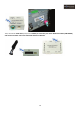
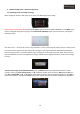
When starting the vehicle, it will appear on its screen, the OEM original menu image:
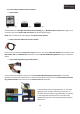
Don’t insert the SD Card map yet, Push briefly the NAV button of the steering wheel for 2 sec. to enter NAVI mode,
Screen’s image will change and it’s going to show NAVI mode (GPS Box) image, wait some seconds, until appears
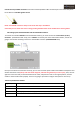
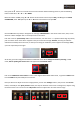
calibration image:
Push this cursor “+” on the touch screen, once pushed the + cursor, it will change its position, push it in every zone of
the screen where it appears until you receive “OK” message, at this way you will have calibrated successfully the
touch screen gps function, if it doesn’t appears “OK” message, you must repeat this process again. Once you have
done the calibration process it will appear this message “Unable to find navigation software”, push on this message
to omit it.
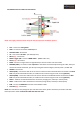
Then you must config. the multimedia interface, push the Menu button of the multimedia interface’s remote
control to enter to the basic settings menu, use ▲ or ▼of the remote control to move to OSD and push OK, now
push OK on LANGUAGE, use ▲ or ▼ buttons of the remote control to select the English language, and push OK to
confirm your selection, then push the Menu button of the remote control until the basic settings menu disappears.