
Specifications



17
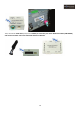
Connect the 12 pin White connector to the Voice module Quadlock cable connection port and connect the yellow
loose cable to a +12V ACC ignition source.
NOTE: The POWER connection always must be the last step in installation.
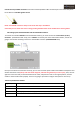
Check that you can switch the screen’s image pushing the NAV button of the multifunction steering wheel.
2.8. Linking up the interface GPS Box and the multimedia interface:
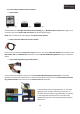
To connect the interface GPS Box to the multimedia interface, you must connect the “Touch cable” (4-wire)
connector - (TOUCH OUT cable *1ea), to the “TOUCH” connection port of the multimedia interface, now we are
going to connect the remaining connector to the GPS Box connector (TOUCH SCREEN cable).
Once you have done all connections correctly, you can connect all the power cables of the different component and
devices that will be used (always with the vehicle stopped, and with the ignition key out of its port), then, connect
again the connectors that you had removed from the radio, and place the radio on its original position, start the
vehicle to check if radio works properly. Then we are going to proceed to configure the system for its tune up.
Technical specifications GPS Box:
Navigation Maps SD Card (it supports SDHC, max.16GB)
OS WINCE 6.0 CORE
Audio Formats MP3/PCM/WMA
Video Formats mp4, mpeg, mpg, asf, wmv, mov, avi, 3gp, 3g2, wm, divx, mkv, ogm, wvx, mpv
USB 16GB