
Specifications





9 ATTO Technology Inc. ATTO ExpressSAS Host Adapter Installation and Operation Manual
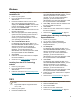
Linux
Note
ExpressSAS adapters are not supported
under Linux kernel 2.4.
1 Power on your system.
2 Log in as root.
3 Verify that the kernel header files, usually
included with the Linux kernel development
package, are installed.
4 Insert the Installation CD.
5 Mount the CD to your chosen mount point such
as /mnt/cdrom.
6 Open your File Browser and browse to
/mnt/cdrom/Linux/Drivers.
7 Click on the driver:
• for the ExpressSAS adapters, the driver
filename appears as
lnx_drv_esashba_XXX.tgz where XXX is
the driver’s current version number.
• for ExpressSAS RAID adapters, the driver
filename appears as
lnx_drv_esasraid_XXX.tgz where XXX is
the driver’s current version number.
8 Copy the driver file to a directory such as
/usr/src.
9 Open a Terminal session.
10 Change to the directory where you stored the
driver.
11 Extract the driver source:
• for ExpressSAS adapters: tar xfz
lnx_drv_esashba_XXX.tgz.
• for ExpressSAS RAID adapters: tar xfz
lnx_drv_esasraid_XXX.tgz.
12 The driver files are extracted to a directory
called lnx_drv_esashba_XXX or
lnx_drv_esasraid_XXX.
Navigate to that directory.
13 Compile and install the driver using ./install.sh.
The driver is now installed and ready to use.
14 Add the following line to /etc/modprobe.conf
after installing the driver:
• for ExpressSAS adapters: alias
scsi_hostadapterX esashba where X is the
next available adapter number.
• for ExpressSAS RAID adapters: alias
scsi_hostadapterX esasraid where X is
the next available adapter number.
15 Continue on to Install Hardware
on page 15.
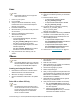
VMware
Note
ATTO ESAS VMware drivers are supported
with ATTO ESAS Host Bus Adapters and do
not apply to ATTO ESAS RAID adapters.
Creating and using the Driver CD.
1 Download the correct driver .iso file from the
VMware Drivers & Tools Download site.
2 Write the .iso image to a CD-ROM..
3 Use the CD-ROM as a Boot CD or an Update
CD.
Driver CD as a Boot CD Only
Note
The following procedure describes how to
use the driver CD as a boot CD. Use this CD
as a boot CD only if the new driver must
enable the target device on which ESX
Server 3.5 will be installed.
1 Place the driver CD in the CD-ROM drive of the
host machine.
2 Start the host machine.
3 When prompted for an upgrade or installation,
press Enter for graphical mode.
4 Choose the language you prefer.
5 Select a keyboard type.
6 After you are prompted to swap the driver CD
with the ESX Server installation CD, insert the
ESX Server 3.5 installation CD and continue
with ESX Server installation.
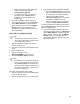
7 After ESX Server is installed and the system
reboots, log in to ESX Server.
8 Verify that the driver is installed successfully:
a. Run the esxupdate query command. A
message containing the information about
the driver appears.
b. View the PCI ID XML file in the
/etc/vmware/pciid/ directory. The driver
information is available in the file.