
Diamond Storage Array Installation, Operations, Maintenance Manual

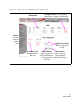
Table Of Contents
- Preface
- 1.0 Diamond Storage Array Product Overview
- 2.0 Diamond Storage Array Technical Overview
- 3.0 Installation Instructions
- 3.2 Physical Set Up
- 4.0 Determining Drive and Sled Designations
- 5.0 Accessing the Array
- Command Line Interface
- ATTO ExpressNAV
- In-band SCSI over Fibre Channel
- RS-232 port
- Ethernet port
- SNMP
- I/O details
- Browser compatibility
- Opening an ExpressNAV session
- Navigating ExpressNAV
- Exhibit 5.4-1 Atypical page in the ATTO ExpressNAV configuration tool.
- Status
- Ethernet
- SNMP
- Serial Port
- Fibre Channel
- Storage Management
- RAID
- Clear Data
- Logical Units
- Rebuild
- Configuration
- Advanced
- Restart
- Help
- FirmwareRestart
- Help
- RestoreConfiguration
- SaveConfiguration
- SystemSN
- VerboseMode
- EthernetSpeed
- FTPPassword
- IPAddress
- IPDHCP
- IPGateway
- IPSubnetMask
- SNMPTrapAddress
- SNMPTraps
- SNMPUpdates
- TelnetPassword
- TelnetTimeout
- TelnetUsername
- FcConnMode
- FcDataRate
- FcFairArb
- FcFrameLength
- FcFullDuplex
- FcHard
- FcHardAddress
- FcNodeName
- FcPortInfo
- FcPortList
- FcPortName
- FcWWName
- SerialPortBaudRate
- SerialPortEcho
- SerialPortHandshake
- SerialPortStopBits
- AudibleAlarm
- DiamondModel
- DiamondName
- DriveCopyStatus
- DriveInfo
- FcNodeName
- FcPortList
- FcPortName
- Help
- IdentifyDiamond
- Info
- LUNInfo
- SerialNumber
- SledFaultLED
- SMARTData
- Temperature
- VirtualDriveInfo
- FcScsiBusyStatus
- FirmwareRestart
- MaxEnclTempAlrm
- MinEnclTempAlrm
- Temperature
- Zmodem
- ATADiskState
- AutoRebuild
- ClearDiskReservedAreaData
- DriveCopy
- DriveCopyHalt
- DriveCopyResume
- DriveCopyStatus
- DriveInfo
- DriveSledPower
- DriveWipe
- IdeTransferRate
- LUNInfo
- LUNState
- QuickRAID0
- QuickRAID1
- QuickRAID5
- QuickRAID10
- RAID5ClearData
- RAID5ClearDataStatus
- RAIDInterleave
- RAIDHaltRebuild
- RAIDManualRebuild
- RAIDRebuildState
- RAIDRebuildStatus
- RAIDResumeRebuild
- RebuildPriority
- ResolveLUNConflicts
- RestoreModePages
- SledFaultLED
- VirtualDriveInfo
- 6.0 Configuring Drives
- JBOD (Just a Bunch of Disks)
- RAID Level 0
- RAID Level 1
- RAID Level 10
- RAID Level 5
- Interleave
- Hot Spare sleds
- Enhancing performance
- Sled-based versus disk-based
- Exhibit 6.2-1 Sled-based QuickRAID0 stripe groups with LUN designations in a fully populated Array set up as QuickRAID0 6 sled. If sled 6 were to be withdrawn from the array, LUN 3 (grayed boxes) would be unavailable.
- Exhibit 6.2-2 Drive-based QuickRAID0 stripe groups with LUN designations in a fully populated Array set up as QuickRAID0 6 Drive. If sled 6 were to be withdrawn from the array, LUNs 2 and 5 would be unavailable.
- Exhibit 6.2-3 Configurations of a fully populated Diamond Storage Array in RAID Level 0.
- Exhibit 6.3-1 Drive sleds, LUNs and mirror partners in a RAID Level 1 configuration.
- Hot Spare sleds
- Configuring a fully-populated array
- Configuring a partially-populated array
- Removing RAID groups
- Hot Spare sleds
- 7.0 Hardware Maintenance
- 8.0 Copying Drives
- 9.0 Updating Firmware
- 10.0 System Monitoring and Reporting
- RS-232 monitoring port and CLI
- Ethernet monitoring port and CLI
- Power On Self Test (POST)
- Ready LED
- Audible alarm
- Thermal monitoring
- Power supply monitoring
- System fault LED and error codes
- Disk drive activity and disk fault LEDs
- Windows 2000 special instructions
- Error messages
- Specific situations and suggestions
- Default
- Factory Default
- Appendix A ATA Disk Technology
- Appendix B Information Commands Results
- Appendix C Product Safety
- Appendix D Specifications
- Appendix E Warranty

25
ATTO Technology Inc. Diamond Storage Array Installation and Operation Manual
5.4 ATTO ExpressNAV: Browser-based Interface
The easiest way to communicate with the Diamond Storage Array is to use ATTO ExpressNAV, a user-
friendly GUI interface accessed through a browser to control the most common capabilities of the array.
Access ATTO ExpressNAV from any browser
that supports the latest standards for XHTML 1.0
and CSS1. To take full advantage of the
ExpressNAV interface you should have Java
script enabled through your browser.
Browser compatibility
All pages are written in pure XHTML 1.0 and
CSS1 to be compatible with the latest versions of
Internet Explorer, Netscape, Mozilla (including
K-Meleon, Camino, Mozilla Firefox, Epiphany
and Galeon), and KHTML (including Konqueror
and Safari).
Minimum requirement is for Internet Explorer 5.5
and Netscape 6.2.
To optimize ExpressNAV in Internet Explorer
1 Go to the browser toolbar and click on Tools
2Click on Internet Options
3 Click on the Security tab
4 Click on the Custom Level button.
5Click on Microsoft VM, Java permissions
6 Ensure Disable Java is not selected.
7 Click on the Miscellaneous tab.
8Click on Metarefresh
Opening an ExpressNAV session
1 Obtain the IP address of the array.
2 Type the IP address of the array into the
browser address window.
3 The ExpressNAV interface splash screen is
displayed. Click on Enter.
4 Enter the username and password set
previously in
ATTO ExpressNAV: Browser-based
Interface
on page 25.
•
The
default username is Diamond
• The default password is Password
5 The product faceplate display appears. Click
the component you want to manage on the left-
hand side menu or go to the Advanced screen
to use the CLI.
Navigating ExpressNAV
All pages are accessible by clicking on their titles
on the left side of the page. You may also go back
one page or go to the
Home
page via the titles on
the left side of the page.
Clicking on any of the red option names will bring
up a help window. After making changes on a
page, click the
Submit
button at the bottom.
Clicking this button is equivalent to typing in all
the CLI commands and then the command
saveconfiguration norestart.