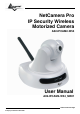
NetCamera Pro IP Security Wireless Motorized Camera A02-IPCAM2-W54 User Manual A02-IPCAM2-W54_ME01 Where solutions begin Company certified ISO 9001:2000
IP Wireless Security Motorized Camera
IP Wireless Security Motorized Camera Copyright The Atlantis Land logo is a registered trademark of Atlantis Land SpA. All other names mentioned mat be trademarks or registered trademarks of their respective owners. Subject to change without notice. No liability for technical errors and/or omissions. CE Mark Warning This is a Class B product. In a domestic environment, this product may cause radio interference, in which case the user may be required to take adequate measures.
IP Wireless Security Motorized Camera TABLE OF CONTENTS CHAPTER 1...................................................................................................................................................................... 1 1.1 INTRODUCTION ........................................................................................................................................................ 1 CHAPTER 2................................................................................................
IP Wireless Security Motorized Camera 8.2.7 Help ............................................................................................................................................................ 35 CHAPTER 9.................................................................................................................................................................... 36 9.1 APPLICATIONS .............................................................................................................
IP Wireless Security Motorized Camera A02-IPCAM2-W54_ME01 3
IP Wireless Security Motorized Camera A02-IPCAM2-W54_ME01 4
IP Wireless Security Motorized Camera Chapter 1 Introduction 1.1 Introduction Thank you for purchasing the MPEG-4 (Wireless) Pan/Tilt Internet Camera, a standalone system that can be connected directly to an Ethernet or Fast Ethernet, and also supported by the wireless transmission based on the IEEE 802.11g standard.
IP Wireless Security Motorized Camera Chapter 2 System Requirement 2.1 Network: Local Area Network: 10Base-T Ethernet or 100Base TX Fast Ethernet Wireless Local Area Network: IEEE 802.11b/g Wireless LAN Recommended PC or Notebook to Access the IP Wireless Security Motorized Camera 2.2 Web Browser: System requirement: • CPU: Intel Celeron 1.5GHz or above (Intel Pentium 4 is preferred) • Memory Size: 128 MB (256 MB recommended) • VGA card resolution: 800x600 or above • Internet Explorer 5.
IP Wireless Security Motorized Camera Chapter 3 Features and Benefits This section describes the features and benefits of the IP Wireless Security Motorized Camera. 3.1 Simple To Use The MPEG-4 (Wireless) Pan/Tilt Internet Camera is a standalone system with built-in CPU, no special hardware (such as a PC frame capture card) or software required. The camera supports DirectX 9.0; therefore, the only requirement you need is the web browser software such as Internet Explorer 5.0 or above.
IP Wireless Security Motorized Camera and public monitoring. The camera can also be used for intruder detection; in addition, it can capture still images for archiving and many more applications.
IP Wireless Security Motorized Camera Chapter 4 Physical Description This section describes the externally visible features of the IP Wireless Security Motorized Camera. 4.1 Front Panel LED 1 Power 2 Link 3 Mic Meaning The Power LED is positioned on the right side of the two LEDs. A steady light confirms that the camera is powered on The Link LED is positioned on the left side of the two LEDs. A steady light confirms that the camera has good connection to LAN connectivity.
IP Wireless Security Motorized Camera 4.2 Rear Panel Port Meaning The Wireless Internet Camera’s rear panel features an RJ-45 connector for connections to 10Base-T Ethernet cabling or 100Base-TX Fast Ethernet cabling. The port supports the N-Way protocol and “AutoMDIX” function, allowing the camera to automatically detect or negotiate the transmission speed of the network.
IP Wireless Security Motorized Camera • • • • 4 POWER (jack) A02-IPCAM2-W54_ME01 IP address: 192.168.1.2 Administrator’s login name: admin Password: admin Wireless status (for wireless model): disabled The DC power input connector is located on the camera’s rear panel, and is labeled DC5V 2.5A with a single jack socket to supply power to the camera. Power will be generated when the power supply is connected to a wall outlet.
IP Wireless Security Motorized Camera Chapter 5 Unpacking The IP Wireless Security Motorized Camera 5.1 Package Contents Carefully remove all items from the package.
IP Wireless Security Motorized Camera Chapter 6 Hardware Installation This section describes the Hardware installation procedure for the IP Wireless Security Motorized Camera. 6.1 Attach Wireless Antenna From the rear panel of the IP Wireless Security Motorized Camera , screw the external Antenna that came with the IP Wireless Security Motorized Camera into the antenna connector. 6.
IP Wireless Security Motorized Camera 6.3 Attaching the Metal Clip To attach the metal clip, remove the two rubber pads under the base of the camera firstly. Place the metal clip onto the camera base, and align the two holes of metal clip with two screw holes on the camera base. Then, secure the metal clip with two screws (provided in the package). There are two ears on each side of the metal clip, allowing the camera to be mounted on the ceiling or wall using two wall screws (provided in the package).
IP Wireless Security Motorized Camera Chapter 7 Security To ensure the highest security and prevent unauthorized usage of the IP Wireless Security Motorized Camera the Administrator has the exclusive privilege to access the System Administration for settings and control requirements to allow users the level of entry and authorize the privileges for all users.
IP Wireless Security Motorized Camera Chapter 8 Using the Camera You can access and manage the camera through your web browser. This chapter describes the Web Configuration Utility, and provides the instructions on using the camera with a web browser. 8.1 Default Setting Before you configurethe NetCamera Pro, you need to know the following default settings: • Password: admin • Userneme: admin • IP address : 192.168.1.2 • Wireless : disabled 8.
IP Wireless Security Motorized Camera Enter the default IP Address in the Address bar Enter the default username and password When the login page appears, type admin in the Name and Password box, and then click Login. “admin” is the default username and password of the camera, and can be changed in the Web Configuration Utility. The computer’s IP address must correspond with the camera’s IP address in the same segment for the two devices to communicate.
IP Wireless Security Motorized Camera Menu Bar Video Show Area Control Buttons After login, the Home window of the Configuration Utility will appear as below, which includes three areas: Menu Bar, Video Show Area, and Control Buttons. • Menu Bar – in the top of the window, containing six items that allow you to setup the camera. • Video Show Area – allows you to view the image from the camera. You can adjust the viewing angle by using the Slider bars.
IP Wireless Security Motorized Camera 8.2.1 Controlling and Viewing Video In the Home window, you can control the camera through the control buttons on the right side of the window. The real-time image from the camera will be displayed in the Video Show Area. Zoom On / Zoom Off When you select ON, move your mouse to the Video Show Area, and the cursor will change to the icon. Then, you can zoom in/out the image by clicking the left/right button on your mouse.
IP Wireless Security Motorized Camera 8.2.3 Basic Setup The Basic menu contains three steps that will guide you through the basic configuration for the camera. Click Basic in the top menu bar to start the step-by-step configuration. Basic J Network The first step is to configure networking settings of the camera. According to your ISP’s service, select one from the three connection types: LAN, PPPoE, and DDNS.
IP Wireless Security Motorized Camera When completed, click Next to continue. Basic J Camera Name The second step is to setup a descriptive name for the camera. When completed, click Next to continue. Basic J Time Zone This step displays the current time setting of the camera. For system management purpose, a correct time setting is critical to have accurate time stamps on the system logs.
IP Wireless Security Motorized Camera If you setup these steps using incorrect networking settings, it will pop up a warning message on the screen. Click OK to modify these settings or Cancel to reserve the currently settings. Basic J Report The last step provides some tips when you have Internet access problems. Click Start to complete your basic network configuration. When completed, you are brought to the Home window.
IP Wireless Security Motorized Camera 8.2.4 Advanced Setup The camera will function fine after the Basic configuration, however, you may wish to explore more advanced options. This section explains each parameter and setting procedures for advanced configuration of the camera. Move your mouse onto the Advanced button, and it will automatically pop up a submenu bar as below. The submenu bar provides six submenu buttons: Video, Network, Wireless (for wireless model), Tools, Account, and Timezone.
IP Wireless Security Motorized Camera • Bit Rate: You can setup bit rate of the image by selecting Kbps or Mbps. The setting range is 4Kbps~3Mbps. The higher setting can obtain better quality; however, it will use more resource within your network. • Camera Name: You can change the name of the camera. - Light Frequency: Adjust the light frequency to suit your area of operation from the options either 50 Hz or 60 Hz (default).
IP Wireless Security Motorized Camera - Motion: Check this option to enable motion detection function of your camera. Once enabled, you can setup the detecting region by giving a name for respective Zone# (#: 1/2/3). Then, build the Zone window(s) using your mouse to setup the detecting area(s). In addition, move the slide bars to adjust the Sensitivity level and Percentage level for detecting motion to record video or to send e-mail.
IP Wireless Security Motorized Camera Advanced J Network The Network submenu contains three options: LAN, PPPoE and DDNS. The settings in these three options are the same as in the Network under Basic configuration. (The settings here are the same as the configuration made in Basic menu.) LAN Click the LAN item of the Network submenu to bring up the following page.
IP Wireless Security Motorized Camera DDNS Click the DDNS item of the Network submenu to bring up the following page. The camera supports Dynamic DNS (DDNS) feature, which allows you to assign a fixed host and domain name to a dynamic Internet IP address. Select Yes to enable this function, and then fill in the required data in the User Name, Password and Domain Name fields. Please note that you have to sign up for DDNS service with service providers before using this function.
IP Wireless Security Motorized Camera Advanced J Wireless If you use a wireless camera, you can configure the respective settings in the Wireless submenu, which contains two options: Setting and Site Survey. Setting Click the Setting item of the Wireless submenu to bring up the following page. - Wireless: The default setting is Disable. Select Enable/Disable to start/stop the wireless function of the camera. - Connection Mode: Use this option to determine the type of wireless communication for the camera.
IP Wireless Security Motorized Camera - Pre-Shared Key: This is used to identify each other in the network. Enter the name in the PreShared Key box, and this name must match the Pre-Shared Key value in the remote device. ASCII input format: ASCII format causes each character you type to be interpreted as an eightbit value. All unaccented upper-and lower-case Western European characters that can beinput through your keyboard's typing zone are valid. To setup a 64-bit WEP key, input 5 ASCII characters.
IP Wireless Security Motorized Camera Advanced J Tools The Tools submenu contains three options: Recording, Port and Mail. Recording Click the Recording item of the Tools submenu to bring up the following page, which allows you to setup the record function of the camera. - Upload image to Network share folder: Enable this function by checking the item, and then configure the following settings in this field.
IP Wireless Security Motorized Camera Smart Recording: Allows you to upload the recorded image only, and skip the empty files. To select this mode, you have to enable and configure the Motion Detection option first. Port Click the Port item of the Tools submenu to bring up the following page, which allows you to setup the ports used to transmit the camera’s data. - Enable UPnP Control Point: Setup the Web port to transmit the camera’s image data. The default setting is port 80.
IP Wireless Security Motorized Camera When you select By E-mail, the system will enable the alert function that notifies you the events of IP Change or Motion Detection by sending an e-mail. If you select None, the system will do nothing. - By E-mail: Configure the following settings. This field contains the six basic settings for your email server. • SMTP Login Name: Enter the user name in this field to login receiver’s e-mail server.
IP Wireless Security Motorized Camera Advanced J Account The Account submenu contains the options that allow you to add/delete users. Also, you can manage the users of the camera. - User Name: Enter the user name in this field. - Password: Enter the user password in this field. - Retype Password: Enter the user password again to confirm the password. When completed, click Apply to activate the user’s account. The following User List displays the existing users of the camera.
IP Wireless Security Motorized Camera Advanced J Timezone The Timezone submenu displays the current time setting of the camera. For system management purpose, a correct time setting is critical to have accurate time stamps on the system logs. - Method: Allow you to setup the correct time by getting time from the computer or time server (need an Internet connection). - Time Zone: Select a time zone according to your location.
IP Wireless Security Motorized Camera 8.2.5 Maintenance The Maintenance menu contains two submenus: Configuration and Firmware Upload. Move your mouse onto the Maintenance button, and it will automatically pop up a submenu bar as below. Maintenance J Configuration The Configuration submenu contains four options: Idle Time, Reset Default, Reboot and Status. Idle Time Click the Idle Time item of the Configuration submenu to bring up the following page, which allows you to setup the idle time of the camera.
IP Wireless Security Motorized Camera Reset Default Click the Reset Default item of the Configuration submenu to bring up the following page, which allows you to load the default settings of the camera. Clicking Reset allows you to resume the factory default settings of the camera. This function is the same as pressing the Reset button on the camera. Reboot Click the Reboot item of the Configuration submenu to bring up the following page, which allows you to restart the camera.
IP Wireless Security Motorized Camera Status Click the Status item of the Configuration submenu to bring up the following page, which displays the current configuration of the camera. The Status option contains information of the camera, including its basic status and the networking status. Maintenance J Firmware Upload The Firmware Upload submenu allows you to update the firmware of the camera once you obtained a latest version of firmware.
IP Wireless Security Motorized Camera Click Browse to point to the firmware file saved in your computer, and then click Upload. The system start to upgrade the firmware, and it will ask you to restart the camera. Click Restart when prompted. It will take a few minutes to update firmware. Please wait to complete the procedure; you can then reboot the camera.
IP Wireless Security Motorized Camera 8.2.6 Logout Click the LOGOUT button to exit the Web Configuration Utility, and it will return to the login screen of the utility. 8.2.7 Help Click the HELP button to bring up a window, providing you with the general help information to control the camera.
IP Wireless Security Motorized Camera Chapter 9 IP Wireless Security Motorized Camera Application The IP Wireless Security Motorized Camera can be applied in wide variety of applications. With the built-in CPU, it can work as a standalone system that provides a web-based solution transmitting high quality video images and sounds for monitoring purposes. It can be managed remotely, accessed and controlled from any PC desktop over the Intranet or Internet via a web browser.
IP Wireless Security Motorized Camera 9.2 IP Wireless Security Application Diagrams Motorized Camera 9.2.1 Home Applications: SOHO Internet Camera SOHO Wireless Internet Camera 9.2.
IP Wireless Security Motorized Camera Chapter 10 IPView Pro Application 10.1 Installation Insert the CD-ROM into the CD-ROM drive to initiate the auto-run program. Once completed, a menu screen will appear as below: To install the IPView Pro application click the "IPView Pro" button to activate the installation procedure for the application program.
IP Wireless Security Motorized Camera Once executed, you will be asked to select the desired language. Select the language you want and click “OK” to continue. The Welcome screen will appear as below. Click the “Next” button. The License Agreement window will appear as below. Read the details carefully and click the “Yes” button. In the following window, you may click “Next” to accept the recommended destination location or click “Browse” to select another location.
IP Wireless Security Motorized Camera The following window allows you to select the folder where the IPView Pro application will be located, click “Next” to continue. Please wait until one of the following two dialog boxes to appear. When the Digital Signature warning screen appears, click Continue Anyway. If the system has to restart, select “Yes, I want to restart my computer now” and click the “Finish” button to complete the installation procedure.
IP Wireless Security Motorized Camera After successfully installing the IPView Pro, the application program for the IP Wireless Security Motorized Camera is automatically installed to \Programs\Files directory. To start running the IPView Pro, click Start -> Programs -> IPView Pro -> IPView Pro.
IP Wireless Security Motorized Camera Chapter 11 Getting Started This section describes the operation of the IPView Pro application with detailed procedures for using the application. 11.1 IPView Pro IPView Pro is responsible for the management of preview, configuration, and searching of each camera. It is designed with a user-friendly interface for ease of control and navigation requirements as illustrated below.
IP Wireless Security Motorized Camera IPView Pro requires the system’s resolution setting up to 1024x768. Please configure the resolution to 1024x768 or higher; otherwise, it may shows incomplete screen when launching the program. Item Feature NO. X Y Item Date/Time Description Show current date/time. Status Mode Window Show the camera’s status in this window.
IP Wireless Security Motorized Camera ^ Pan/Tilt Control Panel When the camera is added, the Pan/Tilt control buttons will appear on the panel, as shown below: / / / / / / / : Click these buttons to adjust the camera’s viewing angle to Up/ Down/Left/Right/Left-Up/Left-Down/RightUp/Right-Down. : Once you have saved two (or more) positions in the camera, click the Swing button to control the camera swinging from one position to another position.
IP Wireless Security Motorized Camera 11.1.1 Using IPView Pro Adding a Camera To add a camera: 1. Click the Configuration button to enter the System Configuration. If you are not sure of the camera’s IP address, you can click Search to search the available camera(s) within the network. 2. Select the camera you want by highlighting it, and then click Add Camera. Enter the User Name and Password when prompted. 3. Click Save, and then click the Configuration button to return to View Window.
IP Wireless Security Motorized Camera Alternately, you can add a camera by entering its IP address: 4. Select the Input IP tab. 5. Enter the camera’s IP address (default: 192.168.1.2) and Port (default: 80), and then click Add Camera. 6. Click Save, and then click the Configure button to return to View Window. The selected camera’s video will be displayed now. Removing a Camera To remove the camera from the list: 1. Select the camera you want to remove. 2. Click Delete Camera.
IP Wireless Security Motorized Camera Playing Recorded Video The recorded video clips are saved in your computer, and can be played using Windows Media Player. To start playback, simply click the Play button on the panel, and the following dialog screen will appear, allowing you to select the file to playback. Select the recorded file in the computer, and then click OK. 11.1.
IP Wireless Security Motorized Camera You can configure these settings according to the description in Chapter 5, Using the Camera. Click Back to exit the Web Configuration Utility. Motion Configuration-1 The Motion Configuration-1 item provides the commands for motion detection control. configuring, you should select one camera from the pull-down menu. Before Select one camera. - Detect Region: When you select the Full picture option, the camera will monitor the whole area.
IP Wireless Security Motorized Camera Send e-mail: When this option is checked, click the Mailing Configuration in the left column to enter the required information (see the following section). - Play music: Selecting this option allows the system to play music. You can select a music file by clicking the Browse music file button, and set up the interval time in the following pull-down menu (1 to 20 seconds). Tools - The Tools item allows you to configure to the alarm and e-mail setting.
IP Wireless Security Motorized Camera - Mail Server: Enter the mail server address that is used to send your e-mail. - Mail From/To: Enter the sender’s/receiver’s e-mail address. - Subject: Enter the title of the e-mail. - User Name/Password: Enter the user name/password to login the mail server. - Interval Time: Enter a number in this box to setup the time (in second) to send E-mail regularly.
IP Wireless Security Motorized Camera • • Reserved HDD Space For MS-Windows OS – You can reserve 500 MB to 1000 MB hard disk space for the program. Each Recording File Size – If the recorded video files reach the file size limit, video images will be recorded into another file automatically. The available settings are from 10 MB to 50 MB. • - Storage List – The destination folder to save the recorded video file can be specified here.
IP Wireless Security Motorized Camera Log List This filed displays the user(s) information, which includes the Date, MAC address, and the brief description of events. Account This filed allows the system administrator to manage the account information. Password check to enable the system to check the password when login.
IP Wireless Security Motorized Camera About This filed provides information of the software application.
IP Wireless Security Motorized Camera Chapter 12 Setup Wizard 12.1 Wizard Setup The Setup Wizard is a convenient tool that will guide you through the installation of your camera easily and quickly. After connecting the camera to your computer, you can install the Setup Wizard and complete the configuration now. Insert the CD-ROM into the CD-ROM drive to initiate the auto-run program.
IP Wireless Security Motorized Camera Once executed, you will be asked to select the desired language. Select the language you want and click “OK” to continue. The Welcome screen will appear as below. Click the “Next” button. The License Agreement window will appear as below. Read the details carefully and click the “Yes” button. In the following window, you may click “Next” to accept the recommended destination location or click “Browse” to select another location.
IP Wireless Security Motorized Camera After successfully installing theWizard, the application program for the IP Wireless Security Motorized Camera is automatically installed to \Programs\Files directory. 12.2 How to use Wizard Setup To run the Setup Wizard, click Start -> Programs -> Setup Wizard. When you launch the Setup Wizard, the main window will appear as shown, and the connected camera will be displayed in the list.
IP Wireless Security Motorized Camera Click About to show the general information of the selected camera. Click Exit to close the Setup Wizard. Changing the Admin ID and Password By default settings, the Admin ID and Password are blank. For security purpose, you are recommended to change the Admin ID and Password immediately. Click Wizard. The dialog box as shown appears, asking you to enter the Admin ID and Password. Click OK.
IP Wireless Security Motorized Camera The Connection Mode depends on how your camera is connected to your network. Click Infrastructure for use with a router or Adhoc for peer-to- peer. The Network Name, Wireless Channel, and Encryption Key MUST correspond with your wireless network settings. This window displays the settings you set up. For any change, click Back to modify your settings. Otherwise, click Restart to save and apply the settings.
IP Wireless Security Motorized Camera Software Information Click About to show the general information of the selected camera. Click OK to return to the main window.
IP Wireless Security Motorized Camera Chapter 13 FFdshow & AVISavior This chapter describes FFdshow and AVISavior, which are provided in the Installation CD. FFdshow allows you to play the recorded video files on your computer. AVISavior allows you to fix the damaged recorded video files. 13.1 Installing FFdshow Step 1 Insert the CD-ROM into the CD-ROM drive to initiate the auto-run program.
IP Wireless Security Motorized Camera Step 3 Read and accept the License Agreement; then, click I Agree. Step 4 Choose the components to be installed. If no specific requirement, leave the default setting and click Next. Step 5 Choose the destination location. If no specific requirement, leave the default setting and click Install.
IP Wireless Security Motorized Camera Step 6 The InstallShield Wizard starts to install the software, and the progress bar indicates the installation is proceeding. When completed, click Next. Then, click Finish. 13.2 Configuration of FFdshow Before playing the recorded video file, you have to change the following settings in FFdshow: - Enable the Subtitles function. - Set the Error resilience option to none. 1. Click Start > Programs > ffdshow > Configuration to open the ffdshow properties window. 2.
IP Wireless Security Motorized Camera Check this item. Set this option to none. 13.3 Playing the Video Since you have recorded video files from the camera, you can play the video files simply using Windows Media Player in your computer. 1. Find the video file saved in the computer. 2. Double-click the file, and it will open Windows Media Player (as default in Microsoft Windows) to play the video file.
IP Wireless Security Motorized Camera 13.4 Fixing the Video File If, unfortunately, the recorded video restored in your computer is damaged, you can try to fix it using AVISavior. To launch the utility, insert the CD-ROM into the CD-ROM drive to initiate the auto-run program. The menu screen will appear as below: Click the AVISavior item, and the following window will appear on the screen.
IP Wireless Security Motorized Camera Appendix A Frequently Asked Questions Question Answer What is an IP Wireless The IP Wireless Security Motorized Camera is a standalone Security Motorized system connecting directly to an Ethernet or Fast Ethernet Camera? network and supported by the wireless transmission based on the IEEE 802.11b standard.
IP Wireless Security Motorized Camera Question Answer What is the wireless transmission range for the IP Wireless Security Motorized Camera? Generally the wireless distance can go up to 100 meters indoors and up to 300 meters outdoors. The range is limited by the number of walls, ceilings, or other objects that the wireless signals must pass through.
IP Wireless Security Motorized Camera Appendix B Trouble Shooting Question Answer I cannot access the IP Wireless Security Motorized Camera from a web browser. The possible cause might be the IP Address for the IP Wireless Security Motorized Camera is already being used by another device. To correct the possible problem, you need to first disconnect the IP Wireless Security Motorized Camera from the network. Then run the PING utility.
IP Wireless Security Motorized Camera Question Answer I cannot access the IP Wireless Security Motorized Camera from a web browser. Another possible reason is the IP Address is located on a different subnet. To fix the problem, run the PING utility (follow the instructions in Appendix B - PING Your IP Address).
IP Wireless Security Motorized Camera Question Why does the Link LED not light up properly? Question Why does the IP Wireless Security Motorized Camera work locally but not externally? Answer • There might be a problem with the network cable. To confirm that the cables are working, PING the address of a know device on the network. If the cabling is OK and your network is reachable, you should receive a reply similar to the following (…bytes = 32 time = 2 ms).
IP Wireless Security Motorized Camera Question There is bad focus on the IP Wireless Security Motorized Camera, what should be done? Question Noisy images occur how can I solve the problem? Answer • The focus might not be correctly adjusted for the line of sight. You need to adjust the IP Wireless Security Motorized Camera focus manually as described in Adjust IP Wireless Security Motorized Camera Focus. • There is no adaptor fitted with your C-type lens.
IP Wireless Security Motorized Camera Question Noisy images occur how can I solve the problem? Answer • • Question The video images might be noisy if the IP Wireless Security Motorized Camera is used is a very low light environment. To solve this issue you need more lighting. There might be wireless transmission interference make sure there are no other wireless devices on the network that will affect the wireless transmission. Answer There are no images The ActiveX might be disabled.
IP Wireless Security Motorized Camera Appendix C Xplug Control Installation Installation To Web Server It is highly recommended to install the Xplug Control application to the Web Server for IE 5.0. It must be installed to a Public Domain with Fixed IP address. 1. Installation: Copy the “xplug.ocx” file to any WEB Server table. 2. Setting (Configuration): From the Web Configuration menu select “System” and under the “Loading ActiveX From” input web server location (http://www.web server location.com/).
IP Wireless Security Motorized Camera The License Agreement prompt will appear as below. Read the details carefully and click the “Yes” button to continue with the installation procedure. Click the “Finish” button to complete Setup of the Xplug Control Utility program for the IP Wireless Security Motorized Camera.
IP Wireless Security Motorized Camera Appendix D Adjust IP Wireless Security Motorized Camera Focus To adjust the focus of the lens, you need to turn the lens slowly in either clockwise or anti-clockwise direction until the desired image appears. DO NOT over turn the lens in either of the directions as it will be out of focus. You can further adjust the IP Wireless Security Motorized Camera's image quality through System Administration – Image of Web Configuration.
IP Wireless Security Motorized Camera Appendix E Glossary of Terms NUMBERS 10BASE-T 10BASE-T is Ethernet over UTP Category III,IV, or V unshielded twisted-pair media. 100BASE-TX The two-pair twisted-media implementation of 100BASE-T is called 100BASETX. 802.11g An IEEE standard for wireless local area networks. It offers transmissions speeds at up to 54 Mbps in the 2.4-GHz band. A Access point It is the hardware interface between a wireless LAN and a wired LAN.
IP Wireless Security Motorized Camera messages to each other over media. They represent the sender and receivers. The data they send is the message. The cabling or transmission method they use is the medium. Connection In networking, two devices establish a connection to communicate with each other. D DHCP Dynamic Host Configuration Protocol was developed by Microsoft a protocol for assigning dynamic IP addresses to devices on a network.
IP Wireless Security Motorized Camera the intranet pass through the firewall, which examines each message and blocks those that do not meet the specified security criteria. G Gateway A gateway links computers that use different data formats together. Group Groups consist of several user machines that have similar characteristics such as being in the same department.
IP Wireless Security Motorized Camera J JAVA Java is a programming language that is specially designed for writing programs that can be safely downloaded to your computer through the Internet without the fear of viruses. It is an object-oriented multi-thread programming best for creating applets and applications for the Internet, Intranet and other complex, distributed network. L LAN Local Area Network a computer network that spans a relatively small area sharing common resources.
IP Wireless Security Motorized Camera formatting and presenting and presenting data that will be transferred from file server memory to the file server’s net work adapter Others are responsible for filtering information between networks and forwarding data to its destination. Still other protocols dictate how data is transferred across the medium, and how servers respond to workstation requests and vice versa.
IP Wireless Security Motorized Camera U UDP The User Datagram Protocol is a connectionless protocol that resides above IP in the TCP/IP suite ULP The upper-layer protocol refers to Application Layer protocols such as FTP,SNMP, and SMTP. User Name The USERNAME is the unique name assigned to each person who has access to the LAN. Utility It is a program that performs a specific task. UTP Unshielded twisted-pair. UTP is a form of cable used by all access methods.
IP Wireless Security Motorized Camera Appendix F Specification Video specification: Resolution: 640 x 480 pixel Sensor: color CMOS sensor Gain control: Automatic Exposure: Automatic White Balance: Automatic Minimum Illuminatiom: 0.5 LUX Focal Length: 6.0 mm Aperture: F=1.
IP Wireless Security Motorized Camera Communication Support Communication: 10/100Mbps Ethernet and 802.11g wireless LAN. Encryption: WAP-PSK, WEP 128 bit, WEP 64 bit or OFF Communication protocol: HTTP, TCP/IP, UDP, ARP, ICMP,DHCP, PPPoE, DDNS, UPnP, UPnP AV, NetBIOS over TCP/IP System CPU: Infineon-ADMtek 5120 RAM: 32M Byte Flash ROM: 4M Byte OS: Linux Browser Support System requirement: CPU: Celeron 1.
IP Wireless Security Motorized Camera APPENDIX G Support If you have any problems with the IP Wireless Security Motorized Camera, please consult this manual. If you have any other questions you can contact the Atlantis Land company directly at the following address: Atlantis Land SpA Viale De Gasperi, 122 20017 Mazzo di Rho(MI) Tel: +39. 02.93906085, +39. 02.93907634(help desk) Fax: +39. 02.93906161 Email: info@atlantis-land.com or tecnici@atlantis-land.com WWW: http://www.atlantis-land.