
Switch User Manual
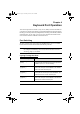
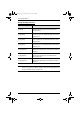
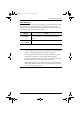



Table Of Contents
- CS1782 User Manual
- Package Contents
- Introduction
- Hardware Setup
- Basic Operation
- Keyboard Port Operation
- Port Switching
- Hotkey Setting Mode
- Invoking HSM
- Alternate HSM Invocation Keys
- Alternate Port Switching Keys
- Keyboard Operating Platform
- List Hotkey Settings
- USB Reset
- Hotkey Beeper Control
- Disable Port Switching Keys
- Firmware Upgrade Mode
- Restore Default Settings
- Display Emulation Technology
- Alternative Manual Port Selection Settings
- Mouse Emulation Control
- Other OS Mode
- HSM Summary Table
- Keyboard Emulation
- The Firmware Upgrade Utility
- Appendix
CS1782 User Manual
18
Keyboard Operating Platform
The CS1782’s default port configuration is for a PC compatible keyboard
operating platform. If your console uses a PC compatible keyboard and you
have a Mac or Sun attached to a port, for example, you can change the port’s
keyboard operating platform configuration so that the PC compatible keyboard
emulates the Mac or Sun keyboard. The procedure is as follows:
1. Bring the KVM focus to the port you want to set.
2. Invoke HSM (see page 14).
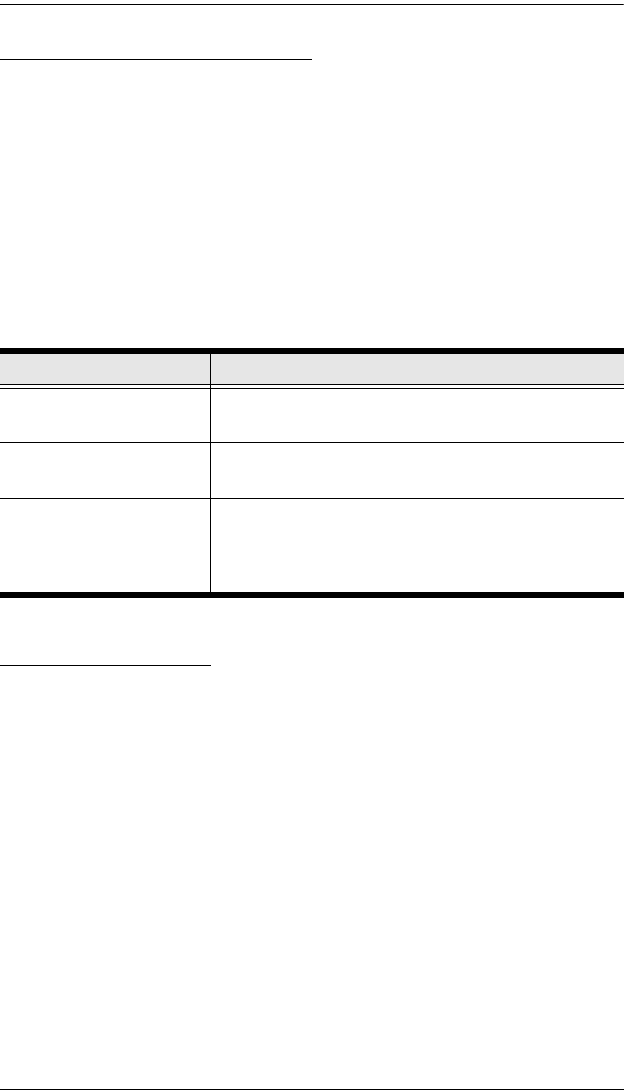
3. Press and release the appropriate Function key (see table below). After
completing this procedure, you automatically exit HSM.
List Hotkey Settings
To see a listing of the current hotkey settings, do the following:
1. Invoke HSM (see page 14).
2. Press and release [F4].
3. Open a text editor or word processor and use its Paste function to display
the settings.
Function Key Operation
[F2] Enables Mac keyboard emulation, see Mac Keyboard
Emulation, page 27, for details.
[F3] Enables Sun keyboard emulation, see Sun Keyboard
Emulation, page 28, details.
[F10] Auto detects the keyboard operating platform (for PC
compatible systems). Activates Pass Through keyboard
mode (keystrokes are sent directly to the computer
instead of through the Mac or Sun emulator).
cs1782.book Page 18 Thursday, June 12, 2008 2:28 PM