
How-To Guide

- 1 -
How to pair bluetooth under Basic Mode (HID) (default) ?
Android: Connect Android Device in Basic Mode (HID)
1. Power on the scanner. The LED light will be flashing.
2. Touch Home / Menu / Settings / Wireless & Networks / Bluetooth Settings.
3. Make sure the device has Bluetooth “On”.
4. In the list of found devices, select “Argox Bluetooth”. Tap Pair.
5. The scanner will make one long beep after bluetooth paired and LED light
will turn to solid blue (no blinking).
Apple: Connect Apple iOS Device (HID)
1.Power on the scanner. Blue LED light will start to flash.
2.Start a Bluetooth device search.
iOS: Tap Settings / General / Bluetooth. Turn on. A bluetooth device search
will begin.
3. In the device list, tap on “Argox Bluetooth”. Tap Pair.
4. The scanner will make one beep once it’s connected and LED light will turn
to solid blue (no blinking) and is ready to scan.
Windows: Connect Windows PC(HID)
Method 1:
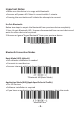
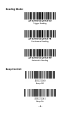
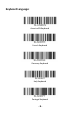
① Read Bluetooth HID (Basic Mode) below(default).
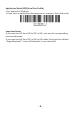
② Scan the pairing code on the charging base, the scanner will be paired and
connected to the computer automatically.
Method 2:
1. Power on the scanner. Make sure the scanner is discoverable (unpaired).
2. Use your computer’s Bluetooth Settings to connect to the scanner.
3. Open Devices and Printers and select “Add a device”.
4. In the device list, select “Argox Bluetooth”. Click Next.
5. Follow the remaining screens to complete the wizard.
6. The scanner will make one beep once it’s connected and LED light will turn
to solid blue (no blinking) and is ready to scan.