
Portable Multimedia Player User Manual


MANUAL
V3.0
GEN 5
THE WIFI FEATURES > P. 50
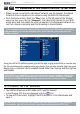
BROWSER MENU ITEMS
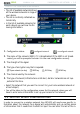
“Reload” / “Stop”
will stop loading the web page, if it is currently loading.
will refresh the current web page, if it has stopped loading.
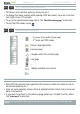
“Navigation”
“
Forward”: will go to the next page that you browsed.
“
Back”: will go back to the previous page that you browsed.
“Zoom”
changes the way the web page is displayed. Select a zoom mode.
“Go to”
“
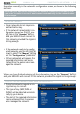
Enter URL...”: allows you to enter the address of a Web site you’d like to visit.
Enter the address with the virtual keyboard (see:
Using the Virtual Keyboard
).
Select “OK” to open the website in the current window, or select “Open in new
tab
” to open it in a new window.
“
Search...nCNNQYU[QWVQUGCTEJCPCFFTGUUKPQPGQHVJGEQPÒIWTGFUGCTEJ
engines. Enter the key words using the virtual keyboard (see:
Using the Virtual
Keyboard
). Select “OK” to open the results in the current window, or select “Open
in new tab
” to open them in a new window.
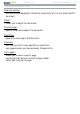
“Favorites”
will open the “
Favorites” manager. Here you can add favorites, rename or delete
them. Select a favorite and use the “Open in new tab” menu item to open the
corresponding web page in a new window.
“Settings”
will open the “
Web Browser” settings screen. Here you can decide whether to
CEEGRVKIPQTGRQRWRYKPFQYUGPCDNGFKUCDNGÓCUJEQPVGPVFGNGVG[QWT+PVGTPGV
history and cookies, etc.
Please note that some Web features requiring special plug-in software or
Active X controls may not work in this special version of the Web Browser.
6.2 PLAYING YOUR PC’S SHARED MEDIA FILES
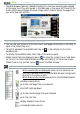
When connected to your home WiFi network, your ARCHOS gives you the possi-
DKNKV[VQYCVEJFKTGEVN[QP[QWTFGXKEGUJCTGFOGFKCÒNGUXKFGQUOWUKEQTRJQ-
tos) stored in your PC’s Windows Media® Library.
For this to work, you will need a WiFi connection and Windows Media® Player 11
or higher installed on your PC*.
-
-
-
-
-
-
-
-
-
•
•