
Manual


Ending a keyboard session
When you’ve finished entering information from the keyboard, you can end a
keyboard session by any of the following methods:
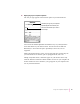
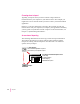
m On your computer, click the Stop button in the Keyboard status window.
m On your Newton device, tap the Connection button in the Extras drawer.
m Tap the blinking star (✩) at the top of your Newton screen and tap
Connection. When a message appears asking whether you want to end your
keyboard session, tap Yes.
Copying text from the Clipboard
During a keyboard session, you can copy text from your computer’s Clipboard
to your Newton device.
To copy text from the Clipboard, follow these steps:
1 Open the Newton Connection Utilities and start a keyboard session.
For instructions, see “Starting a Keyboard Session” earlier in this chapter.
2 On your computer, copy text to the Clipboard.
3Set the insertion point on your Newton device.
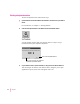
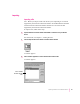
4Click the “Paste from Clipboard” button in the Keyboard status window.
Te xt from the Clipboard appears on your Newton device.
Note: You can also paste text from the Clipboard by typing Control-V on
your computer’s keyboard.
When you copy text to your Newton device:
m Text is copied, but graphics are not.
m The “Paste from Clipboard” button is dimmed if the Clipboard is empty or
if the Clipboard has graphics and no text.
m It may take a few seconds for large amounts of text to appear on your
Newton device.
36
Chapter 4