
Owner's manual

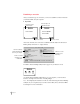


Backing up a storage card
You can use the Newton Backup Utility to back up the contents of a storage card.
1 Insert the storage card.
2 Open the Newton Backup Utility and establish a connection.
3Click Backup.
The Backup dialog box appears. The bottom of the dialog box includes a list of
cards currently inserted in your Newton PDA. To select an item to back up, click the
box next to it until you see an X.
4Make sure the card you want to back up is selected.
5Click Backup.
After a few minutes, the card is backed up and a backup file with the name of the
card appears in your Backups folder.
Changing the location of the Backups folder
By default, the Backups folder is automatically stored in the Newton Backup Utility
folder on your computer.
To change the location of the Backups folder:
1 Open the Newton Backup Utility.
16
Chapter 2
Select to back
up a card.
Select the information
you want to back up.