
Owner's manual

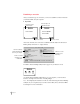


Selecting the type of connection on your Newton PDA
1 On your Newton screen, tap Extras
´
.
2 In the Extras Drawer, tap Connection
k
.
You may have to show all icons to see the Connection icon.
A slip appears showing the type of connection currently set for your Newton PDA.
3If the type of connection that appears in the slip is not correct, tap “Connect via” to change the
type of connection.
A list of connection types appears. Choose either Serial or AppleTalk.
If you choose Serial, your connection setup is complete. Skip to the next section,
“Establishing a Connection.” If you choose AppleTalk, continue with step 4.
Note: Do not select a Modem connection. The Newton Backup Utility does not
support remote connection via a modem.
4Tap “Connect to.”
5 In the list that appears, tap the worksite or computer you want to connect to.
If you tap “Other computer” a slip appears. Tap the computer you want to connect
to. Only computers that have the Newton Backup Utility installed and running
appear in the slip.
If you tap “Other worksite,” a slip appears. Enter information about the worksite,
then tap X to close the slip.
The type of connection you select is saved and remains set until you change it.
7
Getting Started
Tap to select another
type of connection.
Shows the type of connection
set for your Newton PDA