
Technical information




2Choose a default paper size for the multipurpose tray.
The Paper Handling dialog box provides the Auto Select option, which allows
the printer to draw paper from any paper source that holds the correct size
paper. Similarly, the automatic tray switching feature allows the printer to
select another paper source that holds the correct size paper when a paper
source runs out. However, the printer is not able to detect the size of paper in
the multipurpose tray, so you must tell it. If the paper size for the
multipurpose tray is the same as the paper in the standard paper cassette (and
automatic tray switching is turned on), the printer automatically uses the
multipurpose tray as a paper source.
3Choose a default envelope size for the envelope tray from the list box, if the envelope
cassette option is installed.
4Click On or Off to turn Automatic Tray Switching on or off.
5Choose “two-sided, no tumbling” or “two-sided, with tumbling” from the duplex print
list box.
If you want the binding orientation along the side of the paper (as in a book
or magazine), choose “two-sided, no tumbling” If you want the binding
orientation along the bottom of the paper (as in a calendar), choose “two-
sided, with tumbling.”
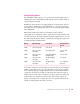
The following table lists the memory requirements and supported paper sizes
for duplex printing and PhotoGrade:
Memory Duplex Printing PhotoGrade Use both features
at once?
16 MB Letter, A4, B4, legal Letter, A4, B5 No
20 MB Letter, A3, A4, B4, Up to ledger and A3 Yes; up to letter
legal, ledger and A4
24 MB Letter, A3, A4, B4, Up to Japan Standard Yes; up to legal
legal, ledger and Japan Larger
32 MB Letter, A3, A4, B4, All supported paper Yes; up to B4
legal, ledger sizes
48 MB Letter, A3, A4, B4, All supported paper Yes; all supported
legal, ledger sizes paper sizes
245
Configuring the Printer With the Printer Utilities