
Technical information




Checking the indicator lights
The lights on the front panel of the printer indicate the printer’s operating
status.
Light On Off Flashing
Paper Jam There is a paper Paper is OK. Printer requires
jam. service.
Paper Out Paper cassette Paper supply is OK. Printer is ready for
is empty. sheet of manual-feed
paper.
Toner Low Toner is getting Toner level is OK. Toner cartridge is
low. not installed.
Ready/In Use Printer is ready Printer cannot print Printer is warming up,
to use. because of an error, printing a startup
or the cover is open, page, or processing
or the printer is data for the next
turned off. print job.
If the Paper Out and Paper Jam lights flash alternately, or all four lights stay
on, the printer requires service. If you have just installed additional memory
(RAM) in the printer, there may be a problem with the memory. Open the
printer and make sure the SIMM is fully seated in the sockets and match one
of the supported configurations listed in Chapter 5 and in Appendix D.
Checking for and clearing paper jams
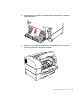
Occasionally a piece of paper may get stuck inside the printer during the
printing process. Follow these steps to find and clear a paper jam.
IMPORTANT
If you experience paper jams after you first set up the printer,
check all areas of the printer to make sure that the packing materials have
been removed.
194
Chapter 11