
Owners manual






77KVM Access Management Software User Manual
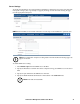
Syslog. To record all the events that take place on KVM ACCESS and write them to a Syslog server:
1. Check Enable.
2. Enter the IP address and port number of the Syslog server. The valid port range is 1-65535.
3. Select whether to log a short message or a full message.
4. Select the message’s language from the drop down list.
When all your settings have been made, click Save.
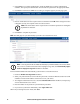
Dial In. In addition to Internet connections, KVM ACCESS can also be accessed from PPP (modem).
The Dial In settings page is used to specify which users can access this feature and the connection
methods.
To allow PPP dial in connections:
1. Put a check in the Enable Dial In checkbox.
2. Supply a Username and Password that users dialing in must use in order to be authenticated over
the dial in connection.
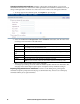
If Enable Dial Back is enabled, the switch disconnects the connections that dial in to it and dials back to
either to a fixed number or a flexible number.
When all the settings have been made, click Save.
Item Action
Enable Fixed
Number
DialBack
If this radio button is selected, the switch will dial back to the modem whose phone
number is specified in the Dial back number field. Enter the number that you want KVM
ACCESS to dial back in this field.
Note: Specify a number here even if you intend to use flexible dial back
Enable Flexible
Dial Back (Use
dial back phone
number as the
username)
If this radio button is selected, the modem that KVM ACCESS dials back doesn't have to
be fixed. It can dial back to any modem that is convenient for the user. To do so, when you
dial in to KVM ACCESS:
• When logging in, use the phone number of the modem that you want the switch to dial
back for your Username.
• Use the phone number specified in the Dial back number field (see above) for your
Password.