
Owners manual



67KVM Access Management Software User Manual
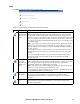
Deleting a User's or Group's Access Rights.
1. Click to put a check in front of the names of the users or groups to be removed.
2. Click Delete (at the top-right of the panel).
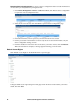
Action Buttons. In addition to Add, Delete, and Save, an Update All button (at the top-right of the
panel) opens a page where configuration and access rights can be set for all users and groups on the port.
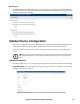
Device Configuration (For KVM Devices). Allows you to configure the device from within KVM
ACCESS, without accessing the device directly.
Note: If the link between KVM ACCESS and the device should be broken, device
configuration changes s will not be transmitted to the device. To make device configuration
changes, log in to the device directly (see “KVM ACCESS Options” on page 53, for details).
This Panel Menu item contains several secondary pages. To modify the information on these pages,
move through them sequentially clicking the arrow icons at the left of the main panel in the grey bar, or
go directly to a page by moving the curser over the menu and selecting the page from the menu that
opens.
Note: The Device Configuration Panel Menu does not appear if the device is offline.
The secondary Panel Menu pages correspond to the administration functions described in the device's
User Manual. For configuring the settings, refer to the Device Management sections to obtain the
necessary information. When you have finished making your configuration settings, click Save.
Note: 1. On KVM ACCESS's secondary Panel Menu ANMS settings page, in addition to the
entry labeled Preferred Server Settings, there is an entry called Alternate Server Settings. The
Preferred settings correspond to the ANMS settings on the device (see Device ANMS
Settings, page 172) Changes to this setting take place on the device.
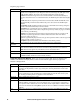
2. On KVM ACCESS' secondary Panel Menu Customization settings page, there is an entry
called Port timeout. This field sets a time threshold for users on ports whose Access Mode has
been set to Occupy (see “Mode” on page 68). This corresponds to the Access Mode setting on
the original device. If there is no activity from the user occupying the port for the amount of
time set here, the user is timed out and the port is released. The first user to send keyboard or
mouse input after the port has been released gets to occupy the port. Input a value from 0 to
255 seconds. The default is 3 seconds. A setting of 0 causes the port to be released the instant
there is no input.