
Owners manual




KVM Access Management Software User Manual60
Modifying Devices.
1. Select Devices either in the Sidebar, or on the main menu bar.
2. Select the device you want to modify either from the Sidebar list, or in the main panel list.
3. Make your changes using the links that become available on the Panel Menu bar. See “Sidebar
Device Configuration” on page 63 for details concerning these Panel Menus.
Deleting Devices. To delete a device:
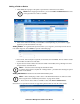
1. Select Devices either from the Sidebar list, or on the main menu bar.
2. Click to put a check in front of the device you wish to delete.
Note: You can delete more than one device by checking as many of them as you
require. You can delete all of them at once by checking the box at the top of the
column.
3. After you have made your selection, click Delete (at the top-right of the panel).
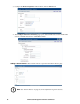
4. In the confirmation popup that appears, click OK.
Note: When you delete an Aggregate Device, all of its ports return to their original physical
devices with their status changed to locked.
Detached Devices. Represents devices or ports that have been detected to have some sort of conflict
with other valid devices or ports.
Examples:
1. On a KVM ACCESS managed Cat5e KVM switch, if there are Adapter Cables connected to
ports 4 and 6, and you remove the adapter from port 4, the KVM ACCESS will assume that the
device connected to port 4 is off line.
2. If on the KVM ACCESS managed Cat5e KVM switch you unplug the adapter cable from port 6
and plug it into port 4, the cable's Adapter ID will not match the device information for port 4
stored in the KVM ACCESS's database. The KVM ACCESS will recognize the new Adapter ID
for port 4 and will treat the original port 4 Adapter ID as a detached device.
3. If you plug the Adapter Cable originally connected to port 4 in Example 2, into any other port on
the KVM switch, KVM ACCESS will recognize the cable's Adapter ID and update its database
accordingly, and the cable will not be treated as a detached device.
Detached devices can be found at the bottom of the tree. You can look at the device to try to resolve the
conflict. Detached devices that haven't been resolved within 10 days are automatically removed.
Locking / Unlocking Ports. When physical devices are added to the KVM ACCESS system, their
ports are locked by default - to make a port available, it must be unlocked. When a port is selected, two
buttons appear at the top-right of the Port Properties page: Lock and Unlock. To unlock a port, select it in
the Sidebar or Interactive Display Panel, and click Unlock.
The ability to lock and unlock ports allows you to have pre-configured device nodes set up on your
installation in excess of the amount licensed. If the total number of device nodes on the installation
exceeds the number for which you have been licensed, choose which device nodes to exclude by
selecting them and clicking Lock. Use them when necessary by locking different ports to create room.
Note: Ports are automatically unlocked when they are added to an Aggregate Device. If only
one or two of the device's physical ports are used, it is not necessary to go through the
procedure to create an Aggregate Device. Select the target port(s) and click Unlock.