
Owners manual




KVM Access Management Software User Manual56
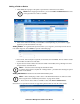
Adding a Blade Chassis. Select Blade Chassis as an item to be added and the Add Group Device page
opens.
1. Fill in the fields according to the information provided in the table below.
2. When you have finished, click Next to open the Configure Device Properties page.
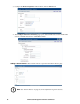
3. Fill in the fields according to the information provided in the table:
4. When you have finished, click Next to open the Configure Network Connectivity page.
a. The Maximum number of slots field is for information purposes and can't be configured
on supported chassis. It can only be set on generic chassis.
b. Select your preference for the Blade switching hotkey from the drop down the list.
c. The remainder of the fields are the same as for “Adding an Aggregate Device” on page 53.
Field Information
Model Select the model type to add from the drop down list.
Auto detect If you enable Auto detect, the Configure Blade Properties information (see page 57) will be
filled in automatically.
IP / Port If Auto detect is not being used, enter the blade server's IP address and the access port used
to connect to it (via Telnet or SSH). The default port is 22 (SSH). Click Test Connection to
confirm that the IP and port settings have been correctly detected.
Username /
Password
Enter a username and password to access the blade server (via Telnet or SSH).
Note: Use an account with administrator privileges to get needed information.
Timeout Set the waiting time for a connection request to complete before the request is cancelled.
Server Select the KVM ACCESS unit to which the Aggregate Device server will be connected.
Field Information
Device
Information
Name: Provide a name to identify the device.
Description: Optional field to provide extra information to describe the device.
Department: For organizational purposes you can establish department categories (R&D,
for example), and assign devices to them (see “Departments, Locations and Types” on
page 71). To assign this device to a department, drop down the list of departments
previously created, and click on the one to which you want the device to belong.
Location: For organizational purposes you can establish location categories (West Coast,
for example), and assign devices to them (see “Departments, Locations and Types” on
page 71). If you wish to assign this device to a location, drop down the list of locations
previously created, and click on the one to which you want the device to belong.
Type: Drop down the list to select the type of device.
Contact
Information
Optional Fields.
The name and telephone number of the device administrator.