
Owners manual






KVM Access Management Software User Manual18
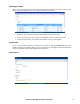
Language.
• To set KVM ACCESS to display pages in the same language your browser uses, Click the Use
Browser Settings radio button.
Note: If your browser is set to a non-supported language, KVM ACCESS looks at the
the language of your server's operating system. If the operating system is set to a
supported language it will use that language to display its pages. If the operating
system is set to a non-supported language, KVM ACCESS defaults to English.
• Click the Use radio button to select from a list of supported languages.
Note: If the language selected is different from the browser's setting, there will be no
change until after you log in.
• Login Page: You can choose to open to the default page when you log in (the first page of the first
tab on the Tab Bar), or you can choose to open to the page you were on the last time you logged
out.
Welcome Message.
• To have the Welcome Message appear, select Show. Select Hide if you don't want it to appear.
• To have a Screen Name appear with the Welcome Message, type the screen name into the Display
screen name text box.
Note: 1. When you change your Screen Name here, the Screen Name entry in the
User Accounts settings automatically changes to match what you entered here (see
Adding User Accounts, page page 31).
2. The Screen Name will not display unless you choose to Show the Welcome
Message.
When you have made your choices, click Save.
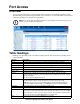
Password.
To change your password:
1. Check the Change Password box to enable the password input fields.
2. Enter your old password in the Old password field.
3. Enter your new password in the New password field.
4. Enter your new password again in the Confirm password field.
5. Click Save.