
Owners manual






KVM Access Management Software User Manual14
KVM ACCESS Interface
After you have successfully logged in, the KVM ACCESS web page opens.
KVM ACCESS web page components:
Item
Number
Item Name Description
1 Tab bar The tab bar contains the main operation categories. The items that appear in the tab
bar are determined by the user's type, and the authorization options that were
selected when the user's account was created.
2 Page menu bar The page menu bar contains operational sub-categories that pertain to the item
selected in the tab bar. The items that appear in the menu bar are determined by the
user's type, and the authorization options that were selected when the user's
account was created.
3 Sidebar The Sidebar provides a tree view listing of items relating to the tab bar and menu
bar selections. Click an item in the Sidebar to open its detail page.
4 About About provides information regarding the current version of the KVM ACCESS.
5 Logout Click this button to log out of your KVM ACCESS session.
6 Welcome message If this function is enabled (see Preferences, page 29), a welcome message displays
here.
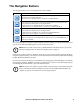
7 Navigation buttons These buttons move you through the Sidebar. Their use is discussed in the next
section.
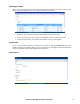
8 Interactive display
panel
This is the main work area. The screens that appear reflect your menu choices and
Sidebar item selection. The use of this panel is discussed on page 16.