
Owners manual





KVM Access Management Software User Manual124
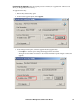
3. Check the group definition with LDAP Browser.
4. Repeat step 2 for each user account that you want to add to the group.
Once these procedures are completed, KVM ACCESS users who are authenticated through the LDAP/
LDAPS server, are authorized according to the permissions assigned to the group.
Active Directory Group Authorization Setting Example
In this example the external server is Active Directory on Windows Server 2003 as shown in the “Active
Directory Settings Example” on page 119.
1. Under the KVM ACCESS User Manager tab, select Authentication Services > Authentication
Servers.
2. Select the Active Directory server, then click Group Authorization.
3. In this example add the KVMACCESSGP group.
The Active Directory administrator uses this name (KVMACCESSGP in our example) to create a group
under Active Directory with the same name as the one just created on the KVM ACCESS server, as
follows:
1. Open Start > Control Panel > Administrative Tools > Active Directory Users and Computers >
Domain (CA-QA.com in our example).
2. In the left panel, right click Domain Controllers. Select New. Select Group.
3. In the dialog box that opens, enter the name of the group (KVMACCESSGP in our example).
4. In the right panel, right click KVMACCESSGP. Select Properties. Select Members.
5. Click Add.
The dialog box that opens lets you add members to the group. The members are selected from the
accounts found in the Users folder (see the left panel of the original screen).