
Owners manual


KVM Access Management Software User Manual102
Device Log Search
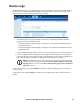
To search the logs:
1. To search for a particular word or string, enter it in the Pattern field.
2. Time Range: Select All to search all the records in the database for the selected pattern. To search
records for a particular time period, select the Include or Exclude radio button, and set the time
parameters with the From and To settings.
Note: 1. If Include is selected, all events in the specified time range are searched.
2. If Exclude is selected, only events that fall outside of the time range are searched.
3. When finished, click Search (at the top- right of the panel).
The search results are displayed in the Log List in the main panel.
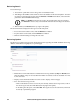
• To save the search results to a file, click the Diskette icon button.
• To print out the search results, click the Printer icon button.
• Click the column headings to change the sort order.
Device Log Options
The Device Log Options page provides management options regarding the KVM ACCESS's device log
database. Select Device Log Options, to open the page.
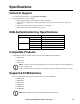
• Maintenance: Click a radio button to maintain the device log database by Days or Records, then
enter the number of days or records. When the number is reached, events are discarded on a “first
in, first out” basis.
• Display: Set the maximum number of record events to display on the web page.
• Save: Save the device logs to a file:
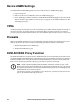
– Click a radio button to choose to save only the currently selected device log records, or all of
the device log records, then click Save (at the top-right of the panel).
– In the dialog box that opens, select Save File. The log file is saved in CSV format, which can
be read by a spreadsheet program.