
User manual




English
---------------------------------------------------------------------------------
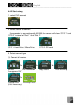
4.2.3 When viewing the photos, click “OK” button to choose sub functions.
4.2.4 Sub function
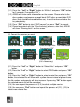
1. You can choose “Single
”, “Thumbnail ” or “Slideshow ” for the
photo display mode.
2. Select “Rotate ” to rotate the photo. Press “OK” to rotate the photo
by 90°, 180°, 270° and 360°.
3. Select “Print
” function to print the photo. If you
want to print the photos, please go to “Setting” ((Please
refer to 5.2 USB mode)) first and set the “USB mode” as
“Printer
”. On the upper left side, the display will
show the “Printer icon
” instead of “PC icon ”.
After that, you can plug USB cable (mini-B) into both AD330 and printer to
run printing function. (Printers must support with PictBridge protocol)
4. Click the “Exit” button to cancel and go back to “Photo view” mode
4.2.5 AD330 can’t view photo for camcorder via USB cable. Please directly
use the camcorder LCD to view photos.
4.3 DVD Playback Mode
4.3.1 Before use
Make sure the power switch is in the OFF position when
you want to connect the AC power adapter to the AD330,
and then switch the power ON.
Plug the supplied composite cable to the corresponding colored jacks on the
TV, and the other end to the A/V out jack of the AD330.
Turn on the TV set and select the proper signal source.
4.3.2 Start using
After the AD330 has started normally, the display will show the following. This
is the copy function. Press the “Left” or “Right” button to switch to DVD
playback mode.
Press “OK” to enter DVD playback mode, the display will show “Connect TV”
or press “Exit” to cancel the selection.
22