
Widescreen Video Touch Panel Operation/Reference Guide


Firmware Pages and Descriptions
90
5" Modero Widescreen Touch Panel
Connection Utility Page
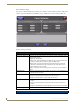
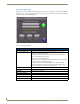
The options on the Connection Utility page allow you to utilize your panel as a site survey tool. While in
this page, move around your wireless network coverage area and see if there are any weak points within
the spaces between your WAPs (FIG. 77).
Features on this page include:
FIG. 77 Connection Utility page
Connection Utility Page
Close: Closes the Connection Utility popup.
Connection Status icon: The icon in the upper-right corner of the utility provides a constant visual i
indication of current connection status.
A message is sent to the master once per second and expects a response.
• If it is received the button stays green.
• If it is missed the button goes yellow.
• After three misses (3 seconds) it will go red until a response from the master
is received, and then it will be green again.
Once per second, a user can know whether they are standing in a good
wireless area (all green), an area of limited coverage (lots of yellow, some
green, some red), or an area with no coverage (all red).
Connection Information
Master IP The IP Address for the connected master.
Panel IP The IP Address for the panel.
Connection Statistics
Messages Sent The number of messages sent from the panel to the master.
Responses Received The number of responses the panel has received from the master.
Responses Missed The number of expected responses from the master to the panel missed.