
Widescreen Video Touch Panel Operation/Reference Guide


Configuring Communication
50
5" Modero Widescreen Touch Panel
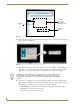
6. Click on the G4 panel name link associated with the target panel. A secondary web browser window
appears on the screen (FIG. 46).
7. Click Yes from the Security Alert popup window to agree to the installation of the G4 WebControl
application on your computer. This application contains the necessary Active X and VNC client
applications necessary to properly view and control the panel pages from your computer.
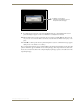
8. In some cases, you might get a Connection Details dialog (FIG. 47) requesting a VNC Server IP
Address. This is the IP Address not the IP of the Master but of the target touch panel. Depending on
which method of communication you are using, it can be found in either the:
Wired Ethernet - System Connection > IP Settings section within the IP Address field.
Wireless - Not available with the CV5 panel.
If you do not get this field continue to step 9.
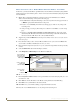
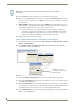
FIG. 45 Manage WebControl Connections page (populated with compatible panels)
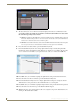
FIG. 46 Web Control VNC installation and Password entry screens
Compatible
devices field
G4 panels
Compression
Options
(showing G4
WebControl links)
The G4 Web Control application is sent by the panel to the computer that is used for
communication. Once the application is installed, this popup will no longer appear.
This popup will only appear if you are connecting to the target panel using a different
computer.