
Wireless Touch Panel with Intercom Reference Guide
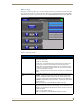
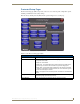
Table Of Contents
- MVP-8400iModero® ViewPoint® Wireless Touch Panel with Intercom
- MVP-8400i Modero Viewpoint Wireless Touch Panel With Intercom
- MVP-BP Power Pack
- NXA-CFSP Compact Flash
- Wireless Interface Cards
- Configuring Communications
- Modero Setup and System Settings
- Wireless Settings Page - Wireless Access Overview
- Configuring a Wireless Network Access
- Step 1: Configure the Panel’s Wireless IP Settings
- Step 2: Configure the Card’s Wireless Security Settings
- Step 3: Choose a Master Connection Mode
- Using G4 Web Control to Interact with a G4 Panel
- Using your NetLinx Master to control the G4 panel
- Upgrading MVP Firmware
- Setup Pages
- Navigation Buttons
- Setup Pages
- Information
- Protected Setup Pages
- Protected Setup Navigation Buttons
- G4 Web Control Page
- Calibration Page
- Wireless Settings Page
- Wireless Security Page
- Open (Clear Text) Settings
- Static WEP Settings
- WPA-PSK Settings
- EAP-LEAP Settings
- EAP-FAST Settings
- EAP-PEAP Settings
- EAP-TTLS Settings
- EAP-TLS Settings
- Client certificate configuration
- System Settings Page
- Other Settings
- Tools
- Programming
- Panel Calibration
- Appendix A: Text Formatting
- Appendix B - Wireless Technology
- Appendix C: Troubleshooting
- Checking AMX USBLAN device connections via Windows Device Manager
- Checking AMX USBLAN device connections via NetLinx Studio
- USB Driver
- Panel Not in Listed As a Connected Device
- Connection Status
- Panel Doesn’t Respond To Touches
- Batteries Will Not Hold Or Take A Charge
- Modero Panel Isn’t Appearing In The Online Tree Tab
- MVP Can’t Obtain a DHCP Address
- My WEP Doesn’t Seem To Be Working
- NetLinx Studio Only Detects One Of My Connected Masters
- Can’t Connect To a NetLinx Master
- Only One Modero Panel In My System Shows Up
- Panel Behaves Strangely After Downloading A Panel File Or Firmware
- Panel Fails to Charge in MVP-WDS
Setup Pages
69
MVP-8400i Modero Viewpoint Wireless Touch Panels
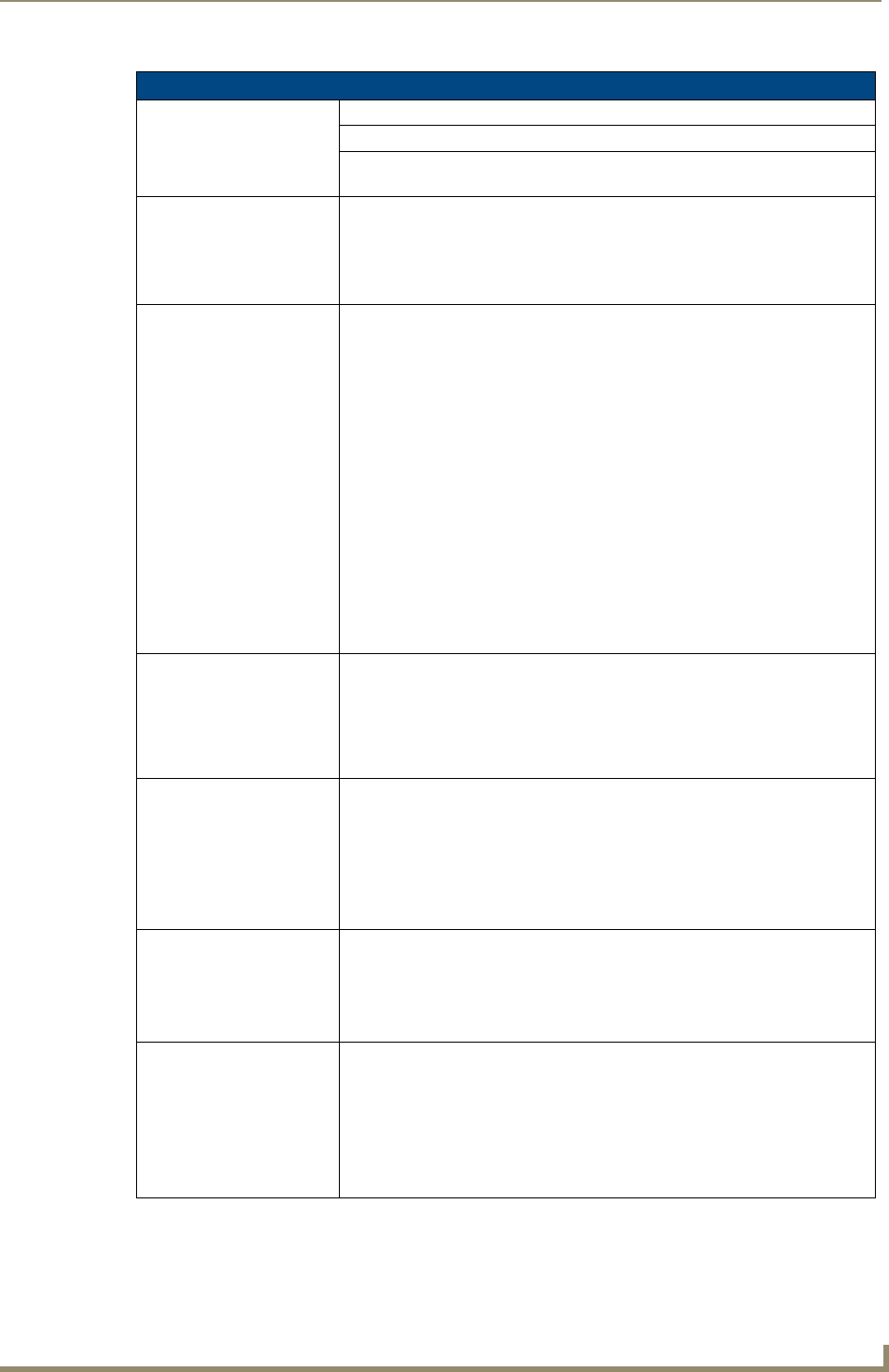
Wireless Settings Page (Cont.)
IP Settings (Cont.):
Domain Enter a unique name to the panel for DNS look-up.
MAC Address This unique address identifies the wireless Ethernet card in the panel (read-
only).
Active Roaming on
Channels 1,6,11
When enabled, the device is actively roaming on the channels 1, 6, and 11. By
default, Active Roaming is disabled.
Of all the frequency channels that are assigned for wireless, only three are
nonoverlapping frequencies that do not interfere with each other.
Nonoverlapping channels avoid the interference that can affect the signal.
Access Point MAC
Address:
This unique address identifies the Wireless Access Point (WAP) used by this
panel for wireless communication (read-only).
• Site Survey button: Launches the Site Survey page. The options on this page
allow you to detect (“sniff-out”) all WAPs transmitting within range of the
panel’s NXA-WC80211GCF Wi-Fi card.
Data displayed on the Site Survey page is categorized by:
- Network Name (SSID) - WAP names
- Channel (RF) - channels currently being used by the WAP
- Security Type - security protocol enabled on the WAP, if detectable
- Signal Strength - None, Poor, Fair, Good, Very Good, and Excellent
- MAC Address - Unique identification of the transmitting Access Point
• Refer to the Using the Site Survey tool section on page 22 for more detailed
information on the SIte Survey page.
• When communicating with a NXA- WAP200G, enter the MAC Address
(BSSID) of the target WAP as the Access Point MAC Address. Refer to the
WAP200G Instruction Manual for more information.
Wireless Security: Sets the wireless security method to be used by the panel to connect to the net-
work. Selecting any of the connection method buttons invokes the relevant con-
figuration page, with options that allow you to define parameters specific to the
selected method of connection.
• Refer to the following Wireless Security Page section on page 71 for further
details on these security options.
Open (Clear Text) This button opens the Open (Clear Text) Settings page (FIG. 57 on page 72).
“Open” security does not utilize any encryption methodology, but requires an
SSID (alpha-numeric) entry. This entry must match the Network Name (SSID)
entry of the target WAP so the panel knows what device it is using to communi
-
cate with the network.
• Refer to the following Wireless Security Page section on page 71 for further
details on these security options.
Static WEP This button opens the Static WEP Settings page (FIG. 58 on page 73).
“Static WEP” security requires that both a target WAP be identified and an
encryption method be implemented prior to establishing communication.
• Refer to the Wireless Security Page section on page 71 for further details on
these security options.
WPA-PSK This button opens the WPA-PSK Settings page (FIG. 59 on page 75).
“WPA-PSK” security is designed for environments where is it desirable to use
WPA or WPA2, but an 802.1x authentication server is not available.
PSK connections are more secure than WEP and are simpler to configure since
they implement dynamic keys but share a key between the WAP and the panel
(client).
• Refer to the Wireless Security Page section on page 71 for details.