
Wireless Touch Panel with Intercom Reference Guide
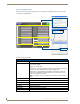
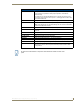
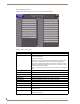
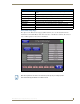
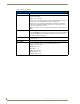
Table Of Contents
- MVP-8400iModero® ViewPoint® Wireless Touch Panel with Intercom
- MVP-8400i Modero Viewpoint Wireless Touch Panel With Intercom
- MVP-BP Power Pack
- NXA-CFSP Compact Flash
- Wireless Interface Cards
- Configuring Communications
- Modero Setup and System Settings
- Wireless Settings Page - Wireless Access Overview
- Configuring a Wireless Network Access
- Step 1: Configure the Panel’s Wireless IP Settings
- Step 2: Configure the Card’s Wireless Security Settings
- Step 3: Choose a Master Connection Mode
- Using G4 Web Control to Interact with a G4 Panel
- Using your NetLinx Master to control the G4 panel
- Upgrading MVP Firmware
- Setup Pages
- Navigation Buttons
- Setup Pages
- Information
- Protected Setup Pages
- Protected Setup Navigation Buttons
- G4 Web Control Page
- Calibration Page
- Wireless Settings Page
- Wireless Security Page
- Open (Clear Text) Settings
- Static WEP Settings
- WPA-PSK Settings
- EAP-LEAP Settings
- EAP-FAST Settings
- EAP-PEAP Settings
- EAP-TTLS Settings
- EAP-TLS Settings
- Client certificate configuration
- System Settings Page
- Other Settings
- Tools
- Programming
- Panel Calibration
- Appendix A: Text Formatting
- Appendix B - Wireless Technology
- Appendix C: Troubleshooting
- Checking AMX USBLAN device connections via Windows Device Manager
- Checking AMX USBLAN device connections via NetLinx Studio
- USB Driver
- Panel Not in Listed As a Connected Device
- Connection Status
- Panel Doesn’t Respond To Touches
- Batteries Will Not Hold Or Take A Charge
- Modero Panel Isn’t Appearing In The Online Tree Tab
- MVP Can’t Obtain a DHCP Address
- My WEP Doesn’t Seem To Be Working
- NetLinx Studio Only Detects One Of My Connected Masters
- Can’t Connect To a NetLinx Master
- Only One Modero Panel In My System Shows Up
- Panel Behaves Strangely After Downloading A Panel File Or Firmware
- Panel Fails to Charge in MVP-WDS
Setup Pages
57
MVP-8400i Modero Viewpoint Wireless Touch Panels
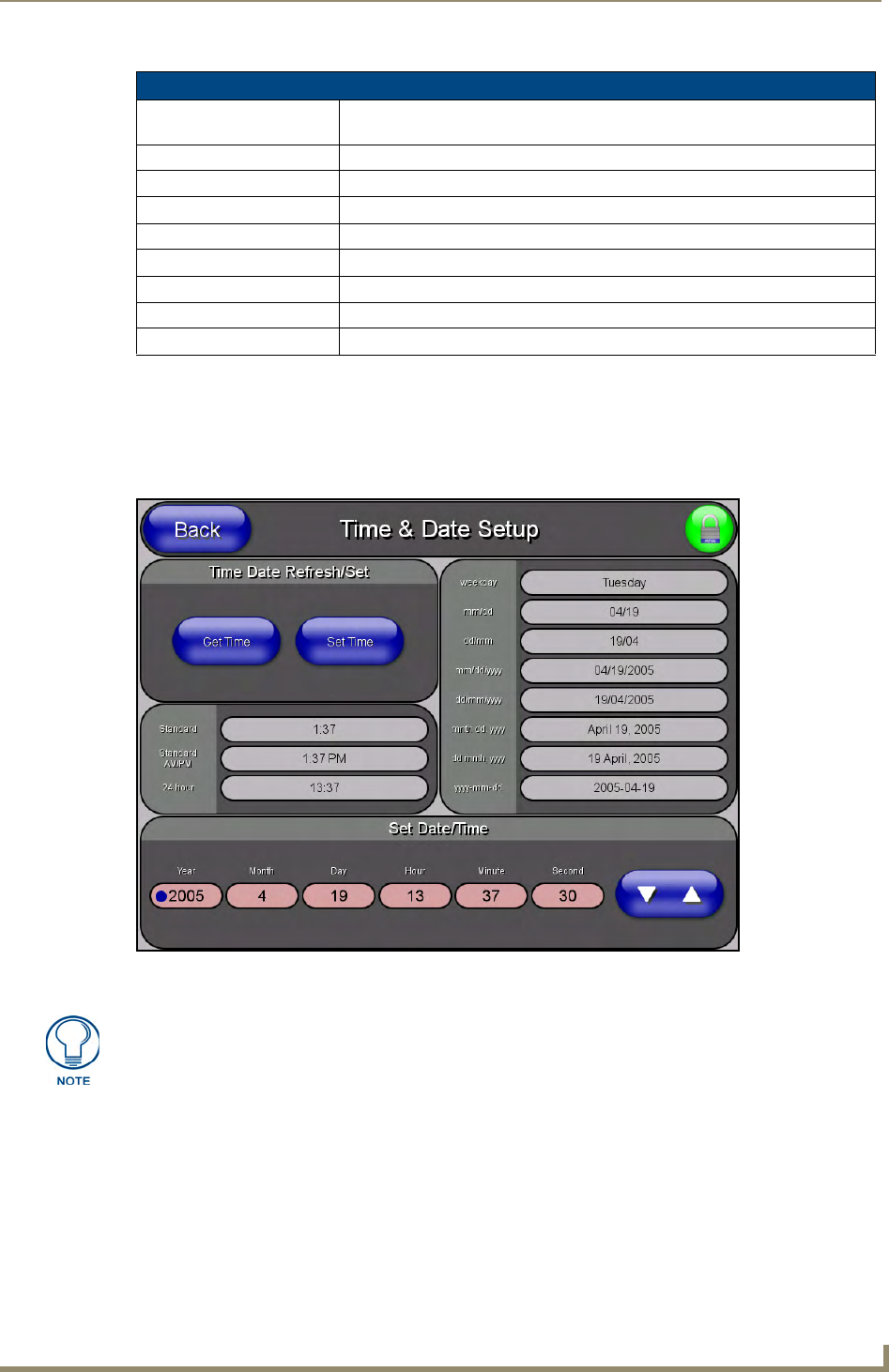
Time & Date Setup Page
The options on the Time & Date Setup page (FIG. 48) allow you to set and adjust time and date
information on the NetLinx Master. If the time and/or date on the Master is modified, all connected
devices will be updated to reflect the new information.
Panel Information Page (Cont.)
Screen Refresh Rate: Displays the video refresh rate applied to the incoming video signal from the
panel.
Screen Rotation: Displays the degree of rotation applied to the on-screen image.
Power Up Pages: Displays the page assigned to display after the panel is powered-up.
Start Up String: Displays the start-up string.
Wake Up String: Displays the wake up string used after an activation from a timeout.
Sleep String: Displays the sleep string used during a panel’s sleep mode.
File System: Displays the amount of Compact Flash memory available on the panel.
RAM: Displays the available RAM (or Extended Memory module) on the panel.
Panel Start Time: Displays the last time the panel booted.
FIG. 48 Time and Date Setup page
MVP touch panels do not have an on-board clock; the only way to modify a panel’s
time without altering the Master is via NetLinx Code.