
Wireless Touch Panel with Intercom Reference Guide
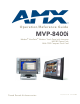

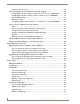
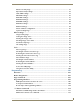
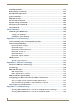
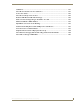

Table Of Contents
- MVP-8400iModero® ViewPoint® Wireless Touch Panel with Intercom
- MVP-8400i Modero Viewpoint Wireless Touch Panel With Intercom
- MVP-BP Power Pack
- NXA-CFSP Compact Flash
- Wireless Interface Cards
- Configuring Communications
- Modero Setup and System Settings
- Wireless Settings Page - Wireless Access Overview
- Configuring a Wireless Network Access
- Step 1: Configure the Panel’s Wireless IP Settings
- Step 2: Configure the Card’s Wireless Security Settings
- Step 3: Choose a Master Connection Mode
- Using G4 Web Control to Interact with a G4 Panel
- Using your NetLinx Master to control the G4 panel
- Upgrading MVP Firmware
- Setup Pages
- Navigation Buttons
- Setup Pages
- Information
- Protected Setup Pages
- Protected Setup Navigation Buttons
- G4 Web Control Page
- Calibration Page
- Wireless Settings Page
- Wireless Security Page
- Open (Clear Text) Settings
- Static WEP Settings
- WPA-PSK Settings
- EAP-LEAP Settings
- EAP-FAST Settings
- EAP-PEAP Settings
- EAP-TTLS Settings
- EAP-TLS Settings
- Client certificate configuration
- System Settings Page
- Other Settings
- Tools
- Programming
- Panel Calibration
- Appendix A: Text Formatting
- Appendix B - Wireless Technology
- Appendix C: Troubleshooting
- Checking AMX USBLAN device connections via Windows Device Manager
- Checking AMX USBLAN device connections via NetLinx Studio
- USB Driver
- Panel Not in Listed As a Connected Device
- Connection Status
- Panel Doesn’t Respond To Touches
- Batteries Will Not Hold Or Take A Charge
- Modero Panel Isn’t Appearing In The Online Tree Tab
- MVP Can’t Obtain a DHCP Address
- My WEP Doesn’t Seem To Be Working
- NetLinx Studio Only Detects One Of My Connected Masters
- Can’t Connect To a NetLinx Master
- Only One Modero Panel In My System Shows Up
- Panel Behaves Strangely After Downloading A Panel File Or Firmware
- Panel Fails to Charge in MVP-WDS

ii
MVP-7500/8400 Modero Viewpoint Wireless Touch Panels
Table of Contents
Using the Site Survey tool ............................................................................................. 22
Step 2: Configure the Card’s Wireless Security Settings ........................................ 24
Configuring the Modero’s wireless card for unsecured access to a WAP200G ............. 25
Configuring the Modero’s wireless card for secured access to a WAP200G ................. 27
Automatically set SSID .................................................................................................. 27
Manually set SSID.......................................................................................................... 28
Configuring multiple wireless Moderos to communicate to a target WAP200G........... 31
Step 3: Choose a Master Connection Mode ........................................................... 31
USB................................................................................................................................ 31
Prepare your PC for USB communication with the panel .............................................. 32
Configure the panel for USB communication ................................................................ 32
Configure a Virtual NetLinx Master using NetLinx Studio............................................. 33
Ethernet ........................................................................................................................ 35
Master Connection to a Virtual Master via Ethernet ..................................................... 35
Using G4 Web Control to Interact with a G4 Panel ................................................ 38
Using your NetLinx Master to control the G4 panel ............................................... 40
Upgrading MVP Firmware ................................................................................43
Upgrading the Modero Firmware via the USB port ................................................ 44
Step 1: Configure the panel for a USB Connection Type .............................................. 44
Step 2: Prepare Studio for communication via the USB port ........................................ 44
Step 3: Confirm and Upgrade the firmware via the USB port ....................................... 45
Upgrading the Docking Station Firmware via USB ................................................. 47
Step 1: Prepare the Docking Station for firmware transfer via USB.............................. 47
Step 2: Upgrade the Docking Station firmware via USB ............................................... 48
Setup Pages ......................................................................................................51
Navigation Buttons ................................................................................................. 51
Setup Pages............................................................................................................ 52
Information ............................................................................................................. 53
Project Information Page............................................................................................... 54
Panel Information Page ................................................................................................. 56
Time & Date Setup Page ............................................................................................... 57
Volume Page ................................................................................................................. 59
WAV files - Supported sample rates.............................................................................. 60
Batteries Page ............................................................................................................... 61
Protected Setup Pages ........................................................................................... 63
Protected Setup Navigation Buttons............................................................................. 64
G4 Web Control Page ................................................................................................... 65
Calibration Page............................................................................................................ 67
Wireless Settings Page .................................................................................................. 68