
Wireless Touch Panel with Intercom Reference Guide
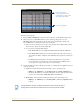
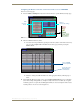
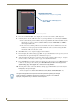
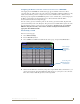
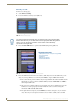
Table Of Contents
- MVP-8400iModero® ViewPoint® Wireless Touch Panel with Intercom
- MVP-8400i Modero Viewpoint Wireless Touch Panel With Intercom
- MVP-BP Power Pack
- NXA-CFSP Compact Flash
- Wireless Interface Cards
- Configuring Communications
- Modero Setup and System Settings
- Wireless Settings Page - Wireless Access Overview
- Configuring a Wireless Network Access
- Step 1: Configure the Panel’s Wireless IP Settings
- Step 2: Configure the Card’s Wireless Security Settings
- Step 3: Choose a Master Connection Mode
- Using G4 Web Control to Interact with a G4 Panel
- Using your NetLinx Master to control the G4 panel
- Upgrading MVP Firmware
- Setup Pages
- Navigation Buttons
- Setup Pages
- Information
- Protected Setup Pages
- Protected Setup Navigation Buttons
- G4 Web Control Page
- Calibration Page
- Wireless Settings Page
- Wireless Security Page
- Open (Clear Text) Settings
- Static WEP Settings
- WPA-PSK Settings
- EAP-LEAP Settings
- EAP-FAST Settings
- EAP-PEAP Settings
- EAP-TTLS Settings
- EAP-TLS Settings
- Client certificate configuration
- System Settings Page
- Other Settings
- Tools
- Programming
- Panel Calibration
- Appendix A: Text Formatting
- Appendix B - Wireless Technology
- Appendix C: Troubleshooting
- Checking AMX USBLAN device connections via Windows Device Manager
- Checking AMX USBLAN device connections via NetLinx Studio
- USB Driver
- Panel Not in Listed As a Connected Device
- Connection Status
- Panel Doesn’t Respond To Touches
- Batteries Will Not Hold Or Take A Charge
- Modero Panel Isn’t Appearing In The Online Tree Tab
- MVP Can’t Obtain a DHCP Address
- My WEP Doesn’t Seem To Be Working
- NetLinx Studio Only Detects One Of My Connected Masters
- Can’t Connect To a NetLinx Master
- Only One Modero Panel In My System Shows Up
- Panel Behaves Strangely After Downloading A Panel File Or Firmware
- Panel Fails to Charge in MVP-WDS
Configuring Communications
29
MVP-8400i Modero Viewpoint Wireless Touch Panels
As an example, if you use TECHPUBS as your SSID, you must match this word and the
case within both the Network Name (SSID) field on the touch panel’s Network Name SSID
field and on the WAP’s Basic Wireless Configuration page.
5. Toggle the Encryption field (FIG. 22) until it reads either: 64 Bit Key Size or 128 Bit Key Size.
The 64/128 selection reflects the bit-level of encryption security. This WEP encryption level must
match the encryption level being used on the WAP.
6. Toggle the Default Key field until the you’ve chosen a WEP Key value (from 1- 4) that matches
what you’ll be using on your target WAP200G. This value MUST MATCH on both devices.
These WEP Key identifier values must match for both devices.
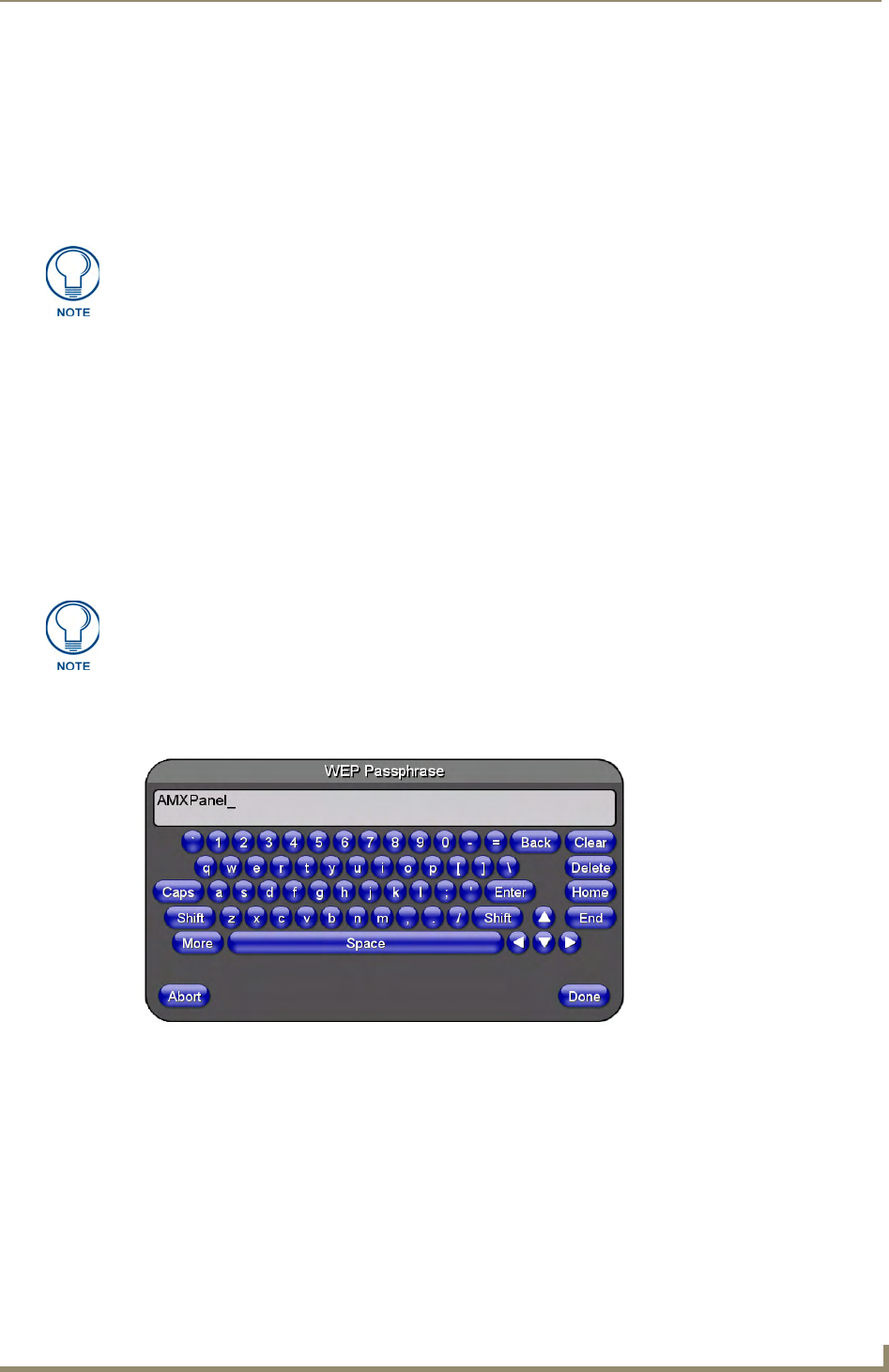
7. With the proper WEP Key value displayed, press the Generate button to launch the WEP
Passphrase keyboard.
If you are wanting to have your target WAP (other than an NXA-WAP200G) generate the
Current Key - Do not press the Generate button and continue with Step 13.
This keyboard allows you to enter a Passphrase (such as AMXPanel) and then
AUTOMATICALLY generate a WEP key which is compatible only among all Modero panels.
8. Within this on-screen WEP Passphrase keyboard (FIG. 23), enter a character string or word (such as
AMXPanel) and press Done when you have finished.
WEP will not work unless the same Default Key is set on both the panel and the
Wireless Access Point.
For example: if you have your Wireless Access Point set to default key 4 (which
was 01:02:03:04:05), you must set the panel’s key 4 to 01:02:03:04:05.
The code key generator on Modero panels use the same key generation formula.
Therefore, this same Passphrase generates identical keys when done on any
Modero because they all use the same Modero-specific generator. The Passphrase
generator is case sensitive.
FIG. 23 WEP Passphrase Keyboard