
Wireless Touch Panel with Intercom Reference Guide

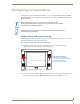
Table Of Contents
- MVP-8400iModero® ViewPoint® Wireless Touch Panel with Intercom
- MVP-8400i Modero Viewpoint Wireless Touch Panel With Intercom
- MVP-BP Power Pack
- NXA-CFSP Compact Flash
- Wireless Interface Cards
- Configuring Communications
- Modero Setup and System Settings
- Wireless Settings Page - Wireless Access Overview
- Configuring a Wireless Network Access
- Step 1: Configure the Panel’s Wireless IP Settings
- Step 2: Configure the Card’s Wireless Security Settings
- Step 3: Choose a Master Connection Mode
- Using G4 Web Control to Interact with a G4 Panel
- Using your NetLinx Master to control the G4 panel
- Upgrading MVP Firmware
- Setup Pages
- Navigation Buttons
- Setup Pages
- Information
- Protected Setup Pages
- Protected Setup Navigation Buttons
- G4 Web Control Page
- Calibration Page
- Wireless Settings Page
- Wireless Security Page
- Open (Clear Text) Settings
- Static WEP Settings
- WPA-PSK Settings
- EAP-LEAP Settings
- EAP-FAST Settings
- EAP-PEAP Settings
- EAP-TTLS Settings
- EAP-TLS Settings
- Client certificate configuration
- System Settings Page
- Other Settings
- Tools
- Programming
- Panel Calibration
- Appendix A: Text Formatting
- Appendix B - Wireless Technology
- Appendix C: Troubleshooting
- Checking AMX USBLAN device connections via Windows Device Manager
- Checking AMX USBLAN device connections via NetLinx Studio
- USB Driver
- Panel Not in Listed As a Connected Device
- Connection Status
- Panel Doesn’t Respond To Touches
- Batteries Will Not Hold Or Take A Charge
- Modero Panel Isn’t Appearing In The Online Tree Tab
- MVP Can’t Obtain a DHCP Address
- My WEP Doesn’t Seem To Be Working
- NetLinx Studio Only Detects One Of My Connected Masters
- Can’t Connect To a NetLinx Master
- Only One Modero Panel In My System Shows Up
- Panel Behaves Strangely After Downloading A Panel File Or Firmware
- Panel Fails to Charge in MVP-WDS
Configuring Communications
20
MVP-8400i Modero Viewpoint Wireless Touch Panels
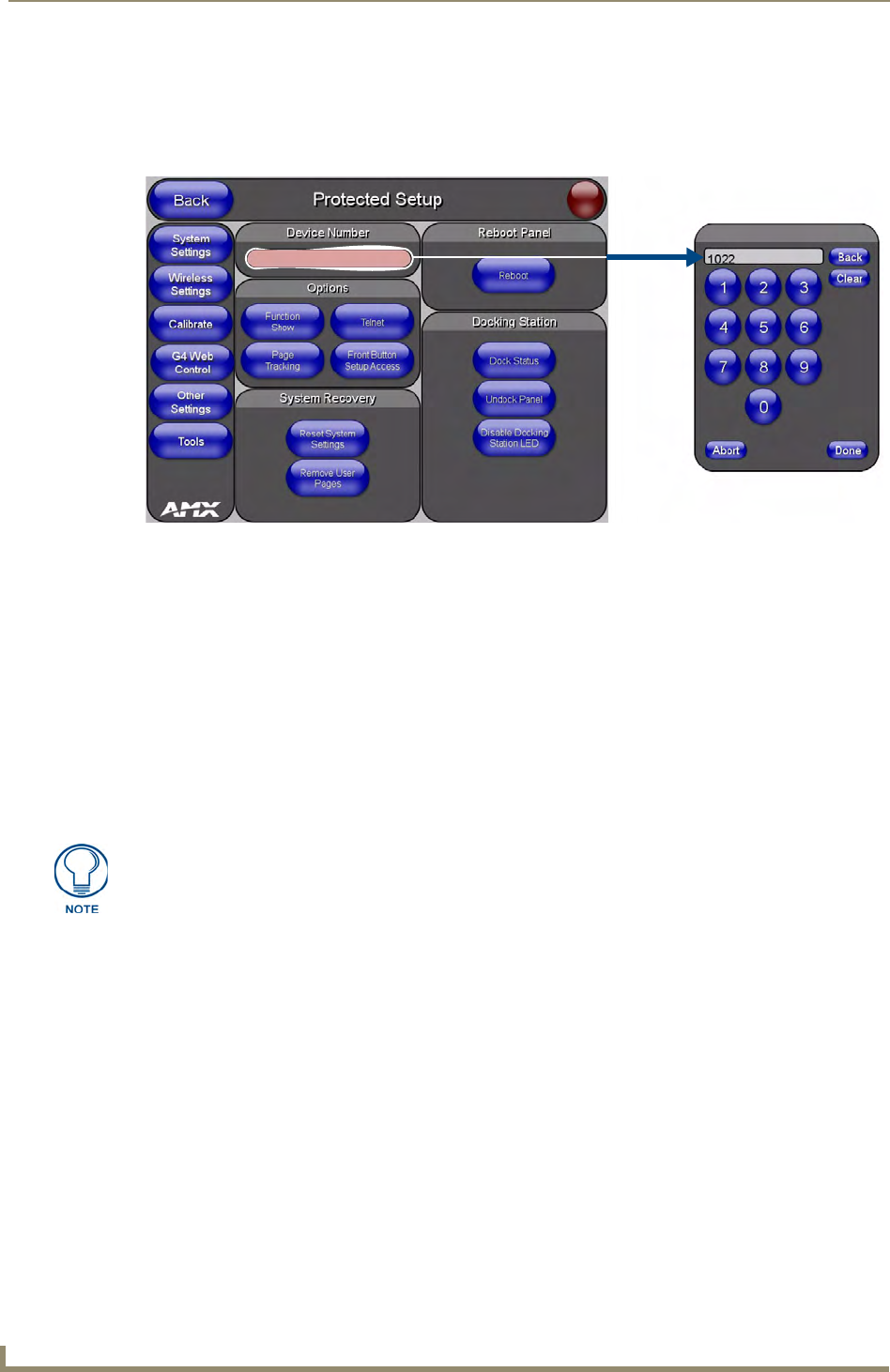
Setting the Panel’s Device Number
In the Protected Setup page:
1. Press the Device Number field to open the Device Number keypad (FIG. 14).
Enter a unique Device Number assignment for the panel, and press Done to return to the Protected
Setup page. The Device Number range is 1 - 32000, the default is 10001.
2. Press Reboot to reboot the panel, and apply the new Device Number.
Wireless Settings Page - Wireless Access Overview
Hot Swapping
Hot swapping is not an issue on these panels as the card is installed within the unit and cannot be
removed without first removing the housing.
In the case of DHCP, there must be a DHCP server accessible before the fields are populated.
Before selecting Ethernet as the Master Connection Type you must setup the parameters of the wireless
card. The Wireless Access Point communication parameters must match those of the pre-installed
wireless CF card inside the MVP.
The MVP touch panels allow users to connect to a wireless network through their use of the
pre-installed AMX 802.11g wireless interface card to communicate with a Wireless Access Point (WAP)
such as the NXA-WAP200G). The WAP communication parameters must match those of the
pre-installed wireless interface card installed within the panel. This internal card transmits data
wirelessly using the 802.11x signals at 2.4 GHz. For a more detailed explanation of the new security and
encryption technology, refer to the section of the document entitled:
Appendix B - Wireless
Technology section on page 169.
For more information on utilizing the AMX Certificate Upload Utility in conjunction with the EAP
security, refer to the section of the document entitled:
Appendix B - Wireless Technology section on
page 169.
FIG. 14 Protected Setup page
If the SSID (Network Name) and WEP fields have not previously been configured, the
Wireless Settings page will not work until the panel is rebooted.