
Wireless Touch Panel with Intercom Reference Guide
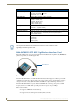
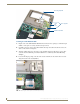

Table Of Contents
- MVP-8400iModero® ViewPoint® Wireless Touch Panel with Intercom
- MVP-8400i Modero Viewpoint Wireless Touch Panel With Intercom
- MVP-BP Power Pack
- NXA-CFSP Compact Flash
- Wireless Interface Cards
- Configuring Communications
- Modero Setup and System Settings
- Wireless Settings Page - Wireless Access Overview
- Configuring a Wireless Network Access
- Step 1: Configure the Panel’s Wireless IP Settings
- Step 2: Configure the Card’s Wireless Security Settings
- Step 3: Choose a Master Connection Mode
- Using G4 Web Control to Interact with a G4 Panel
- Using your NetLinx Master to control the G4 panel
- Upgrading MVP Firmware
- Setup Pages
- Navigation Buttons
- Setup Pages
- Information
- Protected Setup Pages
- Protected Setup Navigation Buttons
- G4 Web Control Page
- Calibration Page
- Wireless Settings Page
- Wireless Security Page
- Open (Clear Text) Settings
- Static WEP Settings
- WPA-PSK Settings
- EAP-LEAP Settings
- EAP-FAST Settings
- EAP-PEAP Settings
- EAP-TTLS Settings
- EAP-TLS Settings
- Client certificate configuration
- System Settings Page
- Other Settings
- Tools
- Programming
- Panel Calibration
- Appendix A: Text Formatting
- Appendix B - Wireless Technology
- Appendix C: Troubleshooting
- Checking AMX USBLAN device connections via Windows Device Manager
- Checking AMX USBLAN device connections via NetLinx Studio
- USB Driver
- Panel Not in Listed As a Connected Device
- Connection Status
- Panel Doesn’t Respond To Touches
- Batteries Will Not Hold Or Take A Charge
- Modero Panel Isn’t Appearing In The Online Tree Tab
- MVP Can’t Obtain a DHCP Address
- My WEP Doesn’t Seem To Be Working
- NetLinx Studio Only Detects One Of My Connected Masters
- Can’t Connect To a NetLinx Master
- Only One Modero Panel In My System Shows Up
- Panel Behaves Strangely After Downloading A Panel File Or Firmware
- Panel Fails to Charge in MVP-WDS
Wireless Interface Cards
16
MVP-7500/8400 Modero Viewpoint Wireless Touch Panels
Installing the NXA-WC80211GCF
1. Grip the sides of the NXA-WC80211GCF and insert it into the slot opening at a downward angle
until the contact pins are securely attached to the pin sockets.
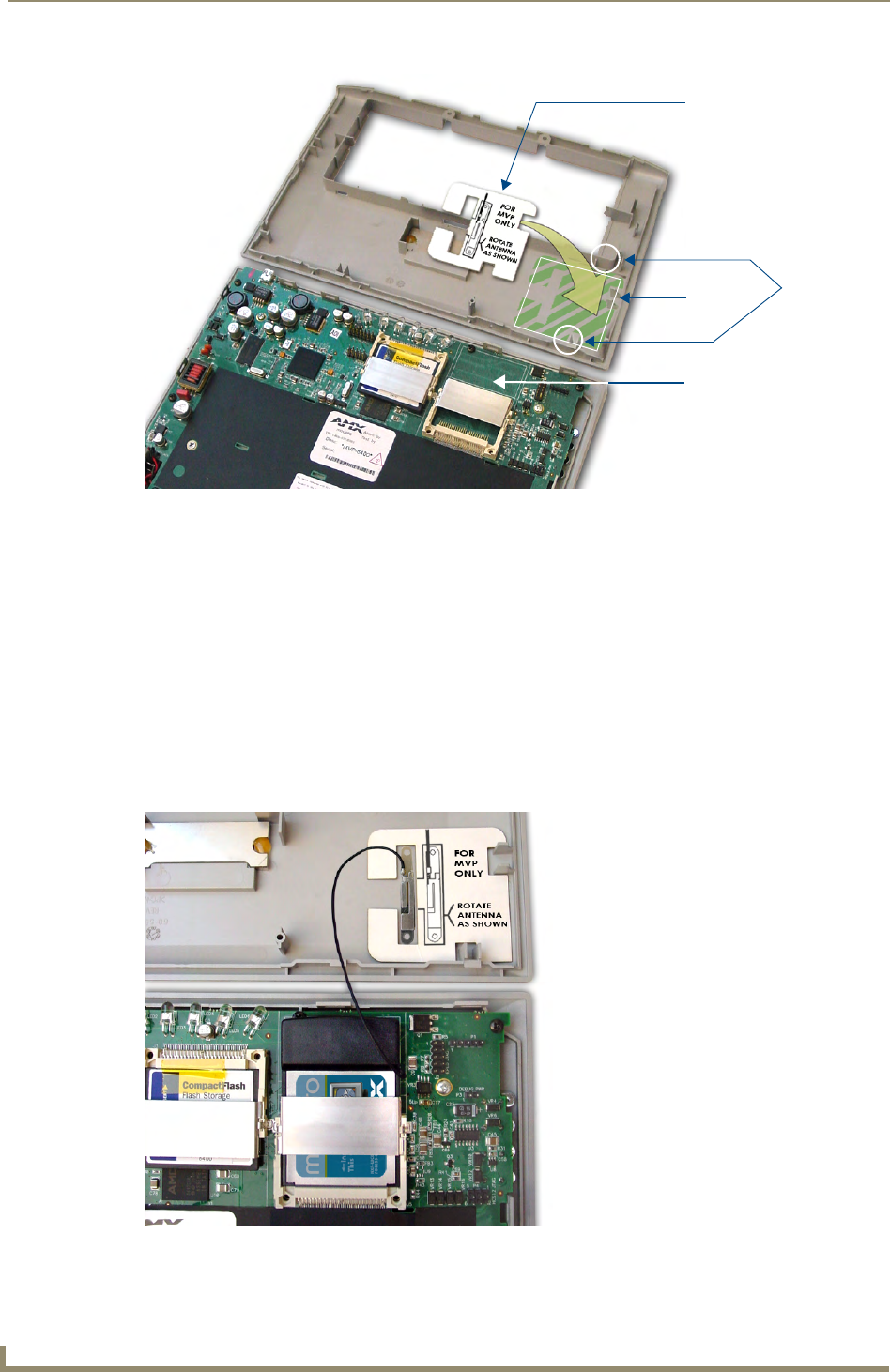
2. Carefully peel off one side of the included double-sided tape and adhere the adhesive side to the
surface of the antenna’s metal plate.
3. Align the double-sided tape to the surface of the terminal antenna’s metal plate, in order to later
secure the antenna within the pre-defined installation area outlined by the included Mounting
Template.
4. Locate the T-shaped opening on the left of the cutout and make sure the antenna wire is located
along the left side of the cutout (FIG. 4).
FIG. 10 Installing the Mounting Template
FIG. 11 Adhering the antenna plate to the MVP outer housing
Inner supports
Mounting Template
Wireless Card Slot
clean
this
area