
Wireless Touch Panel with Intercom Reference Guide
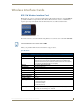
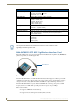
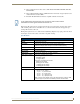
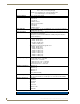
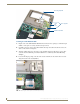

Table Of Contents
- MVP-8400iModero® ViewPoint® Wireless Touch Panel with Intercom
- MVP-8400i Modero Viewpoint Wireless Touch Panel With Intercom
- MVP-BP Power Pack
- NXA-CFSP Compact Flash
- Wireless Interface Cards
- Configuring Communications
- Modero Setup and System Settings
- Wireless Settings Page - Wireless Access Overview
- Configuring a Wireless Network Access
- Step 1: Configure the Panel’s Wireless IP Settings
- Step 2: Configure the Card’s Wireless Security Settings
- Step 3: Choose a Master Connection Mode
- Using G4 Web Control to Interact with a G4 Panel
- Using your NetLinx Master to control the G4 panel
- Upgrading MVP Firmware
- Setup Pages
- Navigation Buttons
- Setup Pages
- Information
- Protected Setup Pages
- Protected Setup Navigation Buttons
- G4 Web Control Page
- Calibration Page
- Wireless Settings Page
- Wireless Security Page
- Open (Clear Text) Settings
- Static WEP Settings
- WPA-PSK Settings
- EAP-LEAP Settings
- EAP-FAST Settings
- EAP-PEAP Settings
- EAP-TTLS Settings
- EAP-TLS Settings
- Client certificate configuration
- System Settings Page
- Other Settings
- Tools
- Programming
- Panel Calibration
- Appendix A: Text Formatting
- Appendix B - Wireless Technology
- Appendix C: Troubleshooting
- Checking AMX USBLAN device connections via Windows Device Manager
- Checking AMX USBLAN device connections via NetLinx Studio
- USB Driver
- Panel Not in Listed As a Connected Device
- Connection Status
- Panel Doesn’t Respond To Touches
- Batteries Will Not Hold Or Take A Charge
- Modero Panel Isn’t Appearing In The Online Tree Tab
- MVP Can’t Obtain a DHCP Address
- My WEP Doesn’t Seem To Be Working
- NetLinx Studio Only Detects One Of My Connected Masters
- Can’t Connect To a NetLinx Master
- Only One Modero Panel In My System Shows Up
- Panel Behaves Strangely After Downloading A Panel File Or Firmware
- Panel Fails to Charge in MVP-WDS
Wireless Interface Cards
12
MVP-7500/8400 Modero Viewpoint Wireless Touch Panels
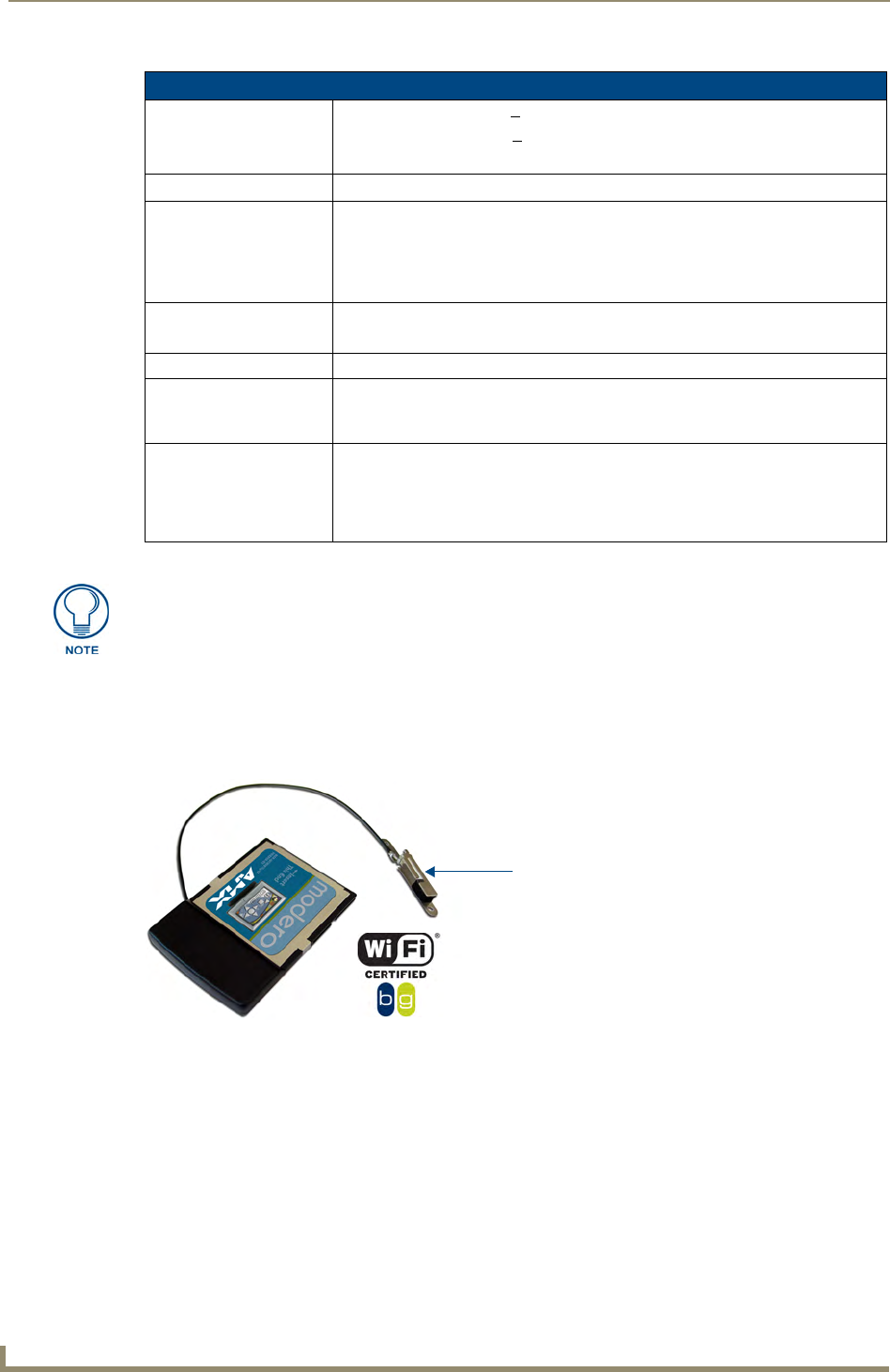
NXA-WC80211GCF 802.11g Wireless Interface Card
Optionally, MVP panels can be upgraded with the field-installable 802.11g Wi-Fi card (FG2255-07),
purchased separately as a Wi-Fi Upgrade Kit.
The NXA-WC80211GCF is a 2.4 GHz Wi-Fi LAN CF Card which upgrades a Modero panel’s RF
capabilities from 802.11b to 802.11g. This card provides enhanced range and throughput, wireless
encryption and data security (WPA and WPA2 and WEP) in Compact Flash Type I form factor.
The NXA-WC80211GCF incorporates DSSS and OFDM radio technology and operates at ISM
frequency bands of 2.4 GHz, while providing data transfer speeds of up to 54Mbps.
Other features include:
Support for IEEE 802.11b and 802.11g
Supports Advanced Encryption Standard (AES) at 128-bit.
802.11b Wireless Interface Card Specifications (Cont.)
Power Consumption: • TX power consumption: < 265 mA
• RX power consumption: < 165 mA
• Sleep Mode: 2 mA - 15 mA
Radio Data Rate: • 1Mbps, 2Mbps, 5.5Mbps, 11Mbps, Auto Rate
Receive Sensitivity: • @PER < 8%
11 Mbps: -83 dBm (max)
5.5 Mbps: -86 dBm (max)
2 Mbps: -89 dBm (max)
1 Mbps: -92 dBm (max)
RF Output Power: • 15 dBm +/- 1 dBm
• Channels 1 - 11 (North America)
Security: • WEP 64,128 bit, WPA/TKIP
Wireless Restrictions: • In R&TTE countries, such as France, the 802.11g frequency band is restricted to
2454 - 2483.5 MHz (2.4 - 2.4835 GHz) and a max power output of
100 mW EIRP outdoor.
Certifications: • FCC (United States)
• IC (Canada)
• CE (Europe)
• TELEC (Japan)
The only time the wireless card should be removed is in case of failure or when
upgrading to the 802.11g Wi-Fi card.
FIG. 9 NXA-WC80211GCF 802.11g wireless card
PIFA antenna