
Wireless Touch Panel with Intercom Reference Guide
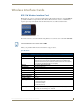
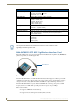
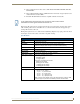
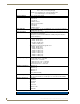

Table Of Contents
- MVP-8400iModero® ViewPoint® Wireless Touch Panel with Intercom
- MVP-8400i Modero Viewpoint Wireless Touch Panel With Intercom
- MVP-BP Power Pack
- NXA-CFSP Compact Flash
- Wireless Interface Cards
- Configuring Communications
- Modero Setup and System Settings
- Wireless Settings Page - Wireless Access Overview
- Configuring a Wireless Network Access
- Step 1: Configure the Panel’s Wireless IP Settings
- Step 2: Configure the Card’s Wireless Security Settings
- Step 3: Choose a Master Connection Mode
- Using G4 Web Control to Interact with a G4 Panel
- Using your NetLinx Master to control the G4 panel
- Upgrading MVP Firmware
- Setup Pages
- Navigation Buttons
- Setup Pages
- Information
- Protected Setup Pages
- Protected Setup Navigation Buttons
- G4 Web Control Page
- Calibration Page
- Wireless Settings Page
- Wireless Security Page
- Open (Clear Text) Settings
- Static WEP Settings
- WPA-PSK Settings
- EAP-LEAP Settings
- EAP-FAST Settings
- EAP-PEAP Settings
- EAP-TTLS Settings
- EAP-TLS Settings
- Client certificate configuration
- System Settings Page
- Other Settings
- Tools
- Programming
- Panel Calibration
- Appendix A: Text Formatting
- Appendix B - Wireless Technology
- Appendix C: Troubleshooting
- Checking AMX USBLAN device connections via Windows Device Manager
- Checking AMX USBLAN device connections via NetLinx Studio
- USB Driver
- Panel Not in Listed As a Connected Device
- Connection Status
- Panel Doesn’t Respond To Touches
- Batteries Will Not Hold Or Take A Charge
- Modero Panel Isn’t Appearing In The Online Tree Tab
- MVP Can’t Obtain a DHCP Address
- My WEP Doesn’t Seem To Be Working
- NetLinx Studio Only Detects One Of My Connected Masters
- Can’t Connect To a NetLinx Master
- Only One Modero Panel In My System Shows Up
- Panel Behaves Strangely After Downloading A Panel File Or Firmware
- Panel Fails to Charge in MVP-WDS
Wireless Interface Cards
11
MVP-7500/8400 Modero Viewpoint Wireless Touch Panels
Wireless Interface Cards
802.11b Wireless Interface Card
MVP panels can connect to a wireless network using the 802.11b Wireless Interface Card (70-5965-02),
pre-installed in MVP touch panel models. The 802.11b Wireless Interface Card is a 2.4 GHz Direct
Sequence Spread Spectrum (DSSS) 802.11b 11M wireless PC card, with detachable antenna.
The wireless interface card works with 802.11b/g Wireless Access Points, such as the NXA-WAP200G.
Follow your particular WAP’s instruction manual for setup procedures.
Specifications
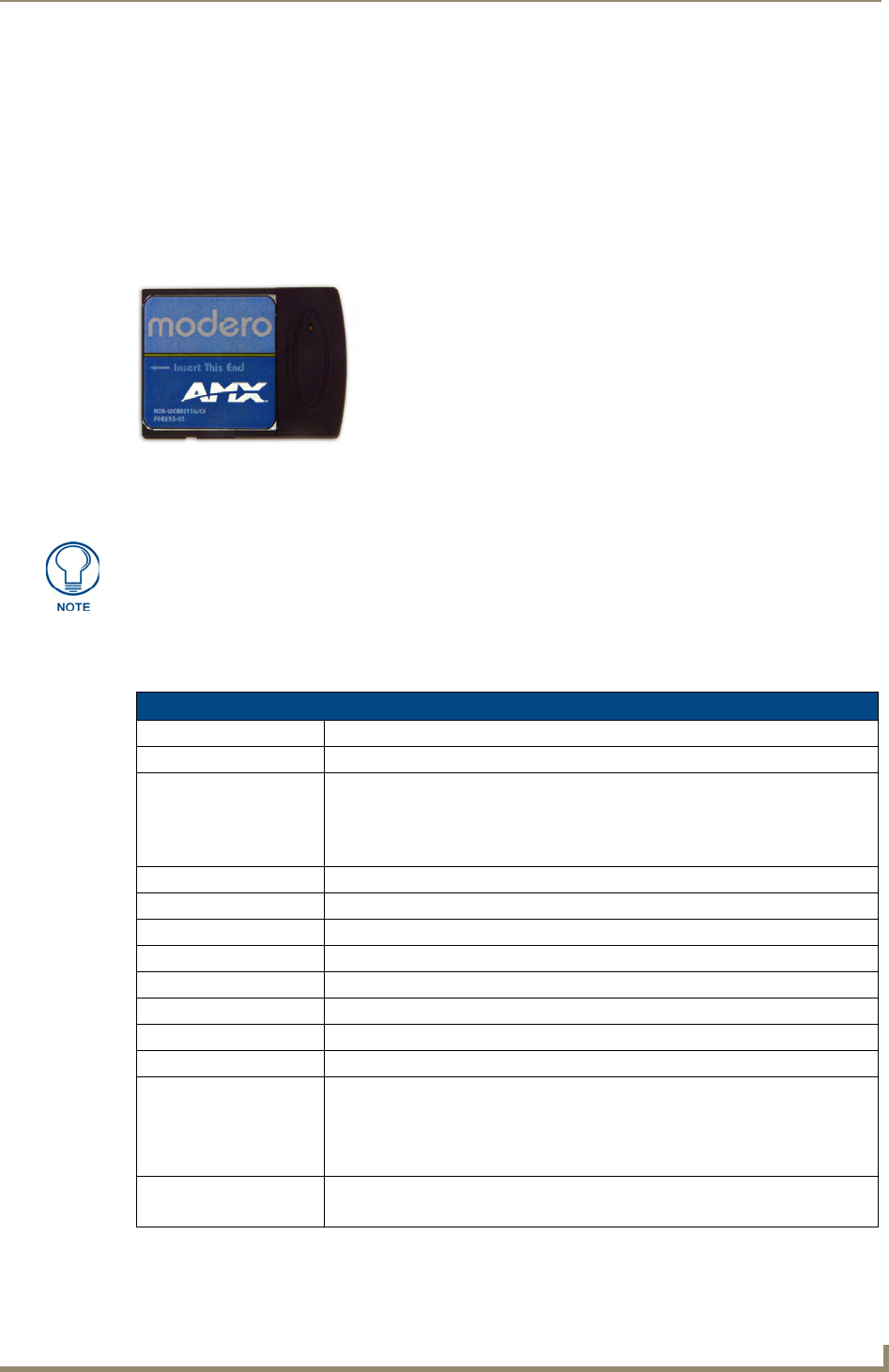
FIG. 8 802.11b Wireless Interface Card
The NXA-WAP200G uses a default SSID of AMX.
802.11b Wireless Interface Card Specifications
Dimensions (HWD): • 2.07" x 1.68" x 0.21" (52.56 mm x 42.80 mm x 5.57 mm)
Weight: • 13.61 grams (0.030 lbs)
Features: • Wired Equivalent Privacy (WEP) 64-bit and 128-bit data encryption
• Diversity Antenna Connectors automatically select the best available signal
• Supports infrastructure (communications to wired networks via Access Points),
and roaming (standard IEEE 802.11b compliant)
Antenna: • 2, Ceramic (Diversity Supported)
Host Interface: • Compact Flash Type I
Interoperability: • Interoperable with Wi-Fi (WECA) certified products
LED Indicators: • Power / Link activity
Modulation: • DSSS, DBSK, DQSK, CCK
Network Standard: • IEEE 802.11b
Number of Channels: •14
Operating Voltage: • 5 / 3.3 V
Operating Channels: • 11 Channels (USA, Canada)
• 13 Channels (Europe)
• 14 Channels (Japan)
• 4 Channels (France)
Operating Environment: • Temperature: 0°C ~ 70°C (non-operating) and -15 ~ 80°C (storage)
• Humidity (non-condensing): 5% ~ 95% RH