
Wireless Touch Panel with Intercom Reference Guide
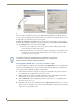
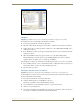




Table Of Contents
- MVP-8400iModero® ViewPoint® Wireless Touch Panel with Intercom
- MVP-8400i Modero Viewpoint Wireless Touch Panel With Intercom
- MVP-BP Power Pack
- NXA-CFSP Compact Flash
- Wireless Interface Cards
- Configuring Communications
- Modero Setup and System Settings
- Wireless Settings Page - Wireless Access Overview
- Configuring a Wireless Network Access
- Step 1: Configure the Panel’s Wireless IP Settings
- Step 2: Configure the Card’s Wireless Security Settings
- Step 3: Choose a Master Connection Mode
- Using G4 Web Control to Interact with a G4 Panel
- Using your NetLinx Master to control the G4 panel
- Upgrading MVP Firmware
- Setup Pages
- Navigation Buttons
- Setup Pages
- Information
- Protected Setup Pages
- Protected Setup Navigation Buttons
- G4 Web Control Page
- Calibration Page
- Wireless Settings Page
- Wireless Security Page
- Open (Clear Text) Settings
- Static WEP Settings
- WPA-PSK Settings
- EAP-LEAP Settings
- EAP-FAST Settings
- EAP-PEAP Settings
- EAP-TTLS Settings
- EAP-TLS Settings
- Client certificate configuration
- System Settings Page
- Other Settings
- Tools
- Programming
- Panel Calibration
- Appendix A: Text Formatting
- Appendix B - Wireless Technology
- Appendix C: Troubleshooting
- Checking AMX USBLAN device connections via Windows Device Manager
- Checking AMX USBLAN device connections via NetLinx Studio
- USB Driver
- Panel Not in Listed As a Connected Device
- Connection Status
- Panel Doesn’t Respond To Touches
- Batteries Will Not Hold Or Take A Charge
- Modero Panel Isn’t Appearing In The Online Tree Tab
- MVP Can’t Obtain a DHCP Address
- My WEP Doesn’t Seem To Be Working
- NetLinx Studio Only Detects One Of My Connected Masters
- Can’t Connect To a NetLinx Master
- Only One Modero Panel In My System Shows Up
- Panel Behaves Strangely After Downloading A Panel File Or Firmware
- Panel Fails to Charge in MVP-WDS
Appendix C: Troubleshooting
183
MVP-8400i Modero Viewpoint Wireless Touch Panels
Modero Panel Isn’t Appearing In The Online Tree Tab
1. Verify that the System number is the same on both the NetLinx Project Navigator window and the
System Settings page on the Modero panel.
2. Verify you have entered the proper NetLinx Master IP and connection methods into the Master
Connection section of the System Settings page.
MVP Can’t Obtain a DHCP Address
In requesting a DHCP Address, the DHCP Server can take up to a few minutes to provide the address.
1. Verify that the WAP is configured to match the MVP panel Network Name (SSID) field,
Encryption, Default Key, and Current Key string.
2. In NetLinx Studio, select Diagnostics > Network Address and verify the System number.
3. If the IP Address field is still empty, give the Modero a few minutes to negotiate a DHCP Address
and try again.
My WEP Doesn’t Seem To Be Working
WEP will not work unless the same default key is set on both the panel and the Wireless Access Point
(WAP).
For example: if you had your access point set to default WEP key 4 (which was 01:02:03:04:05) you
must also set the Modero’s Default WEP key 4 to 01:02:03:04:05.
NetLinx Studio Only Detects One Of My Connected Masters
Each Master is given a Device Address of 00000.
Only one Master can be assigned to a particular System number. If you want to work with multiple
Masters, open different instances of NetLinx Studio and assign each Master its own System value.
Example: A site has an NXC-ME260/64 and an NI-4000. In order to work with both units. The ME260
can be assigned System #1 and the NI-4000 can then be assigned System #2 using two open sessions of
NetLinx Studio v 2.x.
Can’t Connect To a NetLinx Master
Symptom: I can’t seem to connect to a NetLinx Master using NetLinx Studio 2.
Select Settings > Master Comm Settings > Communication Settings > Settings (for TCP/IP), and
uncheck the "Automatically Ping the Master Controller to ensure availability".
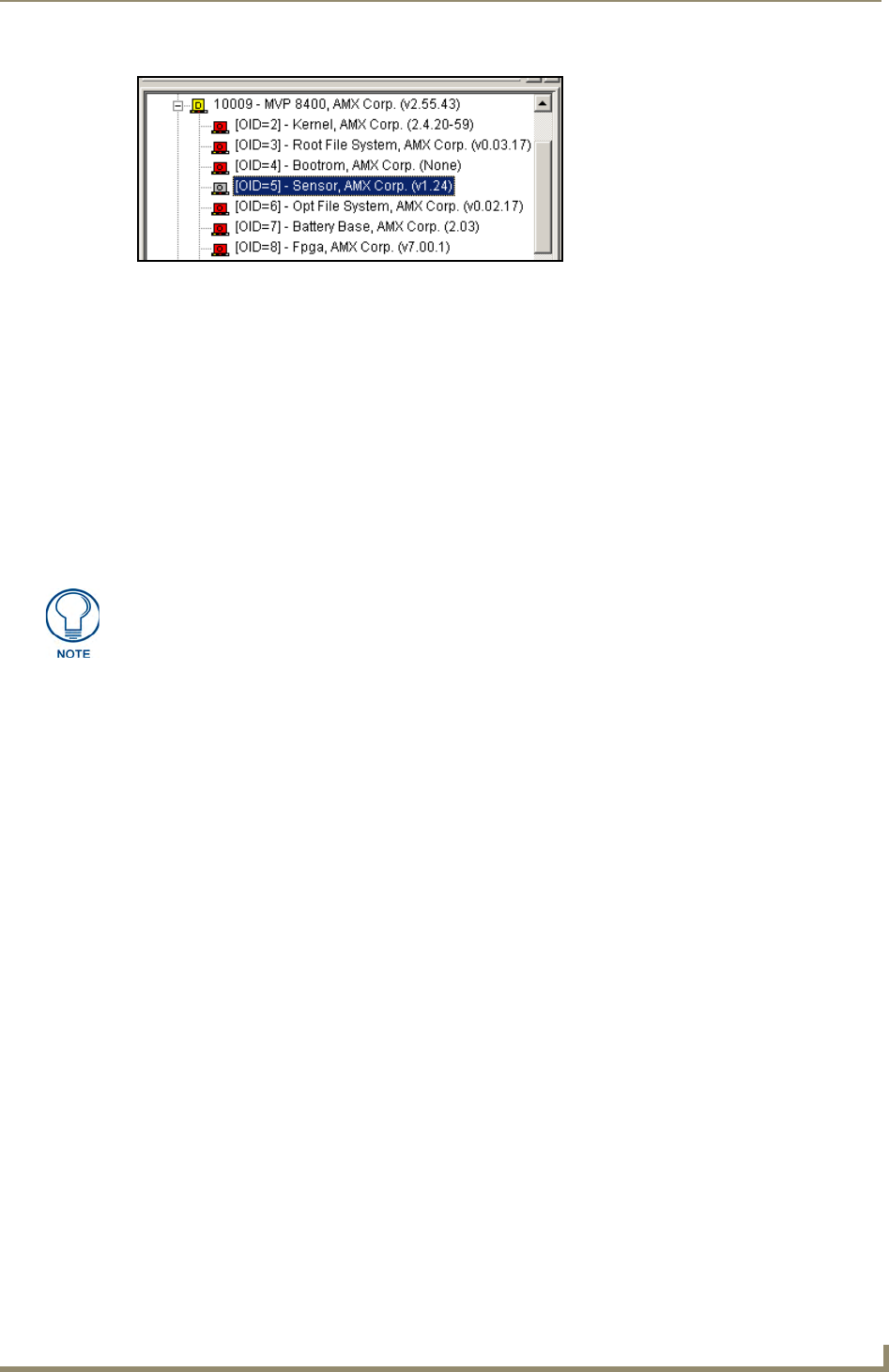
FIG. 85 "Sensor" device in the Online Tree tab
Remember that the Passphrase generator on the panel does not produce the same
Current Key if using the same passphrase on the WAP.