
Wireless Touch Panel with Intercom Reference Guide
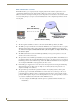
Table Of Contents
- MVP-8400iModero® ViewPoint® Wireless Touch Panel with Intercom
- MVP-8400i Modero Viewpoint Wireless Touch Panel With Intercom
- MVP-BP Power Pack
- NXA-CFSP Compact Flash
- Wireless Interface Cards
- Configuring Communications
- Modero Setup and System Settings
- Wireless Settings Page - Wireless Access Overview
- Configuring a Wireless Network Access
- Step 1: Configure the Panel’s Wireless IP Settings
- Step 2: Configure the Card’s Wireless Security Settings
- Step 3: Choose a Master Connection Mode
- Using G4 Web Control to Interact with a G4 Panel
- Using your NetLinx Master to control the G4 panel
- Upgrading MVP Firmware
- Setup Pages
- Navigation Buttons
- Setup Pages
- Information
- Protected Setup Pages
- Protected Setup Navigation Buttons
- G4 Web Control Page
- Calibration Page
- Wireless Settings Page
- Wireless Security Page
- Open (Clear Text) Settings
- Static WEP Settings
- WPA-PSK Settings
- EAP-LEAP Settings
- EAP-FAST Settings
- EAP-PEAP Settings
- EAP-TTLS Settings
- EAP-TLS Settings
- Client certificate configuration
- System Settings Page
- Other Settings
- Tools
- Programming
- Panel Calibration
- Appendix A: Text Formatting
- Appendix B - Wireless Technology
- Appendix C: Troubleshooting
- Checking AMX USBLAN device connections via Windows Device Manager
- Checking AMX USBLAN device connections via NetLinx Studio
- USB Driver
- Panel Not in Listed As a Connected Device
- Connection Status
- Panel Doesn’t Respond To Touches
- Batteries Will Not Hold Or Take A Charge
- Modero Panel Isn’t Appearing In The Online Tree Tab
- MVP Can’t Obtain a DHCP Address
- My WEP Doesn’t Seem To Be Working
- NetLinx Studio Only Detects One Of My Connected Masters
- Can’t Connect To a NetLinx Master
- Only One Modero Panel In My System Shows Up
- Panel Behaves Strangely After Downloading A Panel File Or Firmware
- Panel Fails to Charge in MVP-WDS
Appendix C: Troubleshooting
180
MVP-8400i Modero Viewpoint Wireless Touch Panels
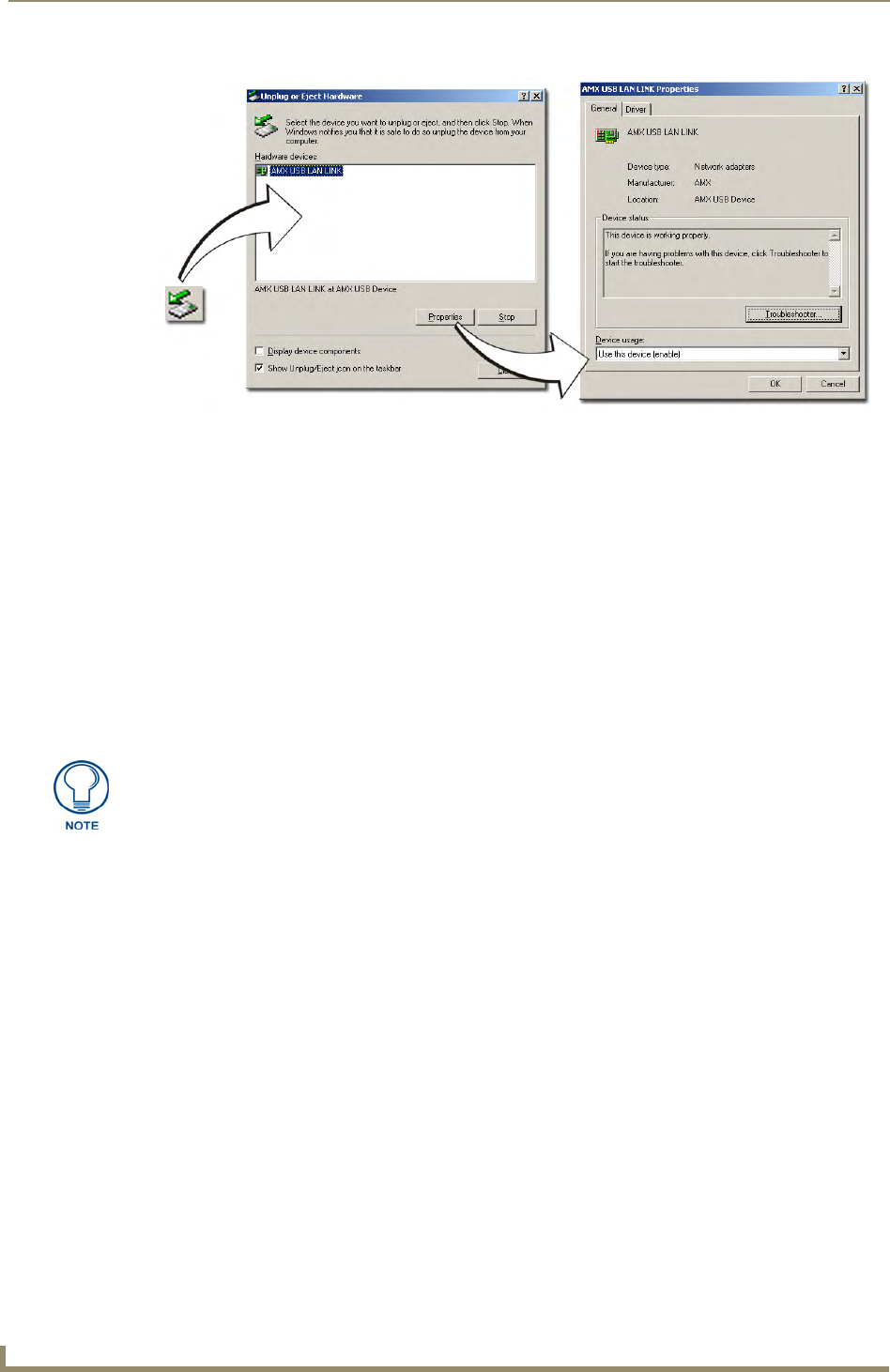
If there is a yellow exclamation point next to the AMX USB LAN LINK device (within the hardware
devices section of the Unplug or Eject Hardware window), stop and close the USB operation. Reconnect
the USB cable to the panel and repeat the setup procedures.
To remove the USB driver association from a previously connected touch panel, you must navigate
back to the Device Manager, right-click on the panel’s USB driver (example AMX USB LAN LINK #2)
and select Uninstall from the context menu and then OK.
Once the system completes the removal of the device, the Device Manager window will
refresh, and the device will no longer appear.
The next time this device is connected to the computer it will appear as a new hardware device
and will need to be associated again with the driver (refer to
Configure the panel for USB
communication section on page 32).
Checking AMX USBLAN device connections via NetLinx Studio
Use the CC-USB Type-A to Mini-B 5-wire programming cable (FG10-5965) to provide communication
between the mini-USB Program port on the touch panel and the PC. This method of communication is
used to transfer firmware KIT files and TPD4 touch panel files.
1. Verify this direct USB connection (Type-A on the panel to mini-USB on the panel) is configured
properly using the steps outlined in the previous two sections.
2. With the panel already configured for USB communication and the Virtual Master setup within
NetLinx Studio, its now time to verify the panel is ready to receive files.
3. Click the OnLine Tree tab in the Workspace window to view the devices on the Virtual System.
The default System value is one.
4. Right-click on the System entry (A in FIG. 84) and select Refresh System. This causes a refresh of
all project systems, establishes a new connection to the Virtual Master, and populates the System list
with devices on your particular system.
FIG. 83 USB Properties windows (Windows Device Manager)
USB
detection
icon
A mini-USB connection is only detected after it is installed onto an active panel.
Connection to a previously powered panel which then reboots, allows the PC to
detect the panel and assign an appropriate USB driver.