
Wireless Touch Panel with Intercom Reference Guide
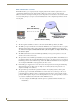

Table Of Contents
- MVP-8400iModero® ViewPoint® Wireless Touch Panel with Intercom
- MVP-8400i Modero Viewpoint Wireless Touch Panel With Intercom
- MVP-BP Power Pack
- NXA-CFSP Compact Flash
- Wireless Interface Cards
- Configuring Communications
- Modero Setup and System Settings
- Wireless Settings Page - Wireless Access Overview
- Configuring a Wireless Network Access
- Step 1: Configure the Panel’s Wireless IP Settings
- Step 2: Configure the Card’s Wireless Security Settings
- Step 3: Choose a Master Connection Mode
- Using G4 Web Control to Interact with a G4 Panel
- Using your NetLinx Master to control the G4 panel
- Upgrading MVP Firmware
- Setup Pages
- Navigation Buttons
- Setup Pages
- Information
- Protected Setup Pages
- Protected Setup Navigation Buttons
- G4 Web Control Page
- Calibration Page
- Wireless Settings Page
- Wireless Security Page
- Open (Clear Text) Settings
- Static WEP Settings
- WPA-PSK Settings
- EAP-LEAP Settings
- EAP-FAST Settings
- EAP-PEAP Settings
- EAP-TTLS Settings
- EAP-TLS Settings
- Client certificate configuration
- System Settings Page
- Other Settings
- Tools
- Programming
- Panel Calibration
- Appendix A: Text Formatting
- Appendix B - Wireless Technology
- Appendix C: Troubleshooting
- Checking AMX USBLAN device connections via Windows Device Manager
- Checking AMX USBLAN device connections via NetLinx Studio
- USB Driver
- Panel Not in Listed As a Connected Device
- Connection Status
- Panel Doesn’t Respond To Touches
- Batteries Will Not Hold Or Take A Charge
- Modero Panel Isn’t Appearing In The Online Tree Tab
- MVP Can’t Obtain a DHCP Address
- My WEP Doesn’t Seem To Be Working
- NetLinx Studio Only Detects One Of My Connected Masters
- Can’t Connect To a NetLinx Master
- Only One Modero Panel In My System Shows Up
- Panel Behaves Strangely After Downloading A Panel File Or Firmware
- Panel Fails to Charge in MVP-WDS
Appendix B - Wireless Technology
172
MVP-8400i Modero Viewpoint Wireless Touch Panels
WPA2
Also know as IEEE 802.11i, is an amendment to the 802.11 standard specifying
security mechanisms for wireless networks. The 802.11i scheme makes use of the
Advanced Encryption Standard (AES) block cipher; WEP and WPA use the RC4
stream cipher.
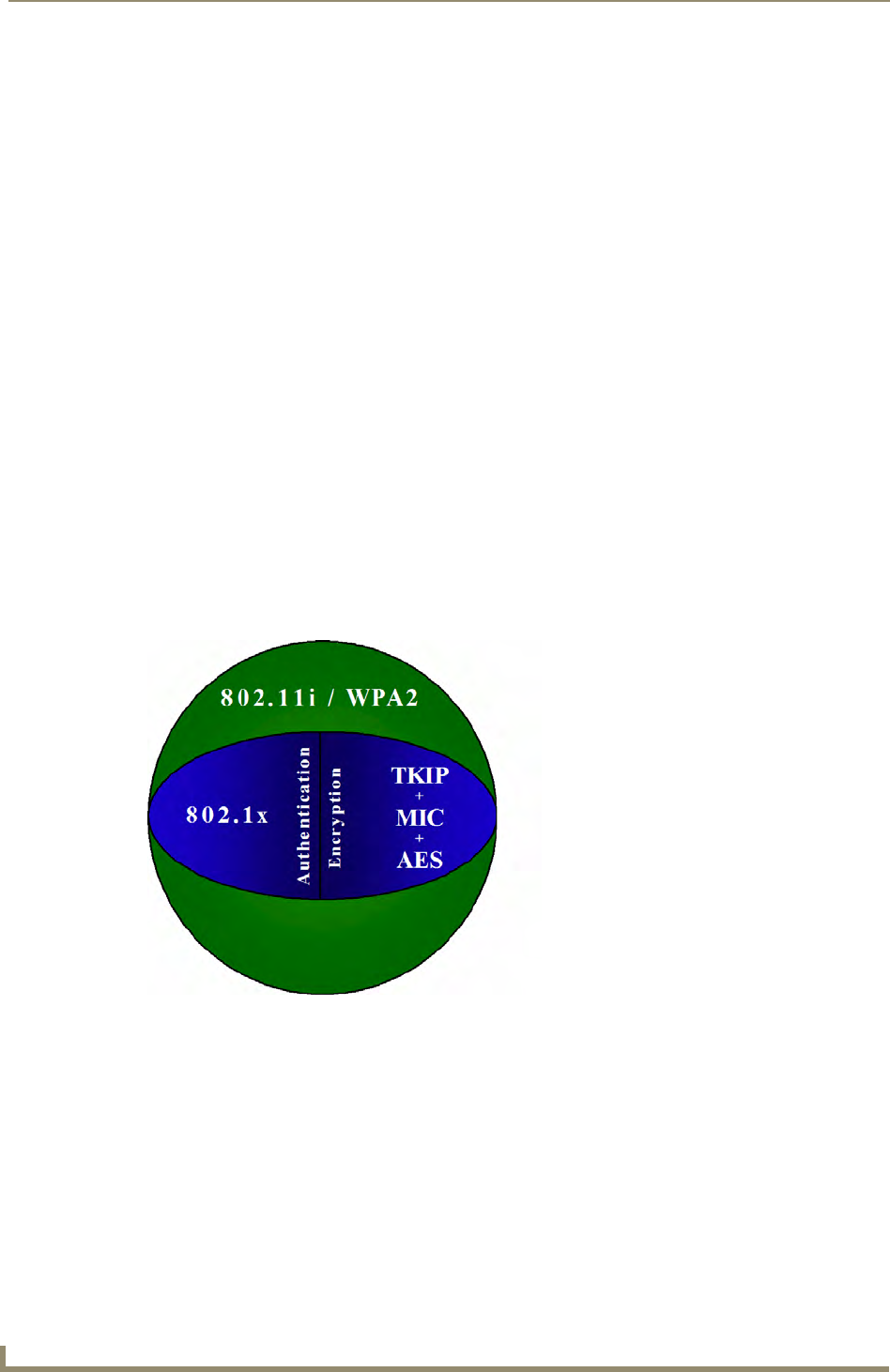
The 802.11i architecture contains the following components: 802.1X for
authentication (entailing the use of EAP and an authentication server), RSN for
keeping track of associations, and AES-based CCMP to provide confidentiality,
integrity and origin authentication.
WPA2 implements the full standard, but will not work with some older network
cards. Both provide good security, with two significant issues:
- either WPA or WPA2 must be enabled and chosen in preference to WEP.
WEP is usually presented as the first security choice in most
installation instructions.
- in the "Personal" mode, the most likely choice for homes and small offices,
a passphrase is required that, for full security, must be longer than the
typical 6 to 8 character passwords users are taught to employ.
With the RC4 released to the general public the IEEE implemented the Advanced
Encryption Standard (AES) as the cipher engine for 802.11i, which the Wi-Fi
Alliance has branded as WPA2.
FIG. 80 WPA2 Overview