
Wireless Touch Panel with Intercom Reference Guide
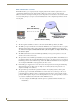

Table Of Contents
- MVP-8400iModero® ViewPoint® Wireless Touch Panel with Intercom
- MVP-8400i Modero Viewpoint Wireless Touch Panel With Intercom
- MVP-BP Power Pack
- NXA-CFSP Compact Flash
- Wireless Interface Cards
- Configuring Communications
- Modero Setup and System Settings
- Wireless Settings Page - Wireless Access Overview
- Configuring a Wireless Network Access
- Step 1: Configure the Panel’s Wireless IP Settings
- Step 2: Configure the Card’s Wireless Security Settings
- Step 3: Choose a Master Connection Mode
- Using G4 Web Control to Interact with a G4 Panel
- Using your NetLinx Master to control the G4 panel
- Upgrading MVP Firmware
- Setup Pages
- Navigation Buttons
- Setup Pages
- Information
- Protected Setup Pages
- Protected Setup Navigation Buttons
- G4 Web Control Page
- Calibration Page
- Wireless Settings Page
- Wireless Security Page
- Open (Clear Text) Settings
- Static WEP Settings
- WPA-PSK Settings
- EAP-LEAP Settings
- EAP-FAST Settings
- EAP-PEAP Settings
- EAP-TTLS Settings
- EAP-TLS Settings
- Client certificate configuration
- System Settings Page
- Other Settings
- Tools
- Programming
- Panel Calibration
- Appendix A: Text Formatting
- Appendix B - Wireless Technology
- Appendix C: Troubleshooting
- Checking AMX USBLAN device connections via Windows Device Manager
- Checking AMX USBLAN device connections via NetLinx Studio
- USB Driver
- Panel Not in Listed As a Connected Device
- Connection Status
- Panel Doesn’t Respond To Touches
- Batteries Will Not Hold Or Take A Charge
- Modero Panel Isn’t Appearing In The Online Tree Tab
- MVP Can’t Obtain a DHCP Address
- My WEP Doesn’t Seem To Be Working
- NetLinx Studio Only Detects One Of My Connected Masters
- Can’t Connect To a NetLinx Master
- Only One Modero Panel In My System Shows Up
- Panel Behaves Strangely After Downloading A Panel File Or Firmware
- Panel Fails to Charge in MVP-WDS

Appendix B - Wireless Technology
171
MVP-8400i Modero Viewpoint Wireless Touch Panels
TKIP
Short for Temporal Key Integration, is part of the IEEE 802.11i encryption standard
for wireless LANs. TKIP provides per-packet key mixing, message integrity check
and re-keying mechanism, thus ensuring every data packet is sent with its own
unique encryption key. Key mixing increases the complexity of decoding the keys by
giving the hacker much less data that has been encrypted using any one key.
WEP
Short for Wired Equivalent Privacy (WEP), is a scheme used to secure wireless
networks (Wi-Fi). A wireless network broadcasts messages using radio which are
particularly susceptible to hacker attacks. WEP was intended to provide the
confidentiality and security comparable to that of a traditional wired network. As a
result of identified weaknesses in this scheme, WEP was superseded by Wi-Fi
Protected Access (WPA), and then by the full IEEE 802.11i standard (also known as
WPA2).
WPA
Wi-Fi Protected Access (WPA and WPA2) is a class of system used to secure
wireless (Wi-Fi) computer networks. It was created in response to several serious
weaknesses researchers had found in the previous WEP system. WPA implements
the majority of the IEEE 802.11i standard, and was intended as an intermediate
measure to take the place of WEP while 802.11i was prepared (WPA2).
WPA is designed to work with all wireless network interface cards, but not
necessarily with first generation wireless access points.
To resolve problems with WEP, the Wi-Fi Alliance released WPA (FIG. 79) which
integrated 802.1x, TKIP and MIC. Within the WPA specifications the RC4 cipher
engine was maintained from WEP. RC4 is widely used in SSL (Secure Socket
Layer) to protect internet traffic.
FIG. 79 WPA Overview