
Wireless Touch Panel with Intercom Reference Guide
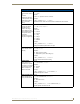
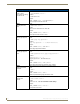
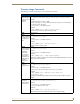
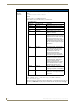
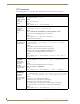
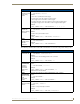
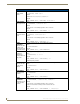

Table Of Contents
- MVP-8400iModero® ViewPoint® Wireless Touch Panel with Intercom
- MVP-8400i Modero Viewpoint Wireless Touch Panel With Intercom
- MVP-BP Power Pack
- NXA-CFSP Compact Flash
- Wireless Interface Cards
- Configuring Communications
- Modero Setup and System Settings
- Wireless Settings Page - Wireless Access Overview
- Configuring a Wireless Network Access
- Step 1: Configure the Panel’s Wireless IP Settings
- Step 2: Configure the Card’s Wireless Security Settings
- Step 3: Choose a Master Connection Mode
- Using G4 Web Control to Interact with a G4 Panel
- Using your NetLinx Master to control the G4 panel
- Upgrading MVP Firmware
- Setup Pages
- Navigation Buttons
- Setup Pages
- Information
- Protected Setup Pages
- Protected Setup Navigation Buttons
- G4 Web Control Page
- Calibration Page
- Wireless Settings Page
- Wireless Security Page
- Open (Clear Text) Settings
- Static WEP Settings
- WPA-PSK Settings
- EAP-LEAP Settings
- EAP-FAST Settings
- EAP-PEAP Settings
- EAP-TTLS Settings
- EAP-TLS Settings
- Client certificate configuration
- System Settings Page
- Other Settings
- Tools
- Programming
- Panel Calibration
- Appendix A: Text Formatting
- Appendix B - Wireless Technology
- Appendix C: Troubleshooting
- Checking AMX USBLAN device connections via Windows Device Manager
- Checking AMX USBLAN device connections via NetLinx Studio
- USB Driver
- Panel Not in Listed As a Connected Device
- Connection Status
- Panel Doesn’t Respond To Touches
- Batteries Will Not Hold Or Take A Charge
- Modero Panel Isn’t Appearing In The Online Tree Tab
- MVP Can’t Obtain a DHCP Address
- My WEP Doesn’t Seem To Be Working
- NetLinx Studio Only Detects One Of My Connected Masters
- Can’t Connect To a NetLinx Master
- Only One Modero Panel In My System Shows Up
- Panel Behaves Strangely After Downloading A Panel File Or Firmware
- Panel Fails to Charge in MVP-WDS
Programming
152
MVP-8400i Modero Viewpoint Wireless Touch Panels
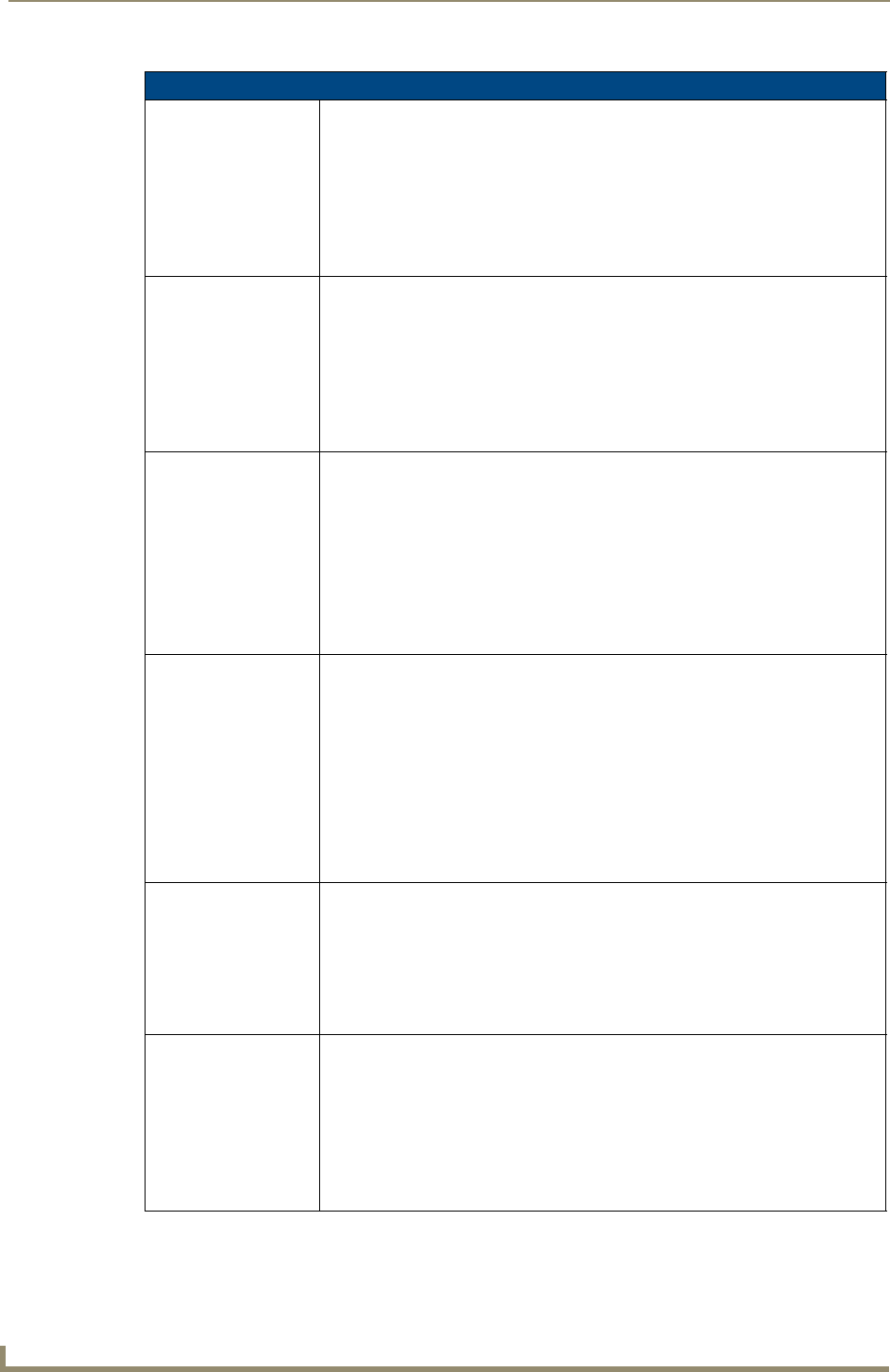
Panel Setup Commands
^ICM-MICLEVEL
Used to set the
microphone level during
an intercom call.
Syntax:
"'^ICM-MICLEVEL,<level>'"
Variables:
0 - 100 volume levels
Example:
SEND_COMMAND Panel, “^ICM-MICLEVEL,40”
Sets the microphone volume level to 40.
^MUT
Set the panel mute
state.
Syntax:
"'^MUT-<mute state>'"
Variable:
mute state= 0 = Mute Off and 1 = Mute On.
Example:
SEND_COMMAND Panel,"'^MUT-1''"
Sets the panel’s master volume to mute.
@PWD
Set the page flip pass-
word.
@PWD sets the level 1 password only.
Syntax:
"'@PWD-<page flip password>'"
Variables:
page flip password = 1 - 50 ASCII characters.
Example:
SEND COMMAND Panel,"'@PWD-Main'"
Sets the page flip password to 'Main'.
^PWD
Set the page flip pass-
word.
Password level is required and must be 1 - 4.
Syntax:
"'^PWD-<password level>,<page flip password>'"
Variables:
password level = 1 - 4.
page flip password = 1 - 50 ASCII characters.
Example:
SEND COMMAND Panel,"'^PWD-1,Main'"
Sets the page flip password on Password Level 1 to 'Main'.
@RPP
Reset the protected
password.
@RPP resets the protected password to its default (1988).
Syntax:
"'@RPP'"
Example:
SEND COMMAND Panel,"'@RPP'"
Resets the protected Setup page password to ‘1988’.
^VOL
Set the panel
volume.
Syntax:
"'^VOL-<volume level>'"
Variable:
volume level = 0 - 100. 100 is maximum volume setting.
Example:
SEND_COMMAND Panel,"'^VOL-50'"
Set the panel volume to 50.