
Wireless Touch Panel with Intercom Reference Guide
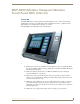
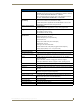
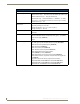
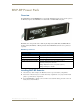
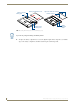
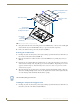

Table Of Contents
- MVP-8400iModero® ViewPoint® Wireless Touch Panel with Intercom
- MVP-8400i Modero Viewpoint Wireless Touch Panel With Intercom
- MVP-BP Power Pack
- NXA-CFSP Compact Flash
- Wireless Interface Cards
- Configuring Communications
- Modero Setup and System Settings
- Wireless Settings Page - Wireless Access Overview
- Configuring a Wireless Network Access
- Step 1: Configure the Panel’s Wireless IP Settings
- Step 2: Configure the Card’s Wireless Security Settings
- Step 3: Choose a Master Connection Mode
- Using G4 Web Control to Interact with a G4 Panel
- Using your NetLinx Master to control the G4 panel
- Upgrading MVP Firmware
- Setup Pages
- Navigation Buttons
- Setup Pages
- Information
- Protected Setup Pages
- Protected Setup Navigation Buttons
- G4 Web Control Page
- Calibration Page
- Wireless Settings Page
- Wireless Security Page
- Open (Clear Text) Settings
- Static WEP Settings
- WPA-PSK Settings
- EAP-LEAP Settings
- EAP-FAST Settings
- EAP-PEAP Settings
- EAP-TTLS Settings
- EAP-TLS Settings
- Client certificate configuration
- System Settings Page
- Other Settings
- Tools
- Programming
- Panel Calibration
- Appendix A: Text Formatting
- Appendix B - Wireless Technology
- Appendix C: Troubleshooting
- Checking AMX USBLAN device connections via Windows Device Manager
- Checking AMX USBLAN device connections via NetLinx Studio
- USB Driver
- Panel Not in Listed As a Connected Device
- Connection Status
- Panel Doesn’t Respond To Touches
- Batteries Will Not Hold Or Take A Charge
- Modero Panel Isn’t Appearing In The Online Tree Tab
- MVP Can’t Obtain a DHCP Address
- My WEP Doesn’t Seem To Be Working
- NetLinx Studio Only Detects One Of My Connected Masters
- Can’t Connect To a NetLinx Master
- Only One Modero Panel In My System Shows Up
- Panel Behaves Strangely After Downloading A Panel File Or Firmware
- Panel Fails to Charge in MVP-WDS

MVP-8400i Modero Viewpoint Wireless Touch Panel With Intercom
4
MVP-8400i Modero Viewpoint Wireless Touch Panels
MVP-8400i Specifications (FG5965-04) (Cont.)
Internal Components (Cont.):
Button Assignments: Button assignments can only be adjusted in TPD4 and not on the panels.
• Button channel range: 1 - 4000 button push and feedback (per address port)
• Button variable text range: 1 - 4000 (per address port)
• Button states range: 1 - 256 (General Button; 1 = Off State, 2 = On State)
• Level range: 1 - 600 (default level value 0-255, can be set up to 1-65535)
• Address port range: 1 - 100
Operating / Storage
Environment:
• Operating Temperature: 0° C (32° F) to 40° C (104° F)
• Operating Humidity: 20% - 85% RH
• Storage Temperature: -20° C (-4° F) to 60° C (140° F)
• Storage Humidity: 5% - 85% RH
Certifications: • FCC Part 15 Class B and CE
• IEC60950
Included Accessories: • MVP-BP Power Pack (FG5965-20): 2 included
• 80211xCF Wireless Interface Compact Flash card (Type 1) - pre-installed
• PS4.4 Power Supply (FG423-44)
•Stylus
Other AMX Equipment: • CB-MVPWDS Conduit Box (FG037-10)
• CC-USB (Type A) to Mini-B 5-Wire programming cable (FG10-5965)
• MVP-BP Power Pack (additional/spare) (FG5965-20)
• MVP-KS Kickstand (FG5965-12)
• MVP-STYLUS three pack (FG5965-30)
• MVP-TDS Table Top Docking Station (FG5965-10)
• MVP-WDS Wall/Flush Mount Docking Station:
Black (FG5965-11) / Silver (FG5965-21)
• MVP-WDS-SK Silver Conversion Kit for MVP-WDS (FG5965-22)
• NXA-WC80211GCF 802.11g Wireless Compact Flash Card Upgrade Kit
(FG2255-07)
• Upgrade Compact Flash (factory programmed with firmware):
NXA-84ICF256M, 256 MB COMPACT FLASH CARD (FG2116-70)
NXA-84ICF512M, 512 MB COMPACT FLASH CARD (FG2116-71)
NXA-84ICF1G, 1 GB COMPACT FLASH CARD (FG2116-72)