
Wireless Touch Panel with Intercom Reference Guide
Table Of Contents
- MVP-8400iModero® ViewPoint® Wireless Touch Panel with Intercom
- MVP-8400i Modero Viewpoint Wireless Touch Panel With Intercom
- MVP-BP Power Pack
- NXA-CFSP Compact Flash
- Wireless Interface Cards
- Configuring Communications
- Modero Setup and System Settings
- Wireless Settings Page - Wireless Access Overview
- Configuring a Wireless Network Access
- Step 1: Configure the Panel’s Wireless IP Settings
- Step 2: Configure the Card’s Wireless Security Settings
- Step 3: Choose a Master Connection Mode
- Using G4 Web Control to Interact with a G4 Panel
- Using your NetLinx Master to control the G4 panel
- Upgrading MVP Firmware
- Setup Pages
- Navigation Buttons
- Setup Pages
- Information
- Protected Setup Pages
- Protected Setup Navigation Buttons
- G4 Web Control Page
- Calibration Page
- Wireless Settings Page
- Wireless Security Page
- Open (Clear Text) Settings
- Static WEP Settings
- WPA-PSK Settings
- EAP-LEAP Settings
- EAP-FAST Settings
- EAP-PEAP Settings
- EAP-TTLS Settings
- EAP-TLS Settings
- Client certificate configuration
- System Settings Page
- Other Settings
- Tools
- Programming
- Panel Calibration
- Appendix A: Text Formatting
- Appendix B - Wireless Technology
- Appendix C: Troubleshooting
- Checking AMX USBLAN device connections via Windows Device Manager
- Checking AMX USBLAN device connections via NetLinx Studio
- USB Driver
- Panel Not in Listed As a Connected Device
- Connection Status
- Panel Doesn’t Respond To Touches
- Batteries Will Not Hold Or Take A Charge
- Modero Panel Isn’t Appearing In The Online Tree Tab
- MVP Can’t Obtain a DHCP Address
- My WEP Doesn’t Seem To Be Working
- NetLinx Studio Only Detects One Of My Connected Masters
- Can’t Connect To a NetLinx Master
- Only One Modero Panel In My System Shows Up
- Panel Behaves Strangely After Downloading A Panel File Or Firmware
- Panel Fails to Charge in MVP-WDS
Programming
118
MVP-8400i Modero Viewpoint Wireless Touch Panels
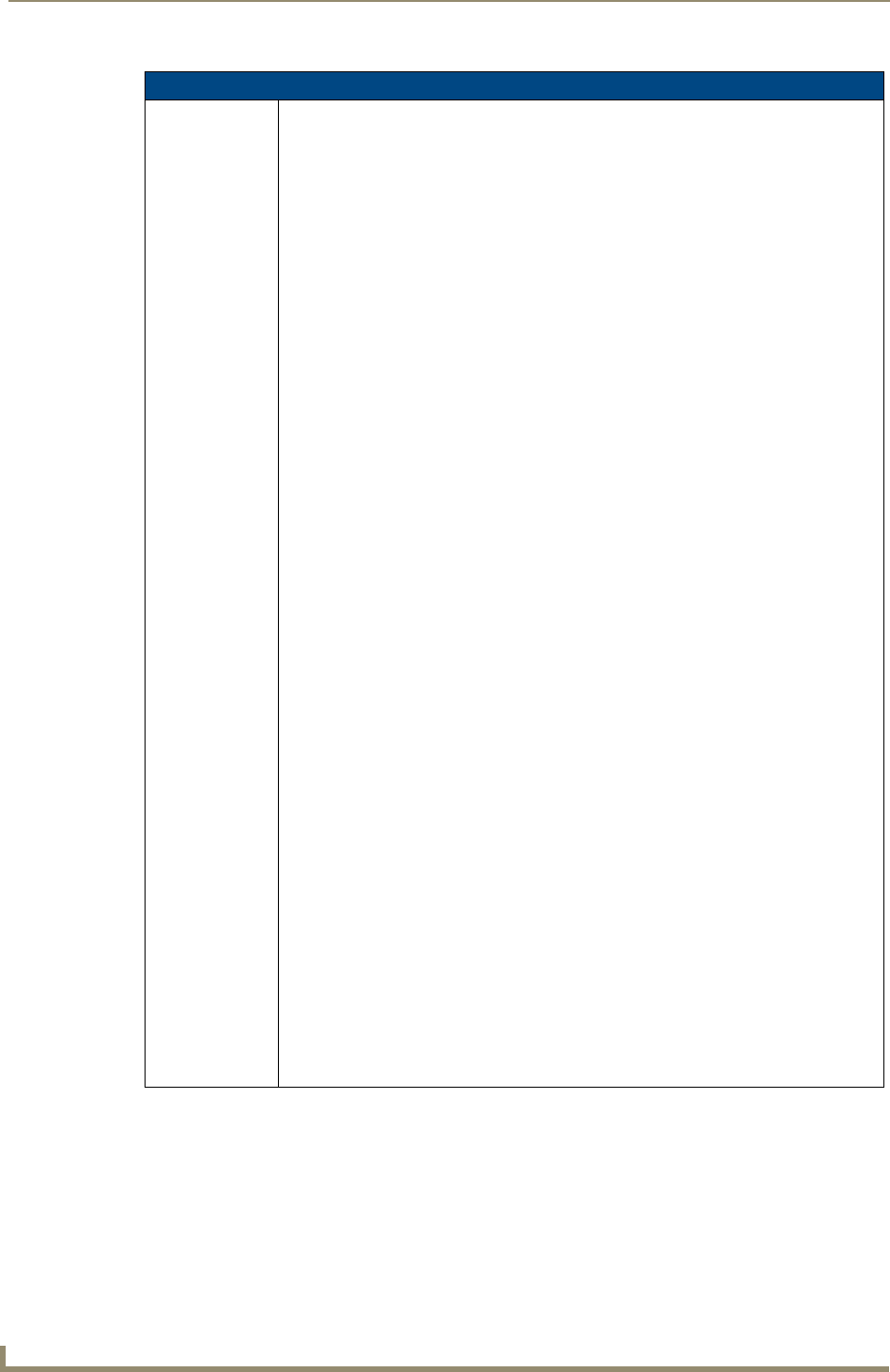
"^" Button Commands (Cont.)
^BMF
(Cont.)
For some of these commands and values, refer to theRGB Values for all 88 Basic
Colors table on page 107.
’%CF<on fill color>’ = Set Fill Color.
’%CB<on border color>’ = Set Border Color.
’%CT<on text color>’ = Set Text Color.
’%SW<1 or 0>’ = Show/hide a button.
’%ST<style>’ = Button style.
’%SO<sound>’ = Set the button sound.
’%EN<1 or 0>’ = Enable/disable a button.
’%WW<1 or 0>’ = Word wrap ON/OFF.
’%GH<bargraph hi>’ = Set the bargraph upper limit.
’%GL<bargraph low>’ = Set the bargraph lower limit.
’%GN<bargraph slider name>’ = Set the bargraph slider name/Joystick cursor name.
’%GC<bargraph slider color>’ = Set the bargraph slider color/Joystick cursor color.
’%GI<bargraph invert>’ = Set the bargraph invert/noninvert or joystick coordinate
(0,1,2,3).
^GIV section on page 125 more information.
’%GU<bargraph ramp up>’ = Set the bargraph ramp up time in intervals of 1/10 second.
’%GD<bargraph ramp down>’ = Set the bargraph ramp down time in 1/10 second.
’%GG<bargraph drag increment> = Set the bargraph drag increment. Refer to the ^GDI
command on
page 125 for more information.
’%VI<video ON/OFF>’ = Set the Video either ON (value=1) or OFF (value=0).
’%OT<feedback type>’ = Set the Feedback (Output) Type to one of the following:
None, Channel,Invert, ON (Always ON), Momentary, or Blink.
’%SM’ = Submit a text for text area button.
’%SF<1 or 0>’ = Set the focus for text area button.
’%OP<0-255>’ = Set the button opacity to either Invisible (value=0) or Opaque
(value=255).
’%OP#<00-FF>’ = Set the button opacity to either Invisible (value=00) or Opaque
(value=FF).
’%UN<Unicode text>’ = Set the Unicode text. See the^UNI section on page 131 for the
text format.
’%LN<0-240>’ = Set the lines of video being removed. ^BLN section on page 116 for
more information.
’%EF<text effect name>’ = Set the text effect.
’%EC<text effect color>’ = Set the text effect color.
’%ML<max length>’ = Set the maximum length of a text area.
’%MK<input mask>’ = Set the input mask of a text area.
’%VL<0-1>’ = Log-On/Log-Off the computer control connection
’%VN<network name>’ = Set network connection name.
’%VP<password>’ = Set the network connection password.
Example:
SEND_COMMAND Panel,"'^BMF-500,1,%B10%CFRed%CB Blue
%CTBlack%Ptest.png'"
Sets the button OFF state as well as the Border, Fill Color, Border Color, Text Color, and
Bitmap.