
Wireless Touch Panel with Intercom Reference Guide
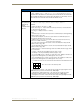
Table Of Contents
- MVP-8400iModero® ViewPoint® Wireless Touch Panel with Intercom
- MVP-8400i Modero Viewpoint Wireless Touch Panel With Intercom
- MVP-BP Power Pack
- NXA-CFSP Compact Flash
- Wireless Interface Cards
- Configuring Communications
- Modero Setup and System Settings
- Wireless Settings Page - Wireless Access Overview
- Configuring a Wireless Network Access
- Step 1: Configure the Panel’s Wireless IP Settings
- Step 2: Configure the Card’s Wireless Security Settings
- Step 3: Choose a Master Connection Mode
- Using G4 Web Control to Interact with a G4 Panel
- Using your NetLinx Master to control the G4 panel
- Upgrading MVP Firmware
- Setup Pages
- Navigation Buttons
- Setup Pages
- Information
- Protected Setup Pages
- Protected Setup Navigation Buttons
- G4 Web Control Page
- Calibration Page
- Wireless Settings Page
- Wireless Security Page
- Open (Clear Text) Settings
- Static WEP Settings
- WPA-PSK Settings
- EAP-LEAP Settings
- EAP-FAST Settings
- EAP-PEAP Settings
- EAP-TTLS Settings
- EAP-TLS Settings
- Client certificate configuration
- System Settings Page
- Other Settings
- Tools
- Programming
- Panel Calibration
- Appendix A: Text Formatting
- Appendix B - Wireless Technology
- Appendix C: Troubleshooting
- Checking AMX USBLAN device connections via Windows Device Manager
- Checking AMX USBLAN device connections via NetLinx Studio
- USB Driver
- Panel Not in Listed As a Connected Device
- Connection Status
- Panel Doesn’t Respond To Touches
- Batteries Will Not Hold Or Take A Charge
- Modero Panel Isn’t Appearing In The Online Tree Tab
- MVP Can’t Obtain a DHCP Address
- My WEP Doesn’t Seem To Be Working
- NetLinx Studio Only Detects One Of My Connected Masters
- Can’t Connect To a NetLinx Master
- Only One Modero Panel In My System Shows Up
- Panel Behaves Strangely After Downloading A Panel File Or Firmware
- Panel Fails to Charge in MVP-WDS
Programming
117
MVP-8400i Modero Viewpoint Wireless Touch Panels
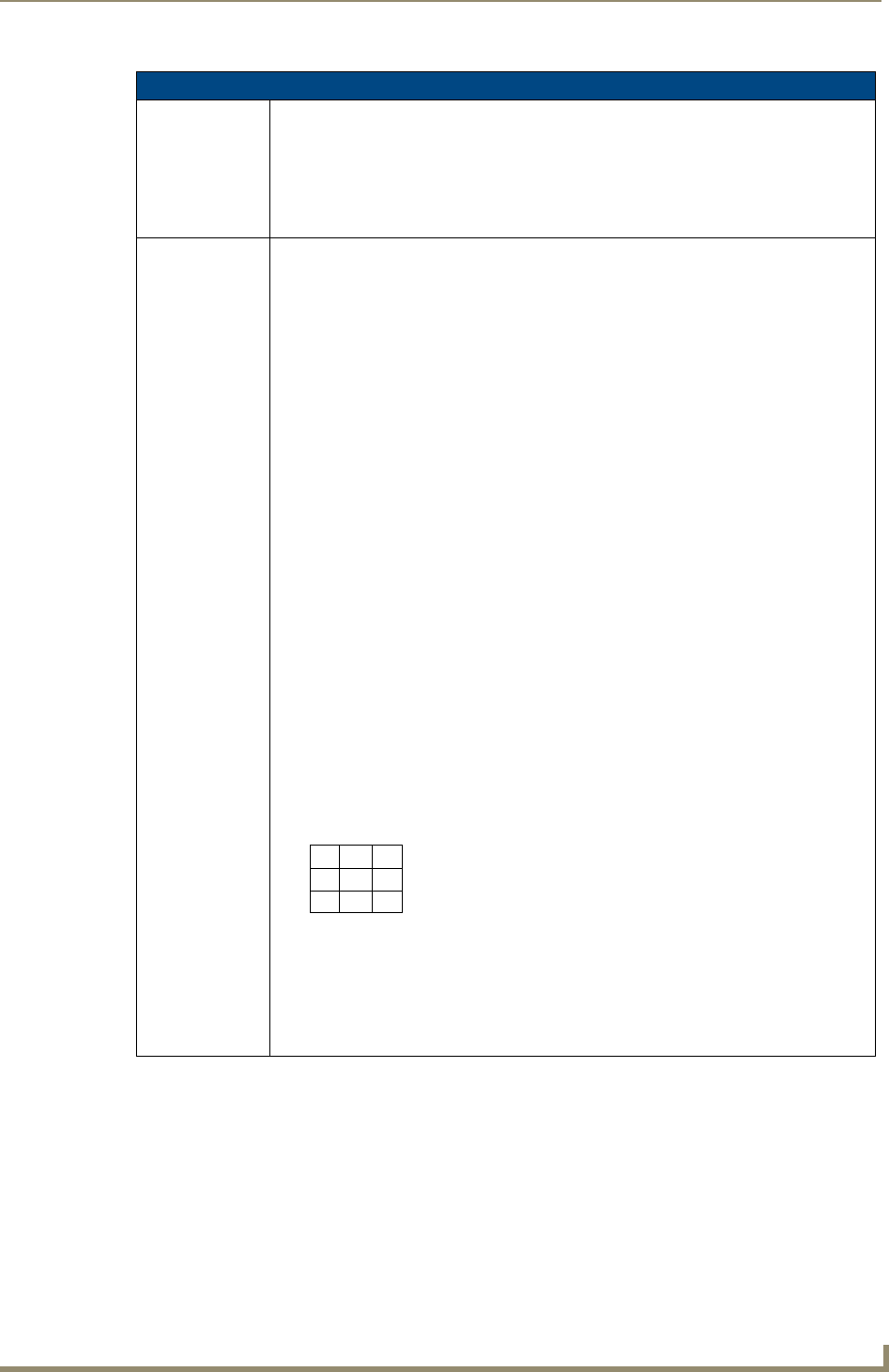
"^" Button Commands (Cont.)
^BMC (Cont.) Example 2:
SEND_COMMAND Panel,"'^BMC-150,1,1,315,1,%BR%FT%TX%BM%IC%CF%CT'"
Copies the OFF state border, font, Text, bitmap, icon, fill color and text color of the button
with a variable text address of 315 onto the OFF state border, font, Text, bitmap, icon, fill
color and text color of the button with a variable text address of 150.
^BMF
Set any/all button
parameters by
sending
embedded codes
and data.
Syntax:
"'^BMF-<vt addr range>,<button states range>,<data>'"
Variables:
variable text address char array = 1 - 4000.
button states range = 1 - 256 for multi-state buttons (0 = All states, for General buttons
1 = Off state and 2 = On state).
level range = 1 - 600 (level value is 1 - 65535).
data:
’%B<border style>’ = Set the border style name. See theBorder Styles and Programming
Numbers table on page 110.
’%B’,<border 0-27,40,41> = Set the borer style number. See theBorder Styles and
Programming Numbers table on page 110.
’%DO<1-5><1-5><1-5><1-5><1-5> = Set the draw order. Listed from bottom to top.
Refer to the ^BDO command on
page 115 for more information.
’%F’,<font 1-8,10,11,20-29,32-xx> = Set the font. See theDefault Font Styles and ID
Numbers table on page 109.
’%F<font 01-08,10,11,20-29,32-xx>’ = Set the font. See theDefault Font Styles and ID
Numbers table on page 109.
’%MI<mask image>’ = Set the mask image. Refer to the ^BMI command on page 119 for
more information.
’%T<text >’ = Set the text using ASCII characters (empty is clear).
’%P<bitmap>’ = Set the picture/bitmap filename (empty is clear).
’%I’,<icon 01-9900, 0-clear>’ = Set the icon using values of 01 - 9900 (icon numbers are
assigned in the TPDesign4 Resource Manager tab - Slots section).
’%I<icon 01-9900, 0-clear>’ = Set the icon using values of 01 - 9900 (icon numbers are
assigned in the TPDesign4 Resource Manager tab - Slots section).
’%J’,<alignment of text 1-9> = As shown the following telephone keypad alignment chart:
’%JT<alignment of text 0-9>’ = As shown the above telephone keypad alignment chart,
BUT the 0 (zero) is absolute and followed by ’,<left>,<top>’
’%JB<alignment of bitmap/picture 0-9>’ = As shown the above telephone keypad
alignment chart BUT the 0 (zero) is absolute and followed by ’,<left>,<top>’
’%JI<alignment of icon 0-9>’ = As shown the above telephone keypad alignment chart,
BUT the 0 (zero) is absolute and followed by ’,<left>,<top>’
1
4
7
8
9
6
3
2
5
0
Zero can be used for an absolute position