
Wireless Touch Panel with Intercom Reference Guide
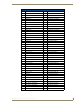
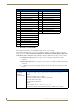
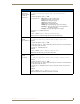
Table Of Contents
- MVP-8400iModero® ViewPoint® Wireless Touch Panel with Intercom
- MVP-8400i Modero Viewpoint Wireless Touch Panel With Intercom
- MVP-BP Power Pack
- NXA-CFSP Compact Flash
- Wireless Interface Cards
- Configuring Communications
- Modero Setup and System Settings
- Wireless Settings Page - Wireless Access Overview
- Configuring a Wireless Network Access
- Step 1: Configure the Panel’s Wireless IP Settings
- Step 2: Configure the Card’s Wireless Security Settings
- Step 3: Choose a Master Connection Mode
- Using G4 Web Control to Interact with a G4 Panel
- Using your NetLinx Master to control the G4 panel
- Upgrading MVP Firmware
- Setup Pages
- Navigation Buttons
- Setup Pages
- Information
- Protected Setup Pages
- Protected Setup Navigation Buttons
- G4 Web Control Page
- Calibration Page
- Wireless Settings Page
- Wireless Security Page
- Open (Clear Text) Settings
- Static WEP Settings
- WPA-PSK Settings
- EAP-LEAP Settings
- EAP-FAST Settings
- EAP-PEAP Settings
- EAP-TTLS Settings
- EAP-TLS Settings
- Client certificate configuration
- System Settings Page
- Other Settings
- Tools
- Programming
- Panel Calibration
- Appendix A: Text Formatting
- Appendix B - Wireless Technology
- Appendix C: Troubleshooting
- Checking AMX USBLAN device connections via Windows Device Manager
- Checking AMX USBLAN device connections via NetLinx Studio
- USB Driver
- Panel Not in Listed As a Connected Device
- Connection Status
- Panel Doesn’t Respond To Touches
- Batteries Will Not Hold Or Take A Charge
- Modero Panel Isn’t Appearing In The Online Tree Tab
- MVP Can’t Obtain a DHCP Address
- My WEP Doesn’t Seem To Be Working
- NetLinx Studio Only Detects One Of My Connected Masters
- Can’t Connect To a NetLinx Master
- Only One Modero Panel In My System Shows Up
- Panel Behaves Strangely After Downloading A Panel File Or Firmware
- Panel Fails to Charge in MVP-WDS
Programming
112
MVP-8400i Modero Viewpoint Wireless Touch Panels
"^" Button Commands
These Button Commands are used in NetLinx Studio and are case insensitive.
All commands that begin with "^" have the capability of assigning a variable text address range and
button state range. A device must first be defined in the NetLinx programming language with values
for the Device: Port : System (in all programming examples - Panel is used in place of these values).
Variable text ranges allow you to target 1 or more variable text channels in a single
command.
Button State ranges allow you to target 1 or more states of a variable text button with a single
command.
"." Character is used for the 'through' notation, also the "&" character is used for the 'And'
notation.
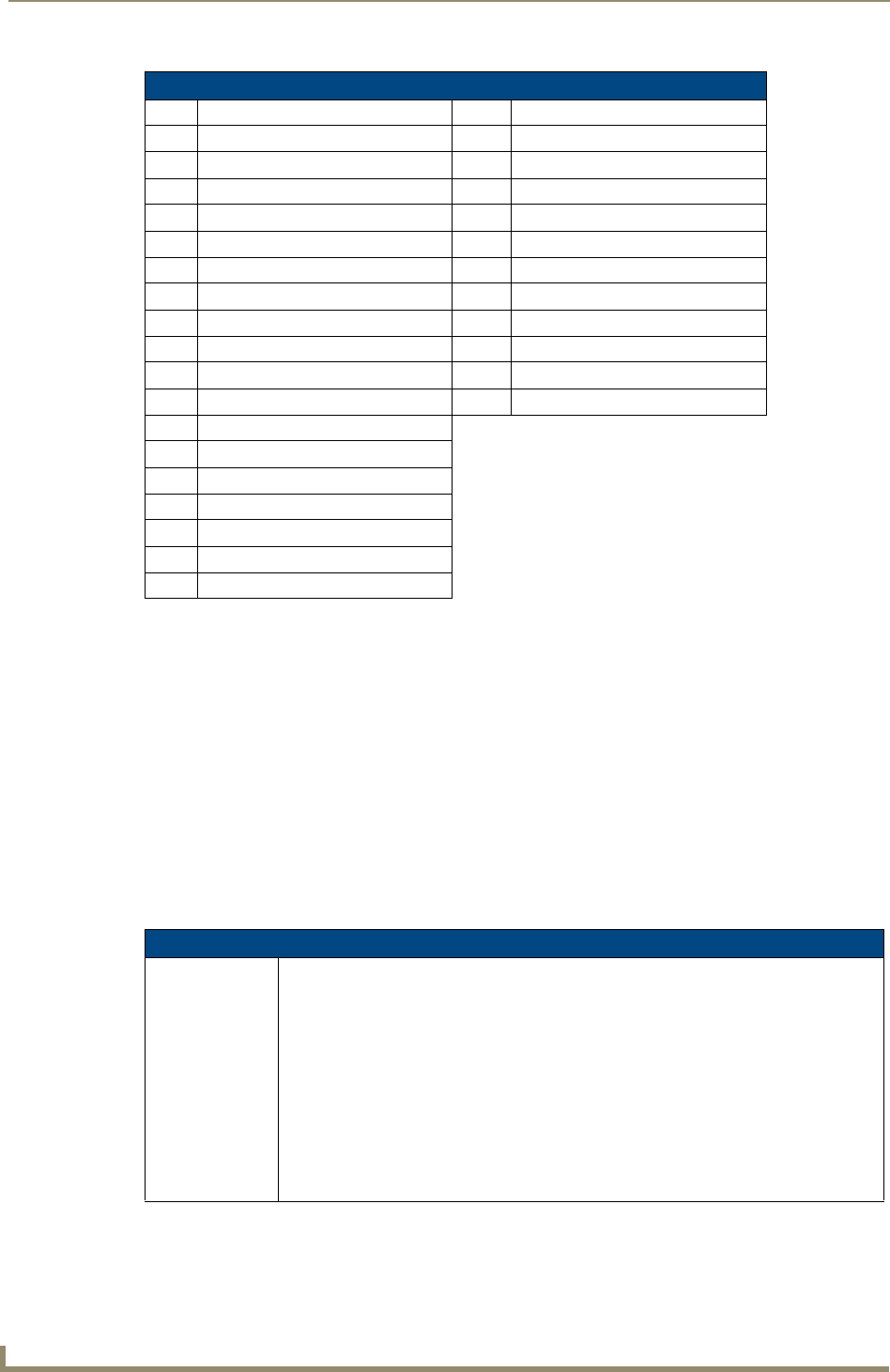
TPD4 Border Styles by Name (Cont.)
No. Border styles No. Border styles
127 Menu Right Rounded 105 145 Menu Left Rounded 95
128 Menu Right Rounded 115 146 Menu Left Rounded 105
129 Menu Right Rounded 125 147 Menu Left Rounded 115
130 Menu Right Rounded 135 148 Menu Left Rounded 125
131 Menu Right Rounded 145 149 Menu Left Rounded 135
132 Menu Right Rounded 155 150 Menu Left Rounded 145
133 Menu Right Rounded 165 151 Menu Left Rounded 155
134 Menu Right Rounded 175 152 Menu Left Rounded 165
135 Menu Right Rounded 185 153 Menu Left Rounded 175
136 Menu Right Rounded 195 154 Menu Left Rounded 185
137 Menu Left Rounded 15 155 Menu Left Rounded 195
138 Menu Left Rounded 25
139 Menu Left Rounded 35
140 Menu Left Rounded 45
141 Menu Left Rounded 55
142 Menu Left Rounded 65
143 Menu Left Rounded 75
144 Menu Left Rounded 85
"^" Button Commands
^ANI
Run a button
animation
(in 1/10 second).
Syntax:
"'^ANI-<vt addr range>,<start state>,<end state>,<time>'"
Variable:
variable text address range = 1 - 4000.
start state = Beginning of button state (0= current state).
end state = End of button state.
time = In 1/10 second intervals.
Example:
SEND_COMMAND Panel,"'^ANI-500,1,25,100'"
Runs a button animation at text range 500 from state 1 to state 25 for 10 second.