
Wireless Touch Panel with Intercom Reference Guide
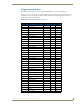
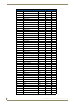
Table Of Contents
- MVP-8400iModero® ViewPoint® Wireless Touch Panel with Intercom
- MVP-8400i Modero Viewpoint Wireless Touch Panel With Intercom
- MVP-BP Power Pack
- NXA-CFSP Compact Flash
- Wireless Interface Cards
- Configuring Communications
- Modero Setup and System Settings
- Wireless Settings Page - Wireless Access Overview
- Configuring a Wireless Network Access
- Step 1: Configure the Panel’s Wireless IP Settings
- Step 2: Configure the Card’s Wireless Security Settings
- Step 3: Choose a Master Connection Mode
- Using G4 Web Control to Interact with a G4 Panel
- Using your NetLinx Master to control the G4 panel
- Upgrading MVP Firmware
- Setup Pages
- Navigation Buttons
- Setup Pages
- Information
- Protected Setup Pages
- Protected Setup Navigation Buttons
- G4 Web Control Page
- Calibration Page
- Wireless Settings Page
- Wireless Security Page
- Open (Clear Text) Settings
- Static WEP Settings
- WPA-PSK Settings
- EAP-LEAP Settings
- EAP-FAST Settings
- EAP-PEAP Settings
- EAP-TTLS Settings
- EAP-TLS Settings
- Client certificate configuration
- System Settings Page
- Other Settings
- Tools
- Programming
- Panel Calibration
- Appendix A: Text Formatting
- Appendix B - Wireless Technology
- Appendix C: Troubleshooting
- Checking AMX USBLAN device connections via Windows Device Manager
- Checking AMX USBLAN device connections via NetLinx Studio
- USB Driver
- Panel Not in Listed As a Connected Device
- Connection Status
- Panel Doesn’t Respond To Touches
- Batteries Will Not Hold Or Take A Charge
- Modero Panel Isn’t Appearing In The Online Tree Tab
- MVP Can’t Obtain a DHCP Address
- My WEP Doesn’t Seem To Be Working
- NetLinx Studio Only Detects One Of My Connected Masters
- Can’t Connect To a NetLinx Master
- Only One Modero Panel In My System Shows Up
- Panel Behaves Strangely After Downloading A Panel File Or Firmware
- Panel Fails to Charge in MVP-WDS
Programming
110
MVP-8400i Modero Viewpoint Wireless Touch Panels
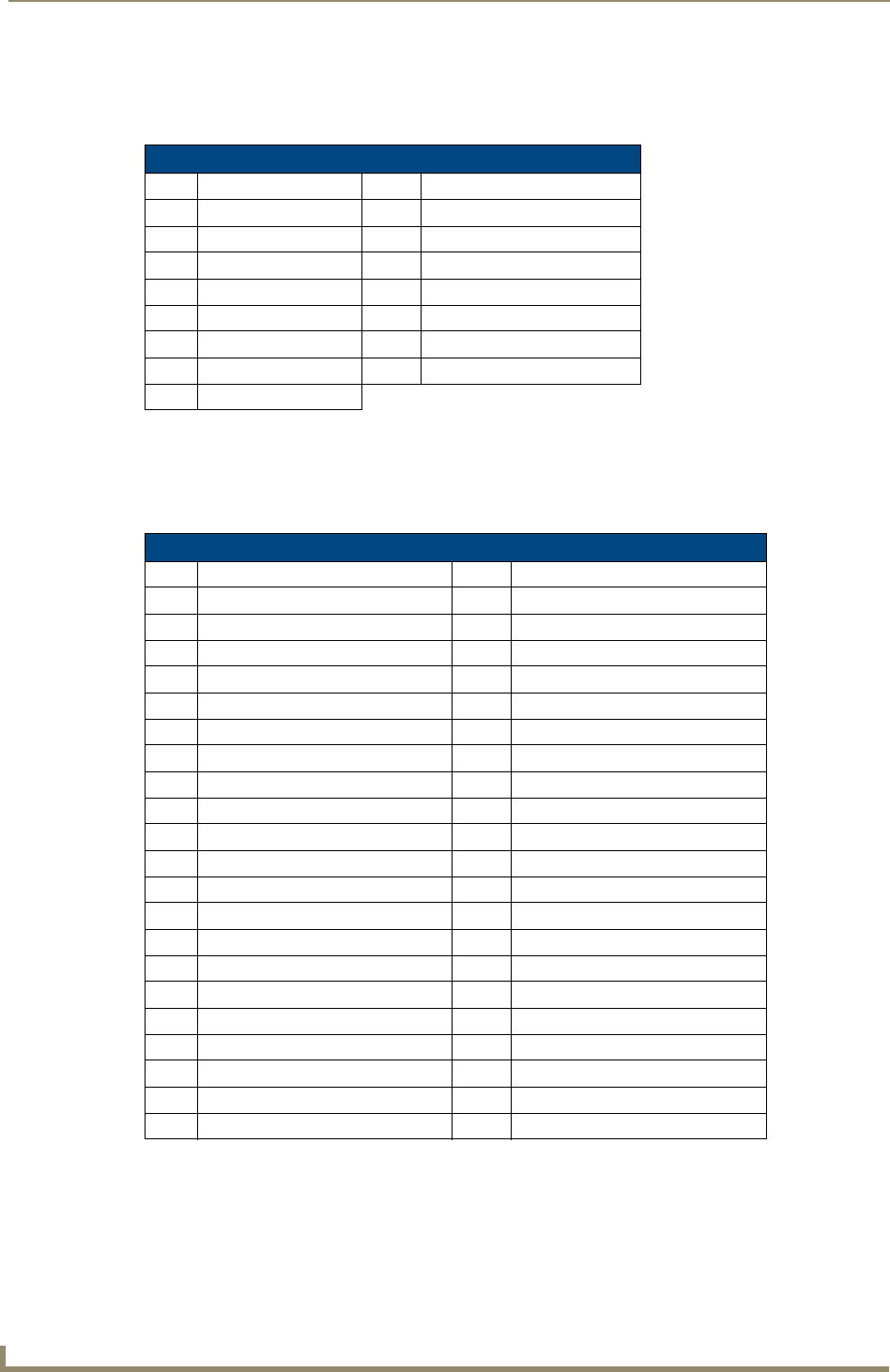
Border styles and Programming numbers
Border styles can be used to program borders on buttons, sliders, and popup pages.
The TPDesign4 Touch Panel Design program has pre-set border styles that are user selectable.
You cannot use the following number values for programming purposes when changing border styles.
TPD4 border styles can ONLY be changed by using the name.
Border Styles and Programming Numbers
No. Border styles No. Border styles
0-1 No border 10-11 Picture frame
2 Single line 12 Double line
3 Double line 20 Bevel-S
4 Quad line 21 Bevel-M
5-6 Circle 15 22-23 Circle 15
7 Single line 24-27 Neon inactive-S
8 Double line 40-41 Diamond 55
9 Quad line
TPD4 Border Styles by Name
No. Border styles No. Border styles
1 None 22 Circle 155
2 AMX Elite -L 23 Circle 165
3 AMX Elite -M 24 Circle 175
4 AMX Elite -S 25 Circle 185
5 Bevel -L 26 Circle 195
6 Bevel -M 27 Cursor Bottom
7 Bevel -S 28 Cursor Bottom with Hole
8 Circle 15 29 Cursor Top
9 Circle 25 30 Cursor Top with Hole
10 Circle 35 31 Cursor Left
11 Circle 45 32 Cursor Left with Hole
12 Circle 55 33 Cursor Right
13 Circle 65 34 Cursor Right with Hole
14 Circle 75 35 Custom Frame
15 Circle 85 36 Diamond 15
16 Circle 95 37 Diamond 25
17 Circle 105 38 Diamond 35
18 Circle 115 39 Diamond 45
19 Circle 125 40 Diamond 55
20 Circle 135 41 Diamond 65
21 Circle 145 42 Diamond 75