
Wireless Touch Panel with Intercom Reference Guide
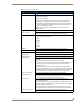
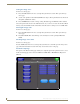
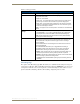
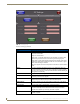
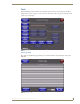
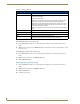
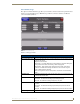
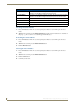
Table Of Contents
- MVP-8400iModero® ViewPoint® Wireless Touch Panel with Intercom
- MVP-8400i Modero Viewpoint Wireless Touch Panel With Intercom
- MVP-BP Power Pack
- NXA-CFSP Compact Flash
- Wireless Interface Cards
- Configuring Communications
- Modero Setup and System Settings
- Wireless Settings Page - Wireless Access Overview
- Configuring a Wireless Network Access
- Step 1: Configure the Panel’s Wireless IP Settings
- Step 2: Configure the Card’s Wireless Security Settings
- Step 3: Choose a Master Connection Mode
- Using G4 Web Control to Interact with a G4 Panel
- Using your NetLinx Master to control the G4 panel
- Upgrading MVP Firmware
- Setup Pages
- Navigation Buttons
- Setup Pages
- Information
- Protected Setup Pages
- Protected Setup Navigation Buttons
- G4 Web Control Page
- Calibration Page
- Wireless Settings Page
- Wireless Security Page
- Open (Clear Text) Settings
- Static WEP Settings
- WPA-PSK Settings
- EAP-LEAP Settings
- EAP-FAST Settings
- EAP-PEAP Settings
- EAP-TTLS Settings
- EAP-TLS Settings
- Client certificate configuration
- System Settings Page
- Other Settings
- Tools
- Programming
- Panel Calibration
- Appendix A: Text Formatting
- Appendix B - Wireless Technology
- Appendix C: Troubleshooting
- Checking AMX USBLAN device connections via Windows Device Manager
- Checking AMX USBLAN device connections via NetLinx Studio
- USB Driver
- Panel Not in Listed As a Connected Device
- Connection Status
- Panel Doesn’t Respond To Touches
- Batteries Will Not Hold Or Take A Charge
- Modero Panel Isn’t Appearing In The Online Tree Tab
- MVP Can’t Obtain a DHCP Address
- My WEP Doesn’t Seem To Be Working
- NetLinx Studio Only Detects One Of My Connected Masters
- Can’t Connect To a NetLinx Master
- Only One Modero Panel In My System Shows Up
- Panel Behaves Strangely After Downloading A Panel File Or Firmware
- Panel Fails to Charge in MVP-WDS
Setup Pages
100
MVP-8400i Modero Viewpoint Wireless Touch Panels
Using the Connection Utility
1. Press the Tools button in the Protected Setup Navigation Buttons section. This opens the Tools
menu.
2. Within the Tools menu, press the Connection Utility button. This launches the Connection Utility
popup.
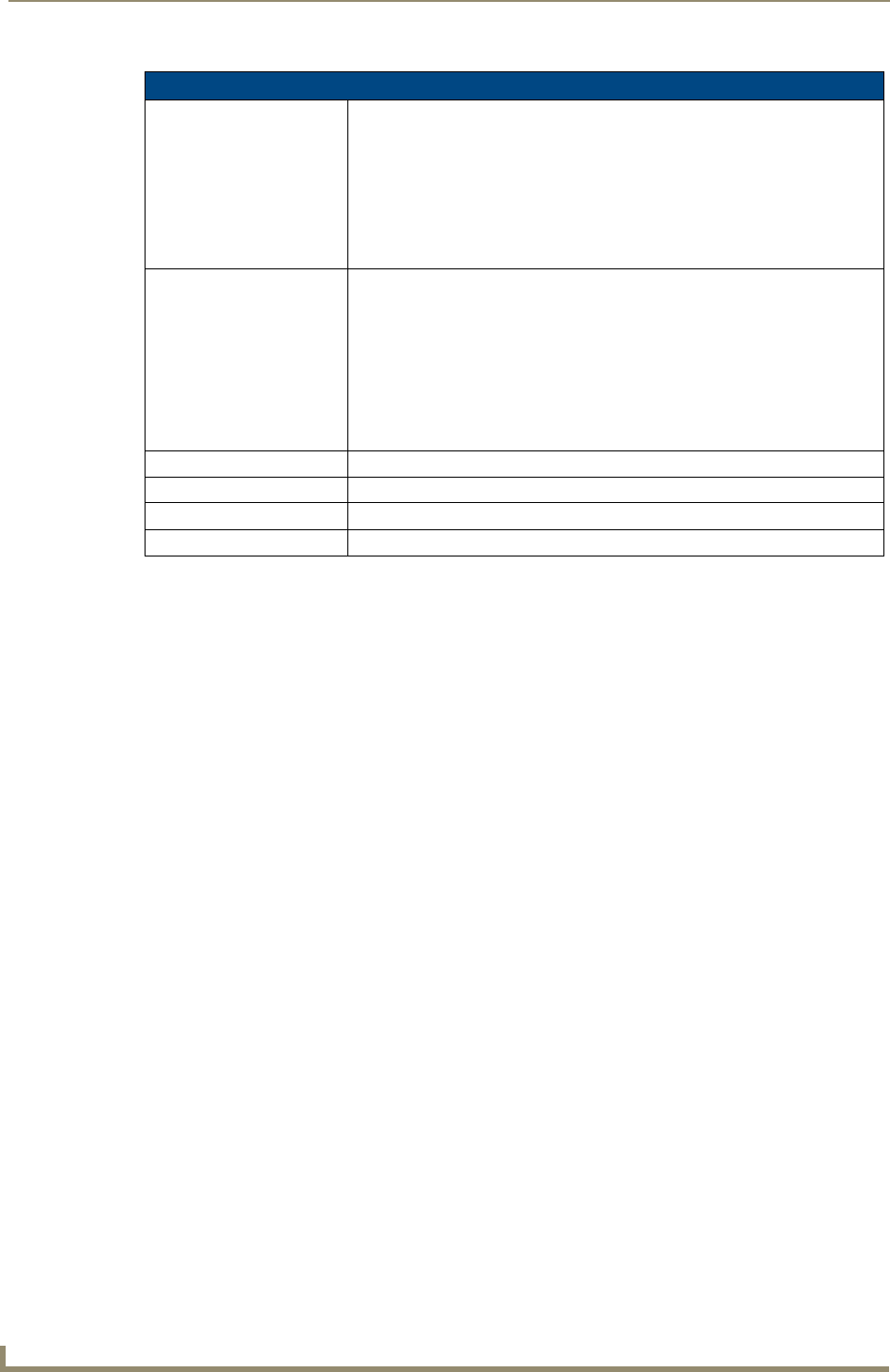
3. Move the panel throughout your wireless network, and changes within the utility. The Connection
Information notes the IP of the connected master and the IP of your panel. The Wireless Information
indicates the current wireless connection method for the panel, e.g., the MAC Address for the WAP
currently in use. The Connection Statistics show the current quality of the panel connection.
4. Push Close when you are done using the site survey tool.
Connection Utility Page (Cont.)
Link Quality Displays the quality of the link from the wireless NIC to the Wireless Access
Point (direct sequence spread spectrum) in real time (None, Poor, Fair, Good,
Very Good, and Excellent).
• Even when link quality is at its lowest you still have a connection, and the
ability to transmit and receive data, even if at lower speeds.
Note: “Link Quality” and “Signal Strength” are applicable to RF connections
only. It is possible to have an RF signal to a WAP, but be unable to communi
-
cate with it because of either incorrect IP or encryption settings.
Signal Strength This indicator displays a description of the signal strength from the Wireless
Access Point connection in real time (None, Poor, Fair, Good, Very Good, and
Excellent).
SNR (Signal Noise Ratio) is a measure of the relative strength of a wireless RF
connection. Given this value and the link quality above, you can determine the
noise level component of the SNR. For example, if signal strength is high but
the link quality is low, then the cause of the link degradation is noise. However,
if signal strength is low and link quality is low the cause would simply be signal
strength.
Connection Statistics
Query Messages Sent The number of messages sent from the panel to the master.
Responses Received The number of responses the panel has received from the master.
Responses Missed The number of expected responses from the master to the panel missed.