
Wireless Touch Panel with Intercom Reference Guide
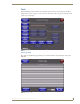
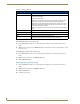
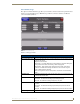
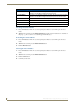
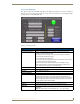
Table Of Contents
- MVP-8400iModero® ViewPoint® Wireless Touch Panel with Intercom
- MVP-8400i Modero Viewpoint Wireless Touch Panel With Intercom
- MVP-BP Power Pack
- NXA-CFSP Compact Flash
- Wireless Interface Cards
- Configuring Communications
- Modero Setup and System Settings
- Wireless Settings Page - Wireless Access Overview
- Configuring a Wireless Network Access
- Step 1: Configure the Panel’s Wireless IP Settings
- Step 2: Configure the Card’s Wireless Security Settings
- Step 3: Choose a Master Connection Mode
- Using G4 Web Control to Interact with a G4 Panel
- Using your NetLinx Master to control the G4 panel
- Upgrading MVP Firmware
- Setup Pages
- Navigation Buttons
- Setup Pages
- Information
- Protected Setup Pages
- Protected Setup Navigation Buttons
- G4 Web Control Page
- Calibration Page
- Wireless Settings Page
- Wireless Security Page
- Open (Clear Text) Settings
- Static WEP Settings
- WPA-PSK Settings
- EAP-LEAP Settings
- EAP-FAST Settings
- EAP-PEAP Settings
- EAP-TTLS Settings
- EAP-TLS Settings
- Client certificate configuration
- System Settings Page
- Other Settings
- Tools
- Programming
- Panel Calibration
- Appendix A: Text Formatting
- Appendix B - Wireless Technology
- Appendix C: Troubleshooting
- Checking AMX USBLAN device connections via Windows Device Manager
- Checking AMX USBLAN device connections via NetLinx Studio
- USB Driver
- Panel Not in Listed As a Connected Device
- Connection Status
- Panel Doesn’t Respond To Touches
- Batteries Will Not Hold Or Take A Charge
- Modero Panel Isn’t Appearing In The Online Tree Tab
- MVP Can’t Obtain a DHCP Address
- My WEP Doesn’t Seem To Be Working
- NetLinx Studio Only Detects One Of My Connected Masters
- Can’t Connect To a NetLinx Master
- Only One Modero Panel In My System Shows Up
- Panel Behaves Strangely After Downloading A Panel File Or Firmware
- Panel Fails to Charge in MVP-WDS
Setup Pages
91
MVP-8400i Modero Viewpoint Wireless Touch Panels
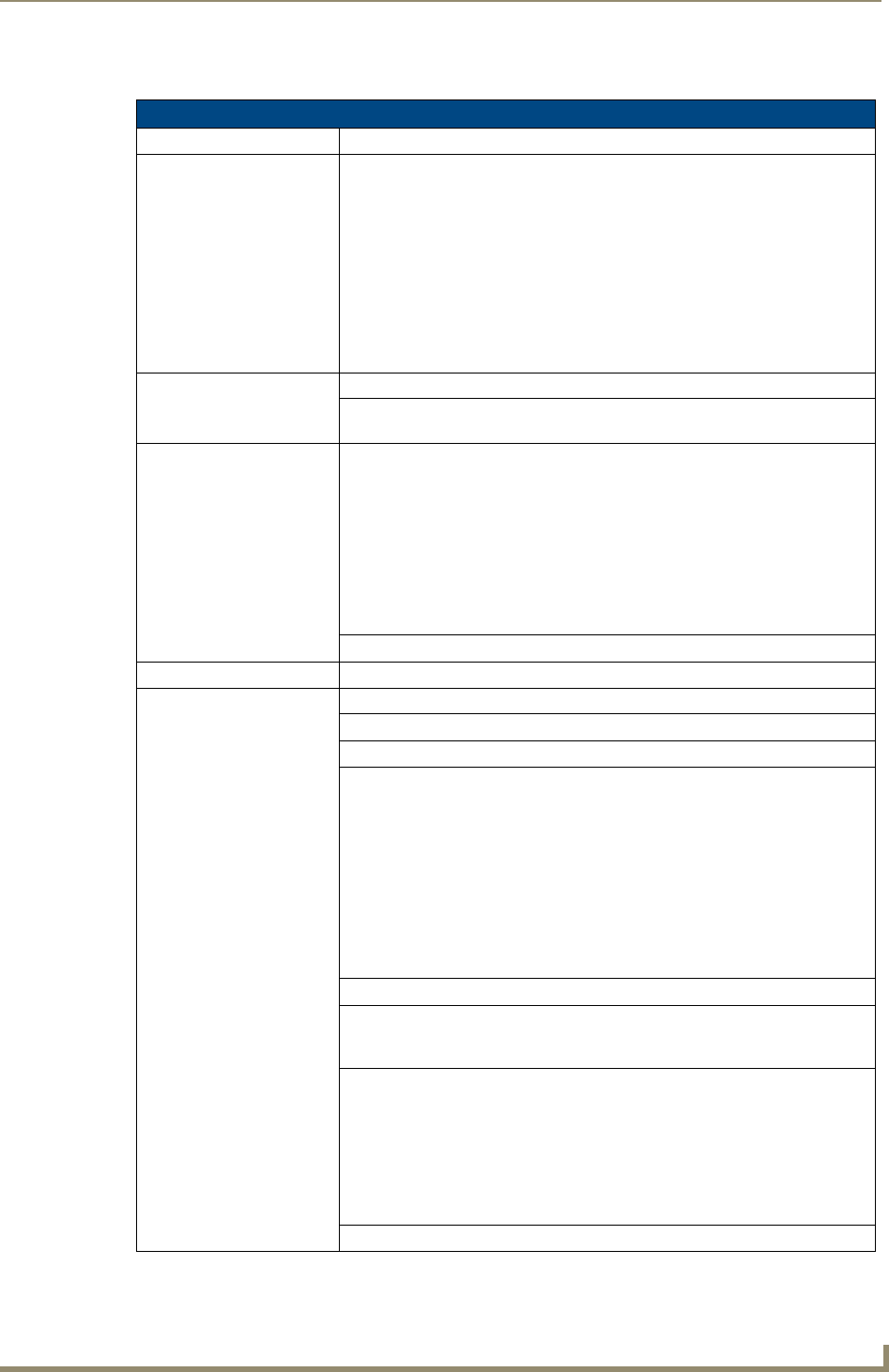
The elements of this page include:
Image Caching Page Elements
Back: Saves all changes and returns to the previous page.
Connection Status icon: The icon in the upper-right corner of each Setup page shows online/offline state
of the panel to the master.
• Bright red - disconnected
• Bright green - connected. Blinks when a blink message is received to dark
green every 5 seconds for half a second then go back to bright green.
• Bright yellow - panel missed a blink message from the master. It will remain
yellow for 3 missed blink messages and then turn red. It will return to green
when a blink message is received.
Note: A Lock appears on the icon if the panel is connected to a secured
NetLinx Master.
Image Cache Settings: Allocates Flash memory for image caching.
Flash Cache Size Press the Up and Down arrows to add and remove memory. Flash memory
allocation cannot exceed the amount of Flash memory on the panel.
Flash/RAM Cache Expires Press the Up and Down arrows to change the amount of time the images stay
in cache memory. The options are:
• Never
• 2 Hours
• 8 Hours
•1 Day
•2 Days
•5 Days
Enable: Press this button to toggle the image Flash cache option On and Off.
Clear Cache: Press this button to clear both the Flash and RAM cache of all stored images.
Image Cache Status: The status of the memory available versus in use.
RAM Max Size The maximum amount of memory available for all image caching.
RAM Current Size The memory that is currently in use for caching static and dynamic images.
RAM Hit Rate The percentage of image requests (static and dynamic) satisfied by accessing
the cache.
100 * (# of cache hits) / (# of cache hits + # of cache misses)
# of cache hits - the number of times an image was requested that the image
was found in the cache. If your hit rate is low, you may want to consider
enabling Flash cache.
# of cache misses - the number of times an image was requested that the
image could not be found in the cache, and the image had to either be loaded
from flash or obtained via the network (for dynamic images). It is considered a
RAM Cache Miss even if the image is subsequently found in flash cache.
Items in Cache (RAM) The number of images that are currently stored in the RAM cache.
Flash Current Size The maximum flash space allocated for image caching. Flash space is used for
caching only when there is not enough available memory in the RAM cache for
a newly requested image (it is used only for dynamic images).
Flash Hit Rate The percentage of image requests (dynamic only) that are satisfied by
accessing the flash cache.
100 * (# of flash cache hits) / (# of flash cache hits + # of flash cache misses)
# of flash cache hits - # of times a dynamic image could not be found in RAM
cache but was found in flash cache
# of flash cache misses - # of times a dynamic image could not be found in
either RAM or flash cache. RAM cache hits are not relevant in this calculation.
Items in Cache (Flash) The number of images that are currently stored in the Flash cache.