
Technical data


SPEEDDOME ULTRA 8 CONFIGURATION UTILITY 8200-0600-01, REV. C
OPERATOR’S GUIDE
10 of 138
Entering the Dome's Password
A dome password can be used to prevent unauthorized users from starting the configuration
utility. If password protection is enabled, the Enter Password screen appears when the
command to start the configuration utility is entered.
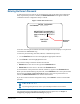
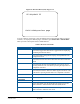
Figure 2. Enter Password screen
Users must enter the password before the Dome Configuration Menu displays. The password
can be from 1 to 8 characters long.
To enter the password using SensorNet, RS-422, or Manchester protocols:
1. Use the Pan/Tilt control to move the highlight the appropriate character.
2. Press Focus to enter the highlighted character.
If you need to change a character that has been entered:
• Zoom In moves the cursor to the right in the Password field.
• Zoom Out moves the cursor to the left in the Password field.
As each character in the password is selected, asterisks (*) appear in the Password field.
When you have finished entering the password, select Continue. If the correct password has
been entered, the Dome Configuration Menu appears. If the correct password was not
entered, the Enter Password screen remains on the monitor.
If you do not want to start the configuration utility, select Cancel to return to normal dome
operation.
IMPORTANT
If you forget the password, contact your Sales Representative for assistance.
For information about programming and enabling password protection, see Chapter 6:
Configuring Language and Password Settings on page
82.
ENTER PASSWORD
PASSWORD: ********
ABCDEFGHIJKLMNOPQRST
UVWXYZabcdefghijklmn
opqrstuvwxyz 0123456
789/-
CONTINUE
CANCEL
Blank Space
Character