
User`s guide



MULTITASKER
400-0089-005
8
INSTALLING YOUR 103-103/108 6
Step 1. Turn off power to the MultiTasker system
and disconnect from AC power.
Step 2. Remove an unused slot cover
(MT200-101) from the enclosure.
Step 3. Slide the MT103-103/108 into an available
slot in the MultiTasker enclosure in order
to connect to the bus. Make sure that the
card fits into place. Secure the card to the
MultiTasker by tightening the retainer
screws located on the top and bottom of
the card.
Step 4. Identify the slot number and note that it is
for RS-232 control.
Step 5. Restore power to the MultiTasker system.
NOTE: The power LED should be on
and red.
Step 6. The LED on the card panel will turn red
indicating that the card is in full operation.
A green LED indicates that a signal is
present.
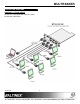
Step 7. Connect a VGA cable from the video
source to the input connector of the
MT103-103/108. Connect the output
connectors of the MT103-103/108 to the
display devices through VGA cables.
Step 8. The MT103-103/108 is now operational.
Step 9. See the RS-232 Control commands in the
next section to use the on/off features of
the MT103-103.
OPERATION 7
7.1 RS-232 CONTROL
The MT103-103/108 has many advanced
remote-control capabilities accessible through
standard RS-232 communication. Control may be
accomplished through a computer, control system,
or any device capable of RS-232 communication.
7.1.1 RS-232 INTERFACE
The control commands for the MT103-103/108,
are in a simple ASCII character format.
1. Square brackets “[ ]” are part of the
command.
2. Use uppercase letters for all commands.
3. Spaces are not legal characters.
The cards in a MultiTasker are capable of
performing various functions, as well as
providing feedback to the user or control
system. Commands instruct a card to perform
specific actions or request information from the
card. Some commands do both simultaneously.
A command that instructs the card only to
perform an action will generate feedback of “[ ]”.
The open bracket immediately followed by a
closed bracket indicates the card received a
valid command. If the command requested
information from the card, the feedback
generated by the card is the acknowledgement
of having received a valid command. Invalid
commands generate feedback that includes
“ERR” plus an error code.
Example 1: [ERR001] Error number
Example 2: [ERRC04] Card error C4
After processing a command, an “OK” or error
will be returned as feedback if “F” is included at
the end of a command string.
Commands ending in “S” will be saved into
memory. Commands not ending in “S” will still
be executed, but will not be restored when the
system is reset or powered off, then on.