
User manual






User Manual of Hikvision iVMS-4200 v2.0
36
detection or alarm input will be displayed on the Search Result list.
Event Playback
After searching the recordings triggered by the event, you can play back the record files in the
following two ways:
Playback by File List
Select the record file from the search result list, and then click the icon in the toolbar,
or double-click the record file to play the video on the display window of playback.
Playback by Timeline
The timeline indicates the time duration for the record file. Click on the timeline to play back the
video of the specific time.
You can click or to scale up or scale down the timeline bar.
You can click or to go to the previous or the next time period.
You can use the mouse wheel to zoom in or zoom out on the timeline.
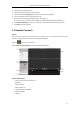
Event Playback Toolbar:
On the Remote Playback page, the following toolbar buttons are available:
Stop Playback
Stop the playback of all channels.
Pause/Start Playback
Pause/Start the playback of record files.
Single Frame
Play back the record files frame by frame.
Previous Event
Go to the playback of the previous event.
Next Event
Go to the playback of the next event.
Volume
Click to turn on/off the audio and adjust the audio volume.
Full Screen
Display the video playback in full screen mode. Press ESC to exit.
You can move the slider on the Playback Speed Bar to set the playback speed.
3.2.3 Synchronous Playback
Purpose:
In synchronous playback, the record files can be played back in synchronization.
Note: Record files from up to 16 cameras can be played back simultaneously.
Synchronous Playback for Some Searched Cameras
Steps:
1. Start the normal playback of the searched cameras.
2. Click in the toolbar, and then the record files in normal playback will be played in sync. The
icon turns to .
3. To disable the synchronous playback, click the icon .
Synchronous Playback for All Searched Cameras
Steps:
1. Search the record files for the normal playback.