
User manual






User Manual of Hikvision iVMS-4200 v2.0
34
3.2.1 Normal Playback
Purpose:
The record files can be searched by custom view, camera or triggering event for the Normal Playback.
Searching Record Files for Normal Playback
Steps:
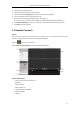
1. Open the Remote Playback page.
2. Click to expand the View List or Camera List on the left-side.
3. Select the view or camera to be searched from the list.
4. Select the day to be searched on the calendar.
You can also click to show more search options, and then click the icon to specify the
start time and end time for the search.
5. Click Search. The record files of the selected view or camera will be displayed on the Search
Result list. You can filter the results through the Filter text field.
Notes:
You can also search the record files by the card number (only applicable to ATM DVR) or by the
file type.
If there are record files for that camera in that day, in the calendar, the icon for that day is
displayed as . Otherwise it is displayed as .
Up to 16 cameras can be searched simultaneously.
Normal Playback
After searching the record files for the normal playback, you can play back the record files in the
following two ways:
Playback by File List
Select the record file from the search result list, and then click the icon in the toolbar,
or double-click the record file to play the video on the display window of playback.
Playback by Timeline
The timeline indicates the time duration for the record file, and the record files of different types
are color coded. Click on the timeline to play back the video of the specific time.
You can click or to scale up or scale down the timeline bar.