
User manual






User Manual of Hikvision iVMS-4200 v2.0
30
If Template 01-08 is selected from the drop-down list, start from step 1;
If Custom is selected from the drop-down list, start from step 2.
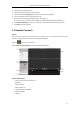
1. Click Edit to enter the Templates Management interface. Select the template to be set and you
can edit the template name.
2. Set the time schedule for the selected template.
refer to normal schedule record. The schedule time bar is greenyellow.
refers to the schedule record for the alarm input or motion detection event. The
schedule time bar is red.
refers to the schedule record triggered by command. The schedule time bar is
green.
Note: Record triggered by command is only available for the ATM transactions when the ATM DVR
is added to iVMS-4200.
When the cursor turns to , you can edit the schedule time bar.
When the cursor turns to , you can move the selected time bar you just edited.
When the cursor turns to , you can lengthen or shorten the selected time bar.
3. Optionally, you can select the schedule time bar,
and then click the icon to delete the selected time bar,
or click the icon to delete all the time bars,
or click the icon to copy the time bar settings to the other dates.
4. Click OK to save the settings.
You can click Save as Schedule Template on the Custom Schedule interface, and then the custom
template can be saved as template 01--08.
Note: Up to 8 time periods can be set for each day in the record schedule.