
User manual



User Manual of Hikvision iVMS-4200 v2.0
23
to start the manual recording. The icon turns to .
3. Click the icon to stop the manual recording.
A prompt box with the saving path of the video files you just recorded will pop up if all the
operations succeed.
Notes:
During the manual recording, an indicator appears in the upper-right corner of the display
window.
The saving path of video files can be set on the System Configuration interface. For details, see
Section 7.2.2 File Saving Path Settings.
Viewing Local Record Files
Steps:
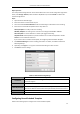
1. Click File->Open Video File to open the Record Files page.
2. Select the camera to be searched from the Camera Group list.
3. Click the icon to specify the start time and end time for the search.
4. Click Search. The video files recorded between the start time and end time will be displayed.
Select the video file, and click Delete. You can delete the video file.
Select the video file, and click Email Linkage. You can send an Email notification with the selected
video file attached.
Select the video file, and click Save as. You can save a new copy of the video file.
Note: To send an Email notification, the Email settings need to be configured before proceeding. For
details, see Section 7.2.5 Email Settings.
Double-click the video file and the video file can be played back locally.